Your first rename with Quick Rename
Quick Rename is the home screen of the app (the Quick rename tab) and the fastest way to rename a set of files: you add files, the AI reads them, and each one gets a new name based on the selected template. This guide walks the screen top to bottom, then follows a batch from drop to done.
The Quick Rename screen, line by line
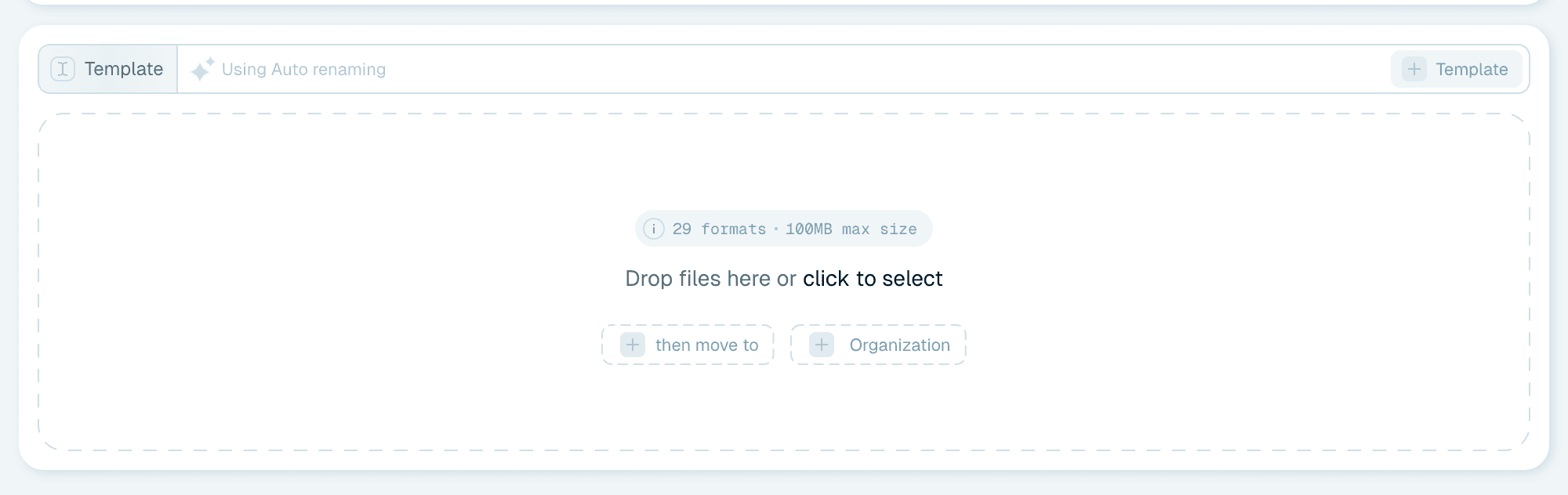
The left side of the screen stacks the controls as a short flow - read it top to bottom and you know exactly what will happen to the next files you drop:
The Template line
Shows which naming template will be used. On a fresh install it reads Using Auto renaming - the Auto template, where the AI composes a sensible name from each file's contents with zero setup.
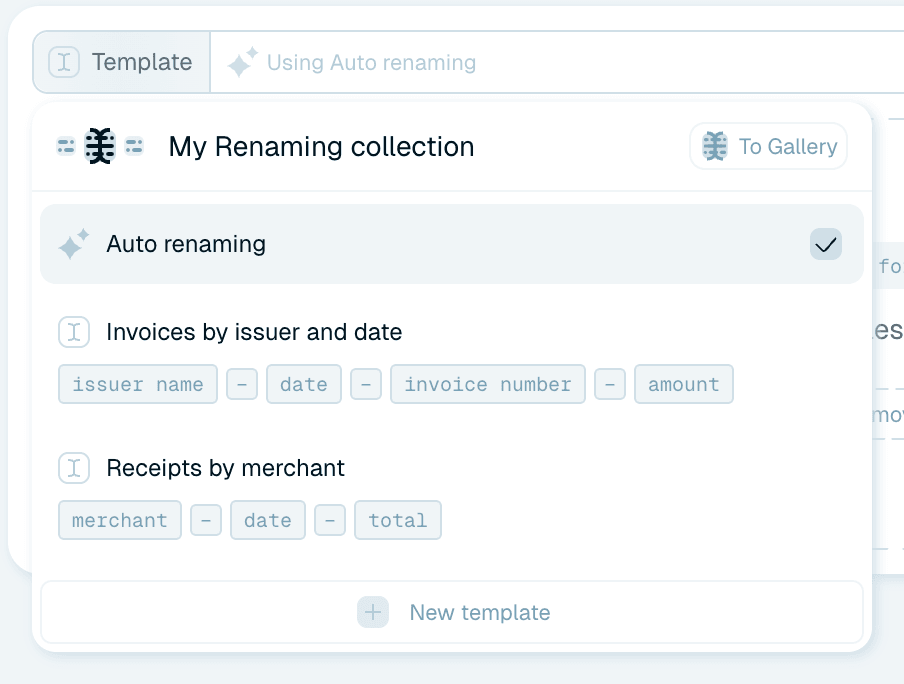
- Click the Template label to open the My Renaming collection dropdown: Auto renaming and your collection templates are listed with chip previews of their pattern (hover one for its Edit action), To Gallery jumps to the Templates tab, and New template opens the editor to build your own.
- Click the template's name itself to open that template straight in the editor.
- With a custom template selected, the × at the end of the line switches back to Auto renaming.
More in Choosing a template.
The Organization line
Optional, and only shown once you've picked an organization. To add one, click the dashed Organization button inside the drop zone: the organization editor opens, where the dropdown at the top (New structure) lets you pick an existing organization from your collection or build a new one, then Save organization.
From then on an Organization line appears under the Template line, showing the organization's name and its folder levels (or "All files in one folder, no subfolders" for an empty structure). Click the Organization label to switch via the My Organization collection dropdown (which also offers No folder structure), and use the × (Remove organization structure) to remove it again. See Organizing files into folders.

The Destination line
Optional. By default files are renamed in place. To move them somewhere else, click the dashed then move to button inside the drop zone ("Set a destination folder to which the files will be moved after renaming") and pick a folder. A Destination line then shows the path, with an × (Remove destination folder) to clear it. Renamed files are moved there - into the organization's subfolders, if one is selected. A folder watched by a Magic Folder can't be used as the destination.


The drop zone
The large dashed area: "Drop files here or click to select." Above it, a small badge shows how many formats are supported and the maximum size per file (e.g. 29 formats · 100MB max size) - hover it for the full list of extensions. Renamer.ai reads common document and image formats - PDFs, Office documents, photos and more.

Formatting settings
Language, date format, letter case, separators and connectors aren't set on this screen - they belong to the template. Open the template in the editor (click its name on the Template line) to change them. Details in Fine-tuning your file names.
Adding files
Three ways, all equivalent:
- Drag and drop files or folders anywhere onto the app window - it shows "Drop files or folders anywhere" while you drag.
- Click the drop zone and pick files in the system dialog.
- Pick or drop a whole folder to add its contents at once. Bigger folders ask for confirmation first (Process folder?).

Each file costs one credit from your monthly allowance - the credits indicator in the header always shows where you stand (how credits work).
Following the batch
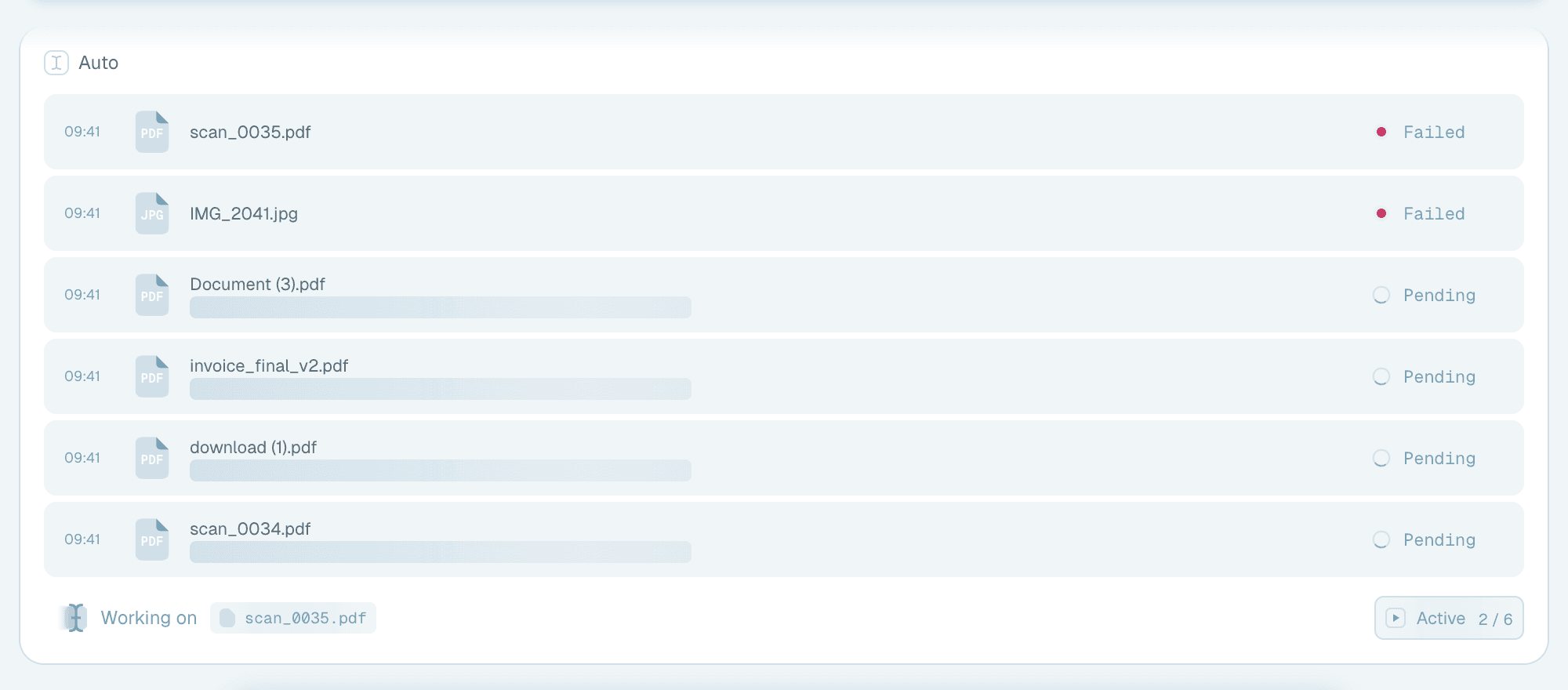
Your files appear as a batch card on the right, and this is where you watch the work happen:
- The card's header shows the template the batch uses.
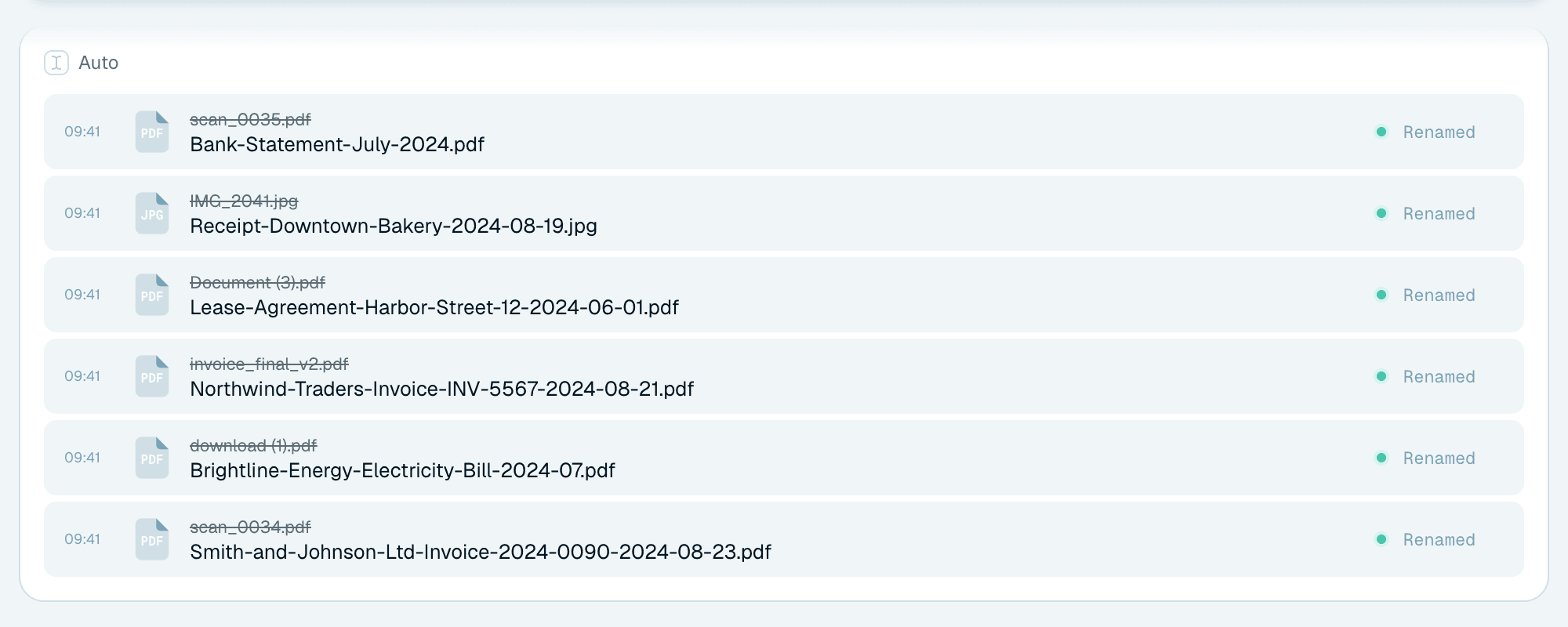
- Each file row shows the original name (struck through once renamed) and the new name filling in as soon as the AI has read the file.
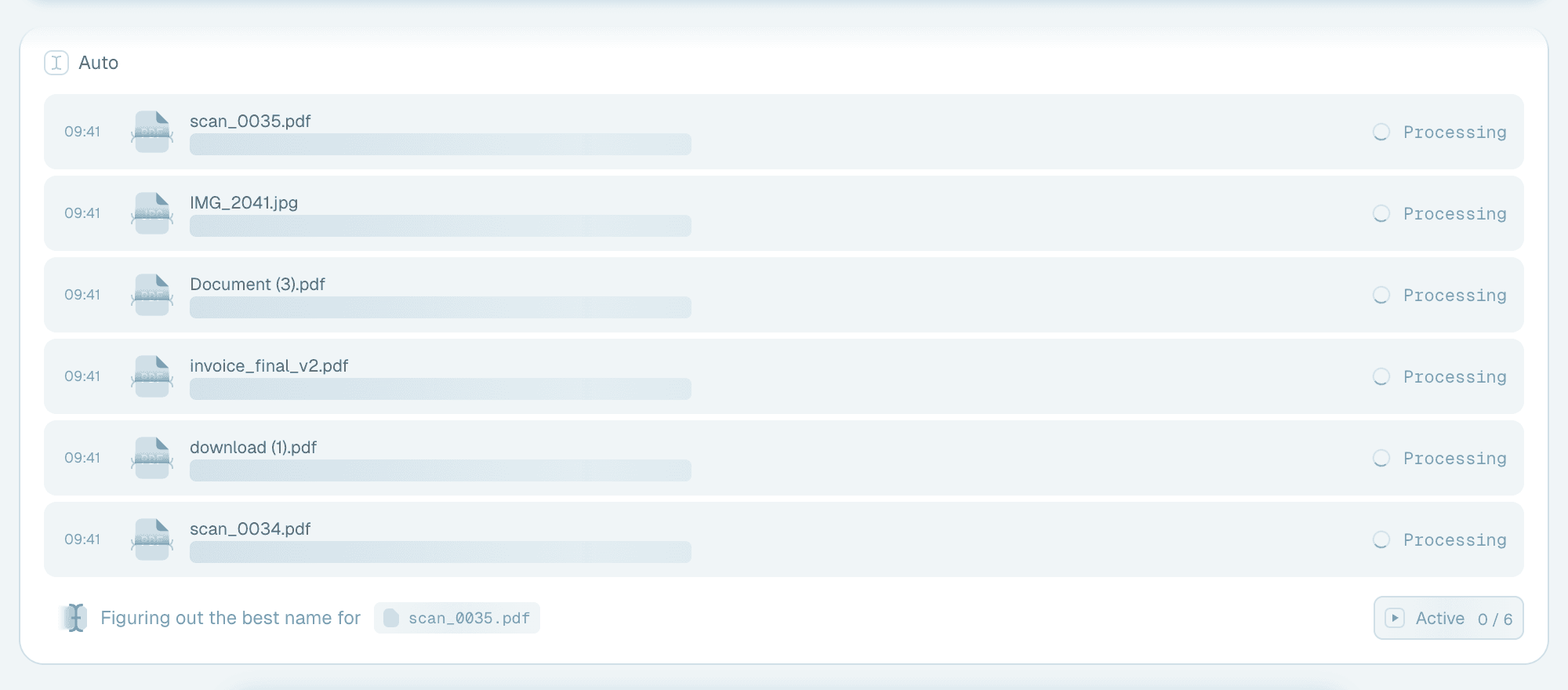
- The status on the right tells you where each file stands: Pending, Renaming, Renamed, Failed or Reverted.
- The footer shows whether the batch is Active or Paused with a count like 3 / 10, and the processing line narrates the file being worked on.
Two important things about how renaming behaves:
- Renames are real. The file is renamed on disk, in its original location (and moved, if you set a destination). There is no separate "apply" step for each file - the batch processes through.
- You stay in control. Click Pause on the batch card to stop processing - for instance to check the first few results before letting the rest run - and Start to continue.
A card lists the first 20 files. Show more loads the next ones, and for batches over 40 files Show all opens the batch's full-page view with every file and its status.
Fixing what you don't like
- Revert - hover the status of any renamed file and click Revert: the file immediately gets its original name back on disk. Reverts are per-file: keep the nine good names, undo the one you dislike.
- Retry - if a file couldn't be uploaded, or the final rename or move on disk failed (for example because the file was open elsewhere), its row offers Retry, which sends just that file through again. Files the AI couldn't process show Failed - hover it to see why.
- Later changes - every rename is recorded, so you can review your manual renames and revert them from Activity History even days afterwards.



When the names aren't what you wanted
If the suggested names are correct but shaped wrong (case, dates, separators), adjust the template's formatting settings - Fine-tuning your file names. If the names pull out the wrong information, the template is the lever: pick a more specific one, or build your own and tell the AI exactly what to extract.
Next step
Once you've renamed a few batches by hand and trust the results, let Renamer.ai do the work for you: set up a Magic Folder and new files will be renamed the moment they arrive. After you've renamed a good number of files by hand, the app may suggest this itself with a Renaming a lot of files? prompt - Try Magic Folder takes you there, Maybe later dismisses it, and Don't remind me turns it off.