Organizing files into folders
Renaming is half the story - Renamer.ai can also sort files into a folder structure in the same pass. That's the job of an organization template: where a naming template decides what a file is called, an organization template decides which folders it lives in.
What an organization template is
An organization template is a folder path built from levels, separated by /. Each level becomes one folder in the final path, and each level is its own small pattern - exactly like a filename pattern, but for a folder name: it can hold static text, one name part, or several name parts combined. A structure like:
@Category / @Year / @Company
sends an invoice from Acme, dated March 2026, into Invoices/2026/Acme/. Folders that don't exist yet are created automatically as files are sorted.
A level isn't limited to a single variable, though. Because each level is a full pattern, you can combine several name parts and static text inside one folder name. For example:
@Client @Region / @Year-@Quarter
produces a path like Acme North/2026-Q1/ - two values joined in the first folder, two more joined with a dash in the second. Mix and match as deeply as the structure needs.
Creating an organization template
- Open the Templates tab and go to My collection.
- Click the Folder Organization button.
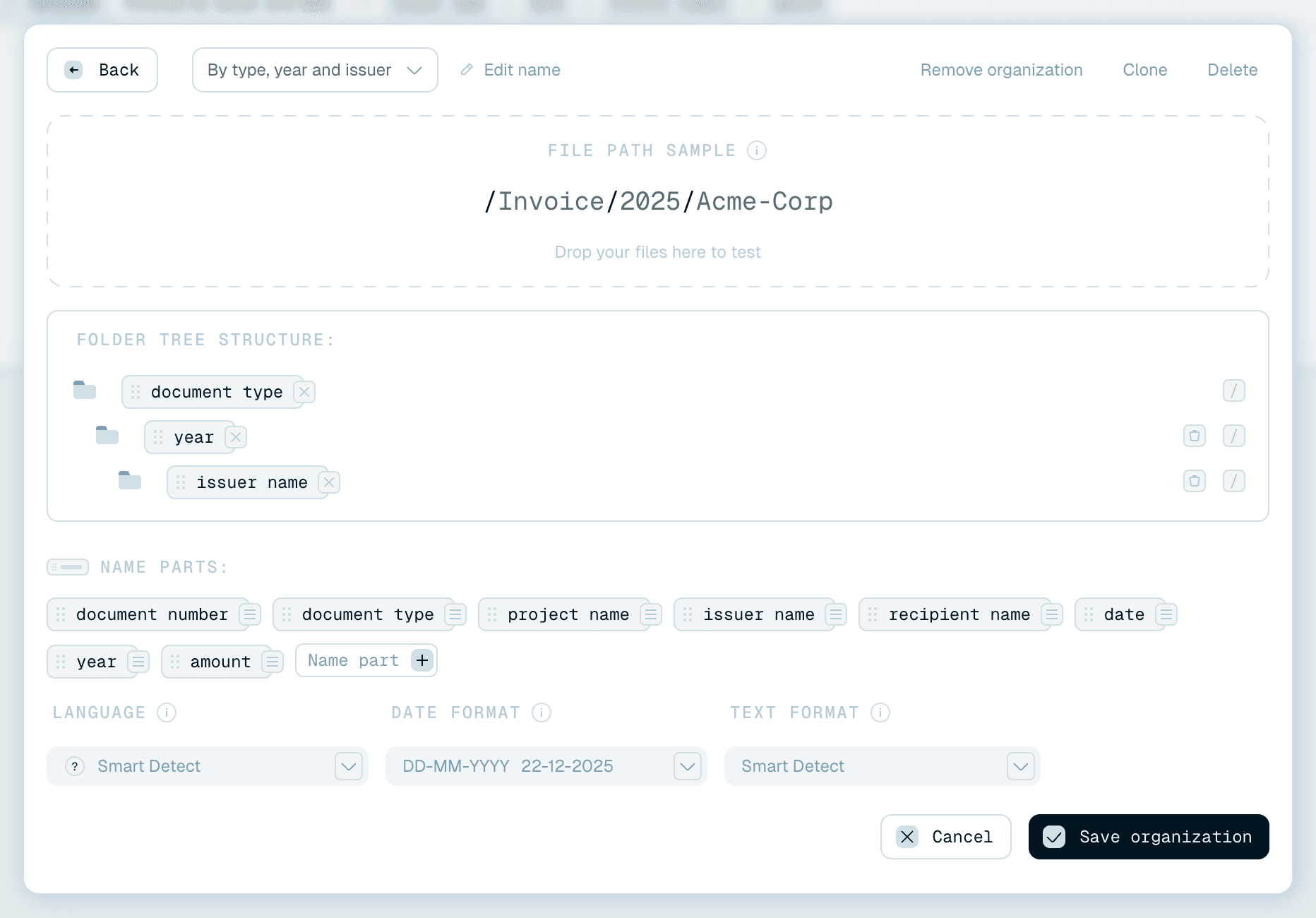
- The editor overlay opens - the same editor as for naming templates, with one difference: instead of a filename pattern, you build a Folder tree structure.
You can also start from the Gallery: organization templates there (badge Folder organization) have the same To collection and Customize buttons as naming templates. And from Quick Rename or a Magic Folder card you can build one on the spot - see below.

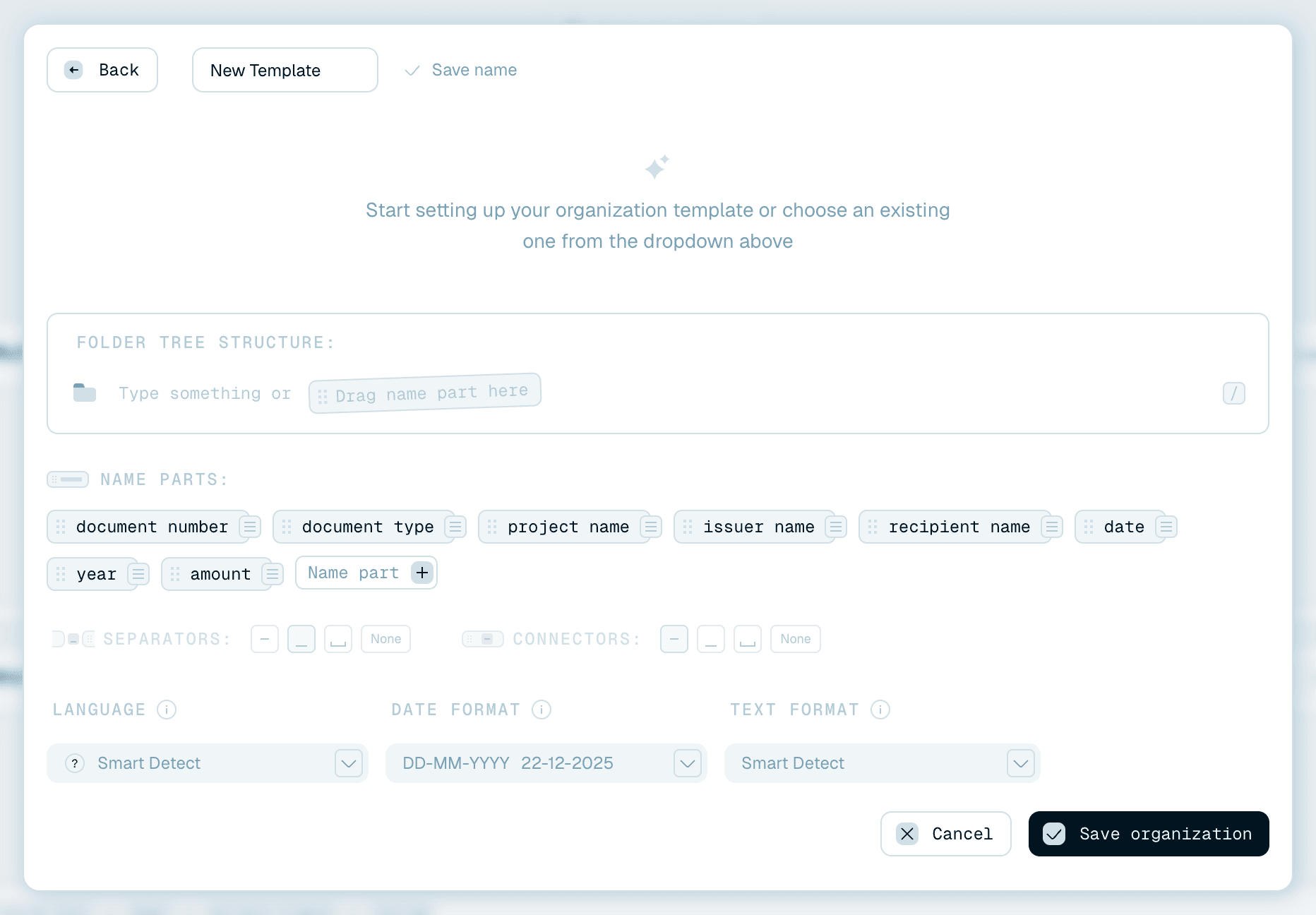
Building the folder tree
The Folder tree structure section is where the hierarchy takes shape:
- Each row is one folder level, top level first, and each is nested inside the one above it.
- Press
/while typing - or click the / button at the end of a row (Add folder level) - to add the next level down. Each row also has a button to remove that level, and an empty level has to be filled in before you can add another. You can nest as many levels as the structure needs (though shallow stays easier to browse). - Within a level, type static text (e.g.
Archive) and insert name parts wherever you want the AI to fill in a value - a level can hold one part, several parts, or parts mixed with text (like@Year-@Quarter).
Keep hierarchies shallow and general-to-specific: two or three levels like category → year or client → year → document type stay navigable. Six levels deep rarely does.
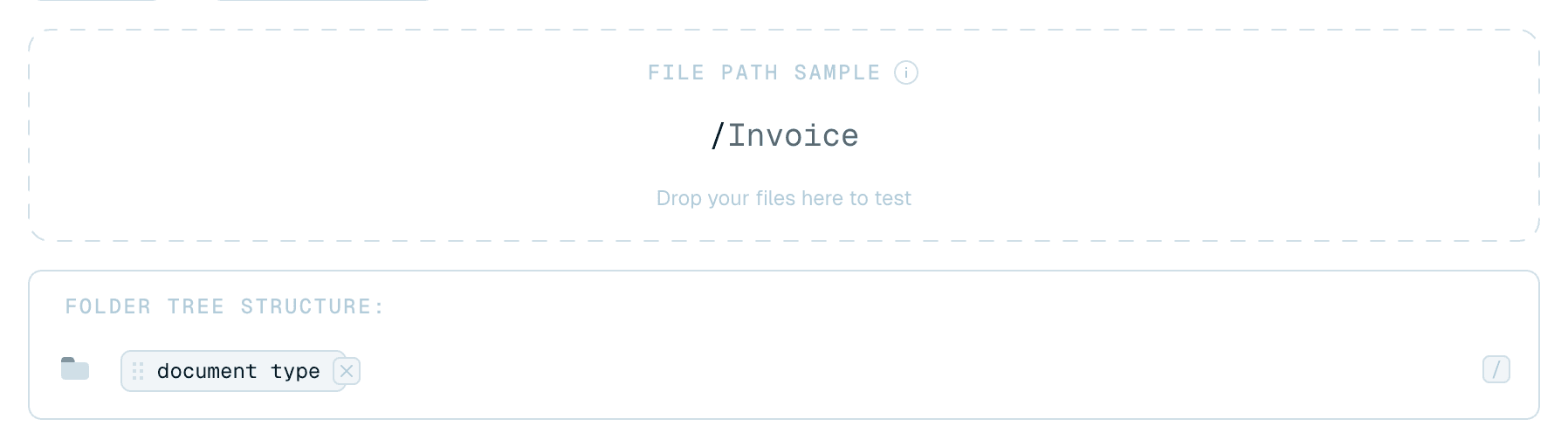

Using name parts in folder levels
Name parts work exactly as they do in naming templates - the Name parts section sits above the folder tree:
- Create a part with the + Name part button.
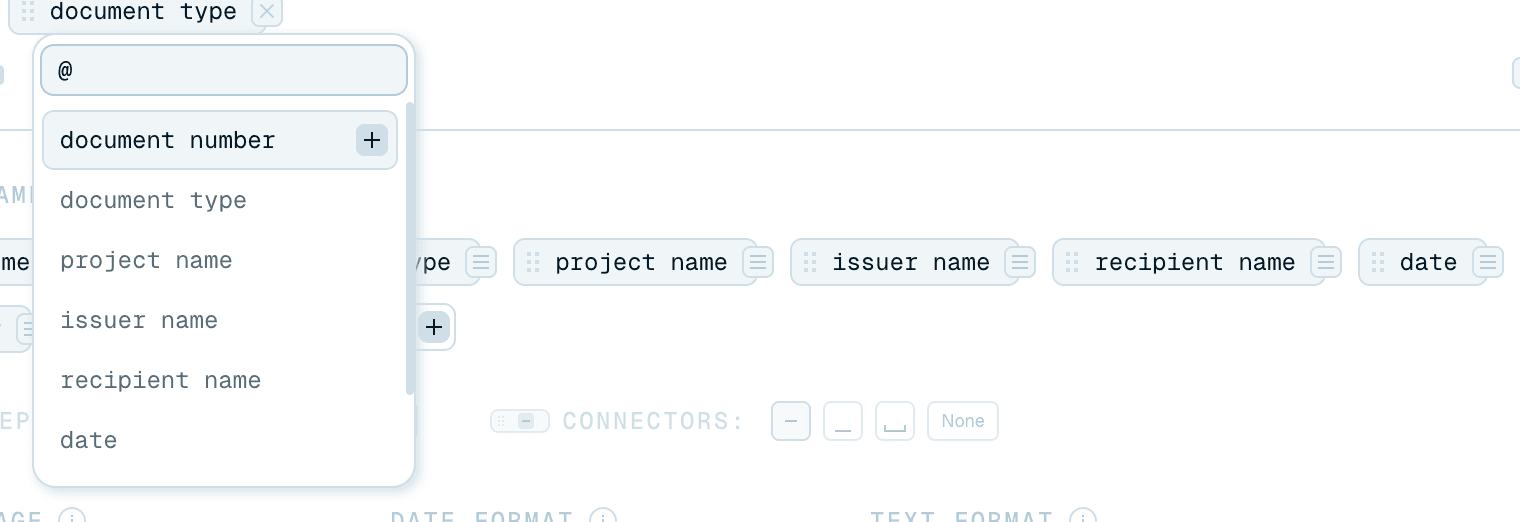
- Insert it into a level by typing
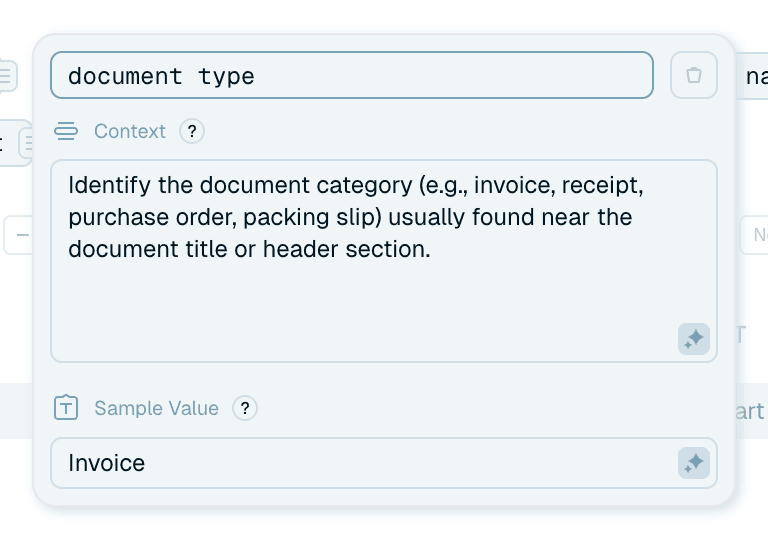
@(autocomplete opens), by double-clicking the chip, or by dragging it into the level. Add as many as you like to the same level - and reuse the same part across different levels (a@Yearin one level and again in another is fine). - Click the small icon on a chip to open it and edit its Context - the instruction the AI follows, e.g. "the document category: Invoice, Contract, Receipt or Report" - and its Sample Value, which feeds the preview.
A tip specific to folders: give category-style parts a context that names the allowed values (like the example above). Free-form folder names multiply endlessly. A fixed set keeps your archive tidy.
Previewing the result
The File path sample at the top of the editor shows how the folder path will look for a sample file with the current structure - assembled from your sample values. If the preview reads Invoices/2026/Acme, your real files will land in exactly that shape. Drop a real file onto it to see the path that file would get - only a test, nothing is moved.
When you're done, click Save organization (or Cancel).

Organization settings
An organization template has no formatting settings of its own. The Language, Date format and Text format rows in its editor are greyed out with the note "Language and date format are inherited from the naming template." - folder names follow the naming template the organization runs alongside, so filenames and folder names always agree on language, date style and letter case.

Using an organization in Quick Rename
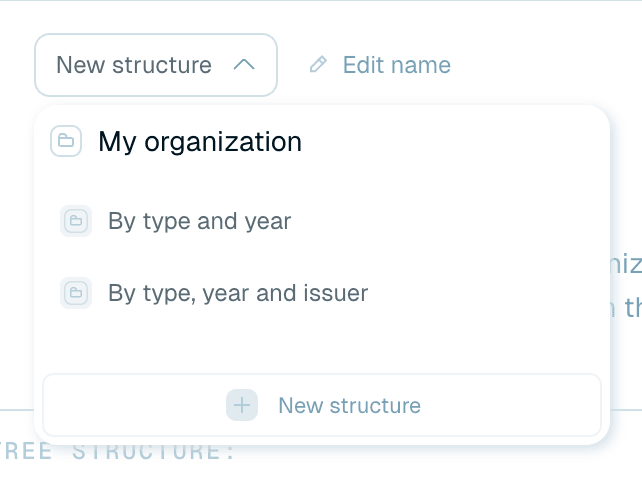
On the Quick Rename screen, add one with the dashed Organization button inside the drop zone. The organization editor opens: use the dropdown at the top (New structure) to pick an organization from My organization, or build a new one right there, then click Save organization. Remove organization ("Don't use a template and preserve the original folder structure") takes it off again.
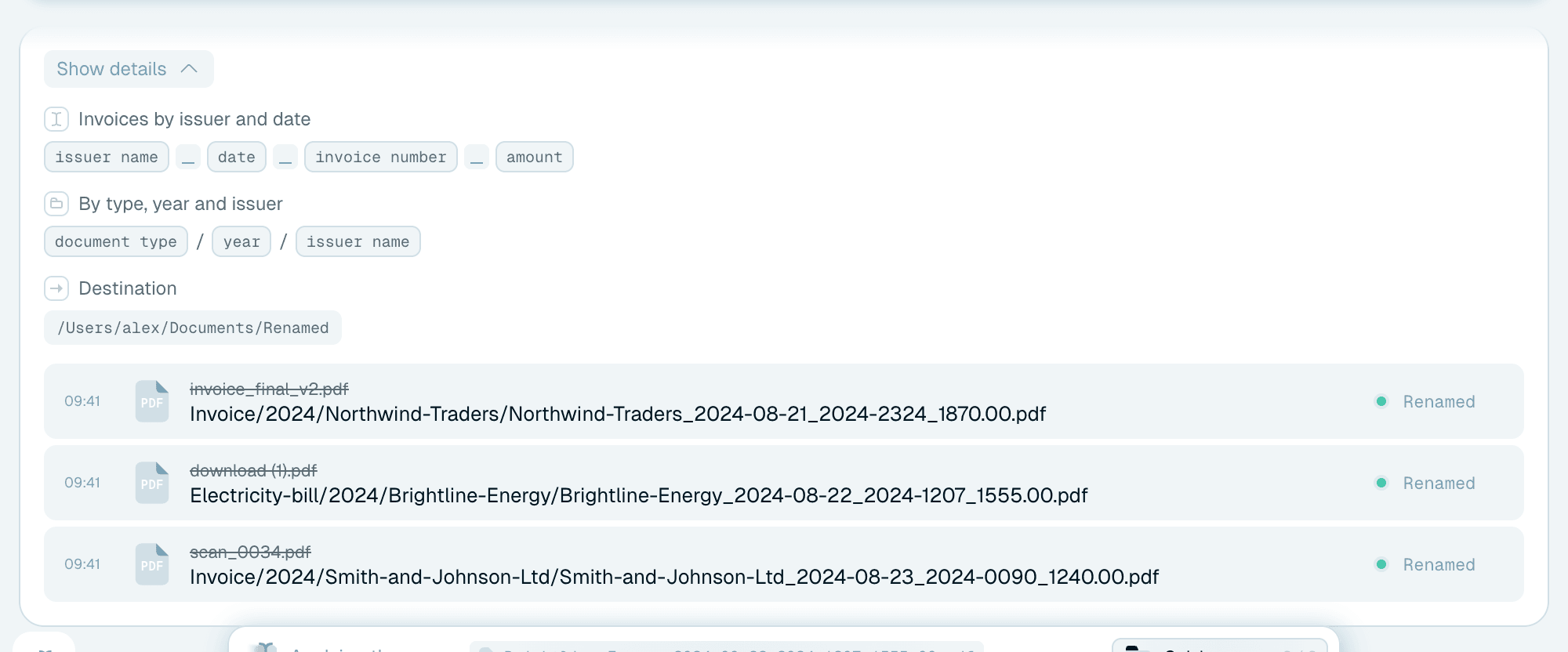
Once one is chosen, an Organization line appears under the Template line, showing its name and levels ("All files in one folder, no subfolders" if the structure is empty). Click the Organization label to switch via the My Organization collection dropdown - which also offers No folder structure, To Gallery and New structure - or remove it with the × (Remove organization structure).
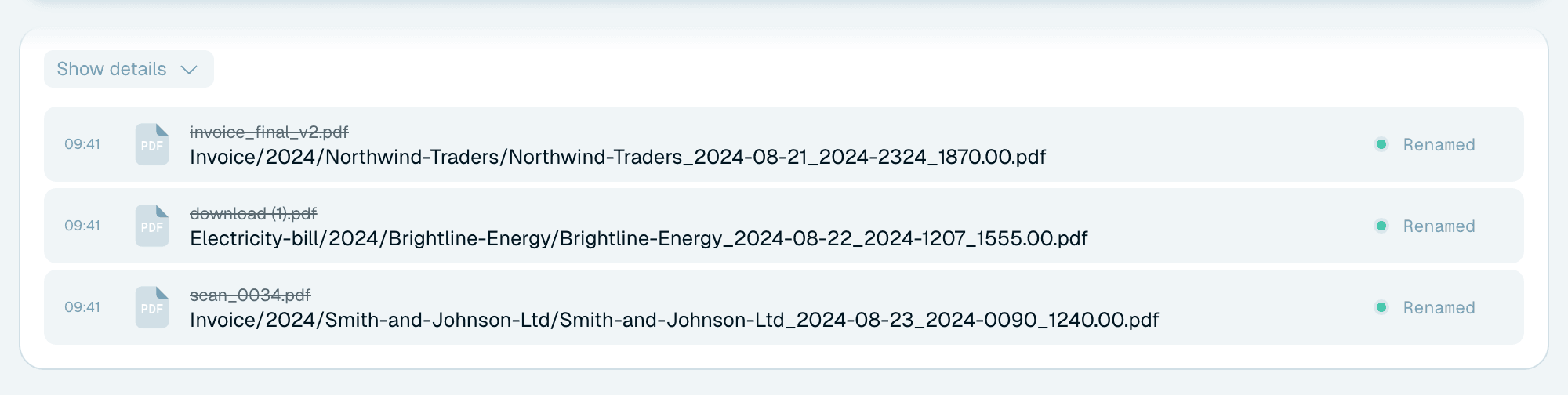
To move files into the structure somewhere else, also set a destination with the dashed then move to button - a Destination line appears and the organization's folders are created inside that destination. Without a destination, the folders are created where the files already are. Without an organization the destination receives all files flat. The two combine into: rename → build the subfolder path → move the file there.
One rule to remember: a folder watched by a Magic Folder can't be a destination - that would feed renamed files straight back into the watcher.



Organization in Magic Folders
The same Organization and Destination lines appear on every Magic Folder card - there the Organization line defaults to "Preserve the same folder structure" and the Destination to "Keep results in Source Folder" - and this is where organization shines brightest: a single watched inbox becomes a self-sorting archive, with every scanned document renamed and filed the moment it arrives. See Setting up your first Magic Folder.