Setting up your first Magic Folder
A Magic Folder is a folder on your computer that Renamer.ai watches for you. Every file that lands in it gets renamed automatically - no clicks required. It's the feature that turns Renamer.ai from a tool you use into a system that works for you: perfect for a scanner output folder, a downloads folder, or anywhere documents pile up.
This guide walks the full creation flow in order, then explains every option you'll meet along the way.
Step 1 - Pick the source folder
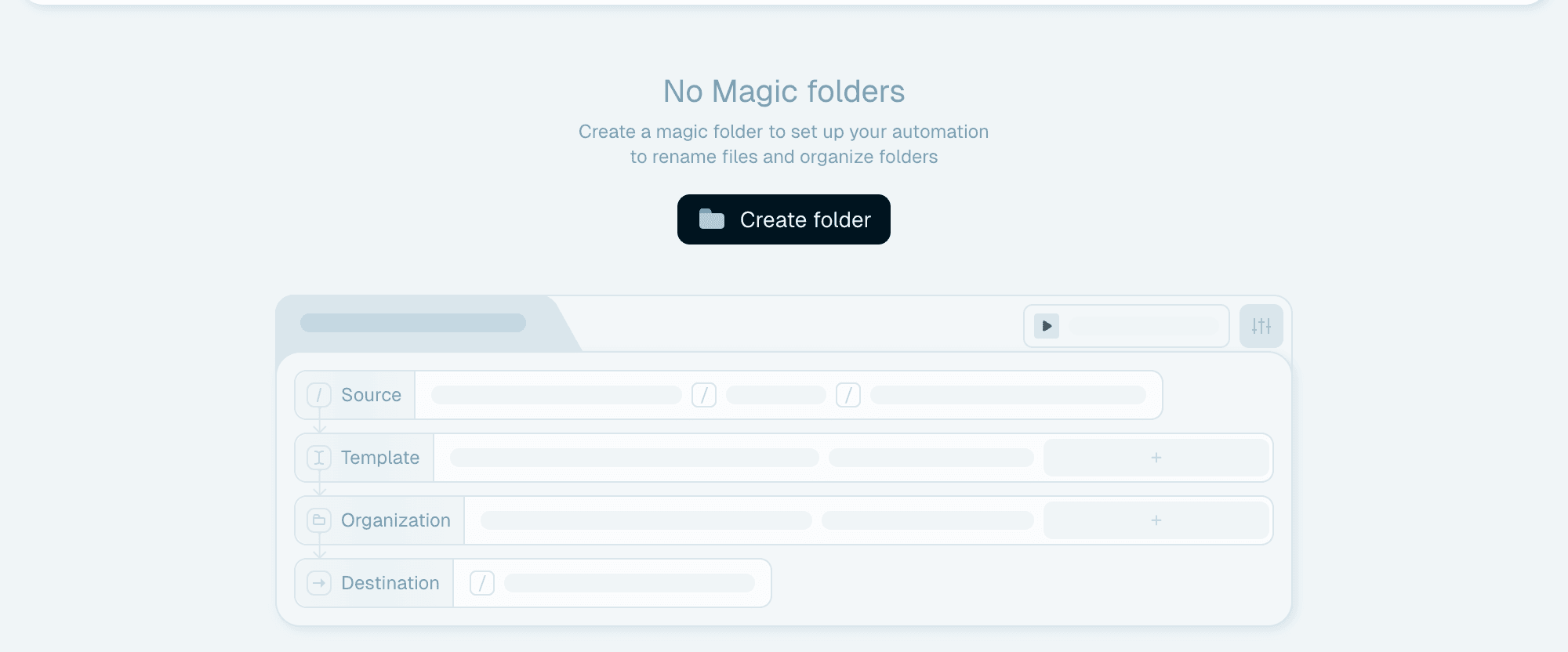
Open the Magic folders tab. With no folders yet, it shows No Magic folders and a Create folder button. Once you have folders, the same button sits on the New folder card ("Magic folder - Automatically organizes your folders and renames files"). Either:
- Click Create folder and choose a folder in the system picker, or
- Drag a folder from Finder/Explorer onto the card - it reads "Drop folders here" while you drag.
The source folder is the one Renamer.ai will watch. Pick the place where files arrive - the scanner's output directory, your downloads folder, an email-attachments dump. A folder can only be watched by one Magic Folder, and it can't be a folder that's already used as a destination (by another Magic Folder or by Quick Rename).
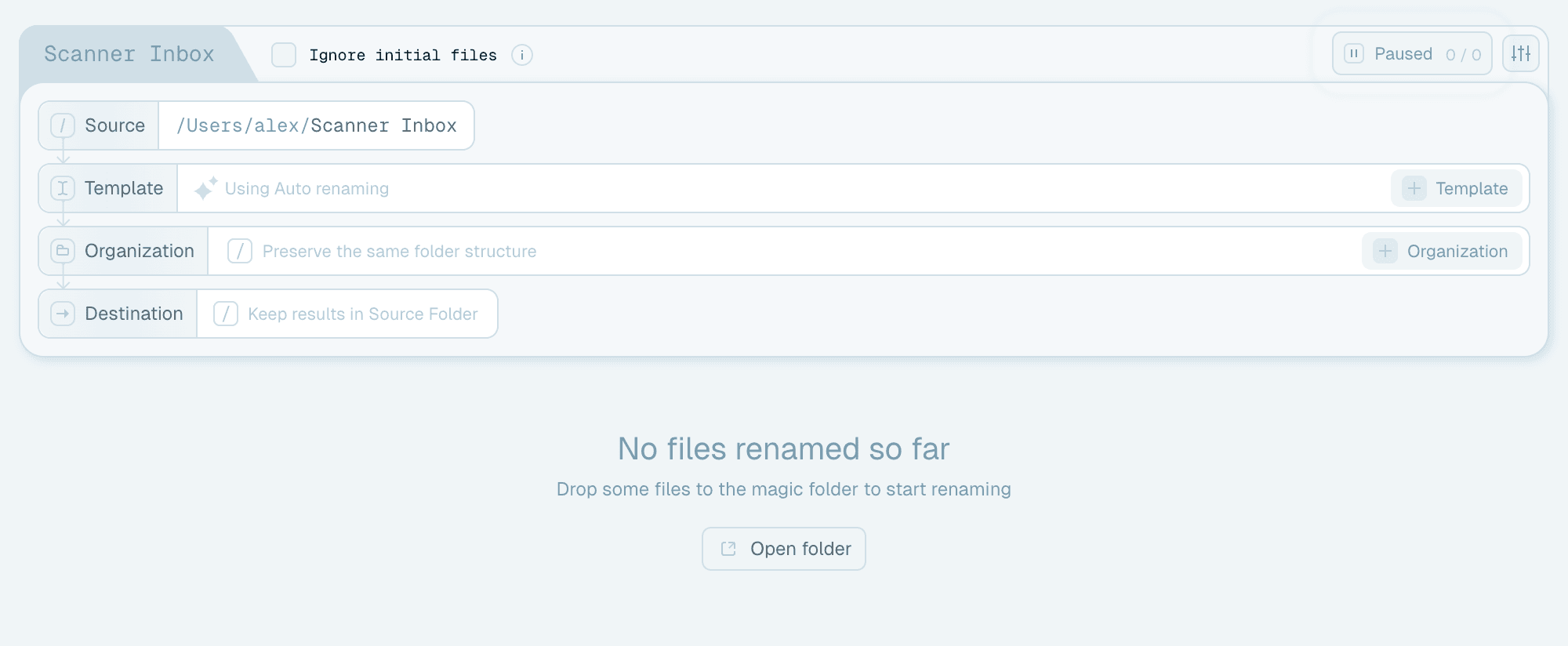
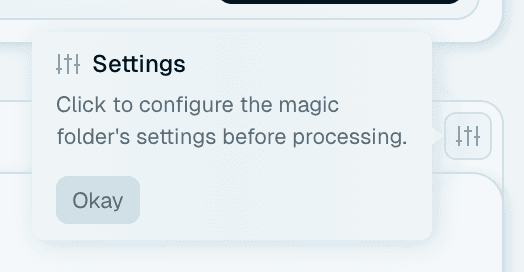
The Magic Folder is created right away as a card named after the folder - paused, so nothing happens until you start it. A one-time hint points at the folder's Settings ("Click to configure the magic folder's settings before processing.") - click Okay to dismiss it.

Step 2 - Choose the naming template
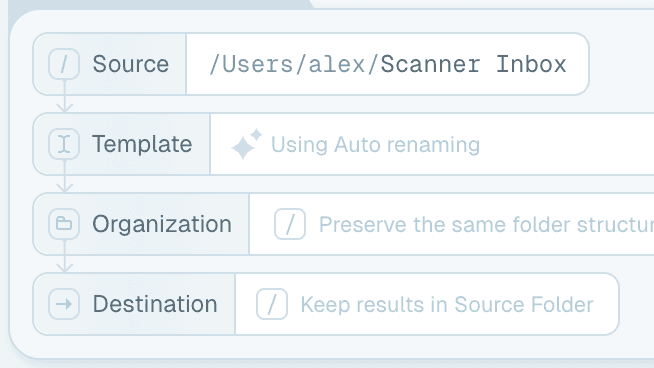
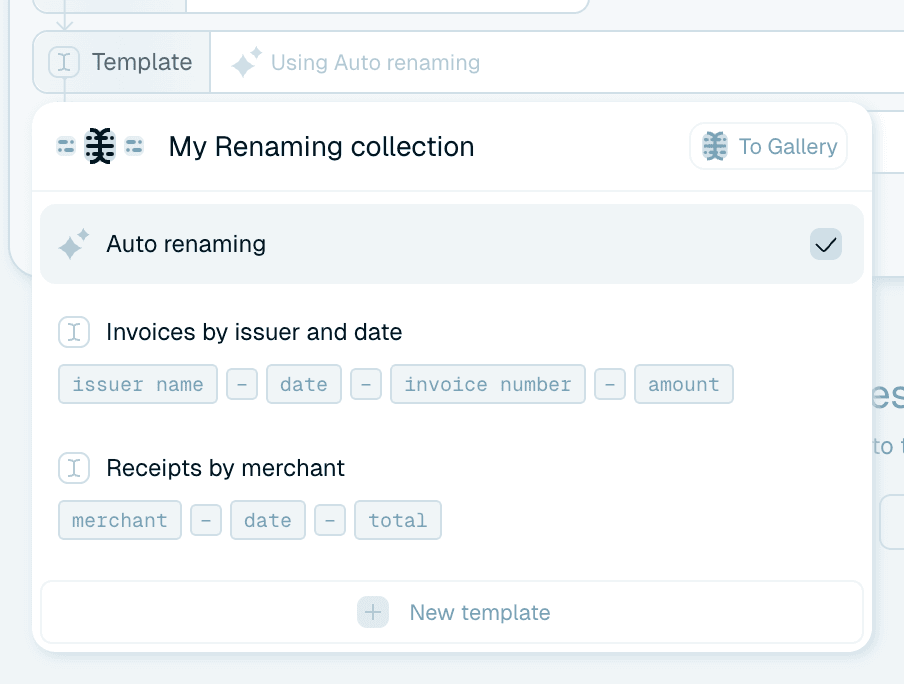
The card's Template line starts on Using Auto renaming - the Auto template, where the AI names each file from its contents with no setup.
Click the Template label to open the My Renaming collection dropdown and pick one of your collection templates instead, jump To Gallery for a ready-made one, or hit New template to build one on the spot (see Building your own naming template). Starting with Auto and upgrading to a custom template later is a perfectly good path - you can change the template any time.

Step 3 - Choose an organization (optional)
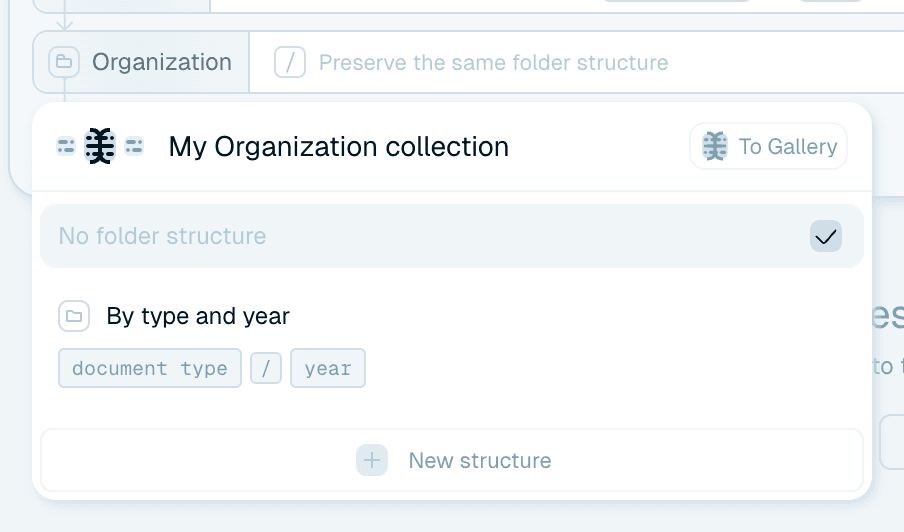
The Organization line defaults to "Preserve the same folder structure" - files are renamed but not re-sorted. Click it to pick or build an organization template, and every incoming file is also filed into a folder path built from its contents - Invoices/2026/Acme/ style. Details in Organizing files into folders.

Step 4 - Set a destination (optional)
The Destination line defaults to "Keep results in Source Folder". Click it and pick a folder, and renamed files are moved out of the source into it - which keeps the watched folder empty, like a true inbox. If an organization is selected, its folder structure is created inside the destination. The × on the line clears the destination again.
Two folders are off-limits as destinations: the source folder itself, and the source of another active Magic Folder (files would loop back into a watcher).


Step 5 - Review the settings
Before starting, check the options. Each one, and when you'd want it:
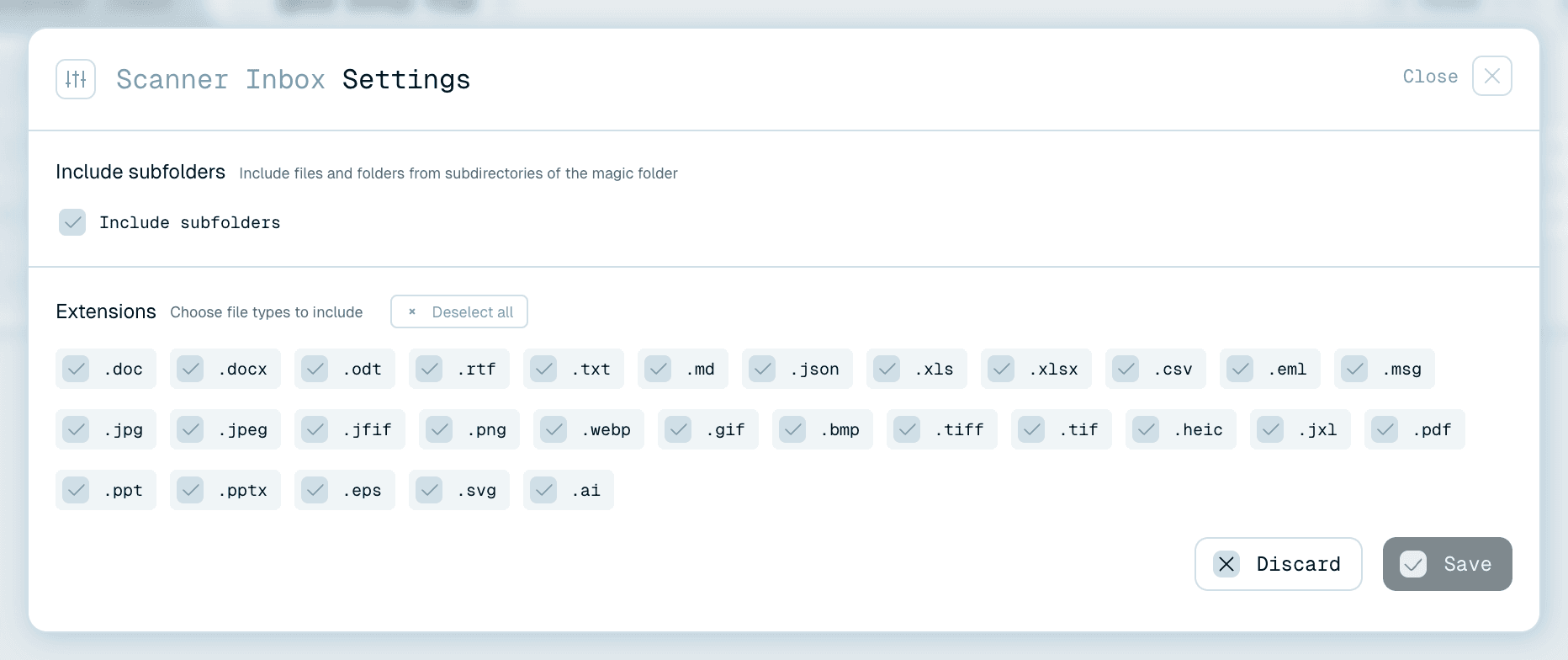
Include subfolders
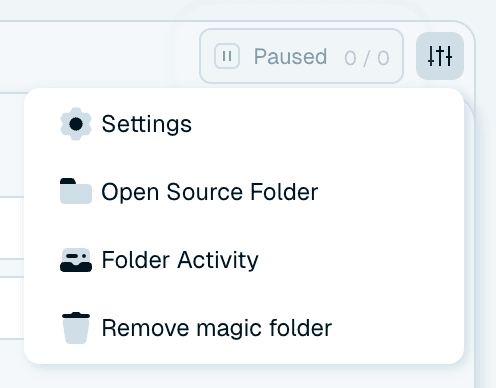
In the folder's Settings (the Folder actions menu → Settings): "Include files and folders from subdirectories of the magic folder". Turn this on for folder trees like a project archive. Leave it off for a flat inbox.
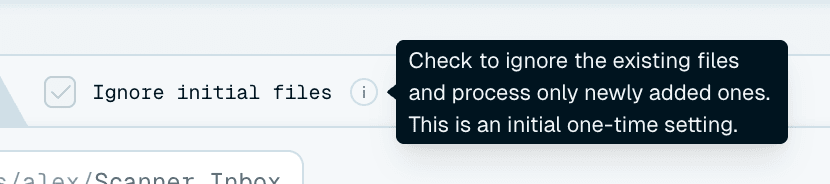
Ignore initial files
A checkbox right next to the folder's name on the card, shown until the folder first processes files: "Check to ignore the existing files and process only newly added ones. This is an initial one-time setting." Whatever is in the folder today stays untouched, and only files arriving later are processed. This is the safest way to point a Magic Folder at a folder with history in it. (Changed your mind later? The skipped files can still be processed from Settings - see Managing Magic Folders.)
Extensions
Also in Settings: "Choose file types to include". Limit processing to chosen file types - for example only PDFs in a document inbox, so the occasional stray .zip passes through untouched. Select all / Deselect all toggle the whole list.
Click Save to keep your settings changes, or Discard to drop them.

Step 6 - Start the folder
Click Start on the card's run button - it pulses until the folder's first run. The button switches to Active (with Pause), and a done / total count shows progress. From that moment, every file in the source is picked up, read by the AI, renamed with your template, and - if configured - sorted into the destination. Each renamed file uses one credit, exactly like Quick Rename.
You'll see activity in three places: the card's own feed of recent renames, the processing bar at the bottom of the app (with the folder's name and progress as its chip), and the full log in Activity History. Files that are queued show Waiting until their turn.




A good first setup
For a first Magic Folder, try your scanner or downloads folder with:
- Ignore initial files ticked - history stays untouched,
- the Auto template - zero configuration,
- no destination yet - renames happen in place, easy to inspect.
You'll see results on the very next file that arrives. Once the names look right, add a custom template, an organization and a destination - and the folder graduates from "renames things" to "files everything". Day-to-day care is covered in Managing Magic Folders.