Working with batches in Quick Rename
Every manual rename in Renamer.ai happens inside a batch - one drop of files, processed together, with its own card, its own progress and its own controls. Understanding how batches behave makes Quick Rename predictable even when you're renaming hundreds of files. This guide covers the mechanics end to end.
One drop, one batch
Drop 10 files - or 20, or 200 - in one go, and they become a single batch with one card on the right side of the screen.
Drop more files while that batch is still working, and they become a second batch with its own card - new files are never mixed into a batch that's already running. Each batch keeps its own progress counter and its own pause control, so you always know which drop produced which results.
Behind the scenes, all active batches feed one processing queue: files are uploaded and renamed a couple at a time, in order. Several batch cards can be on screen with work remaining - they take turns rather than competing.
Every way to get files in
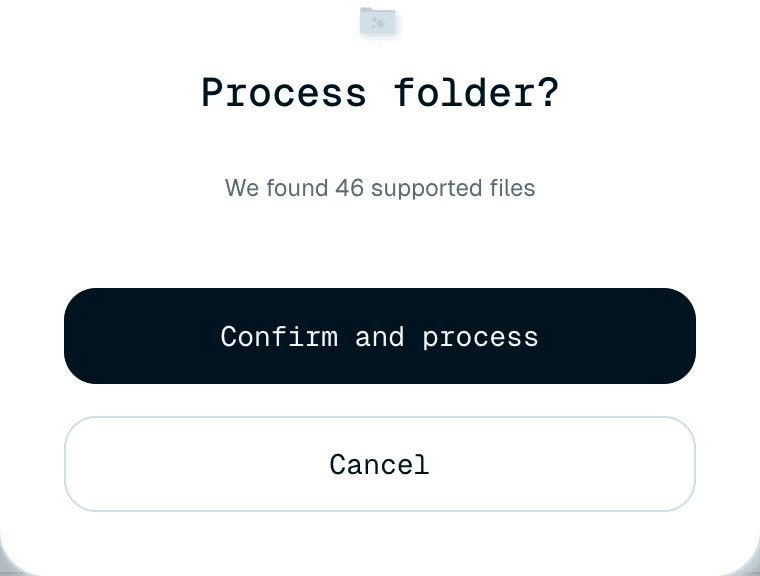
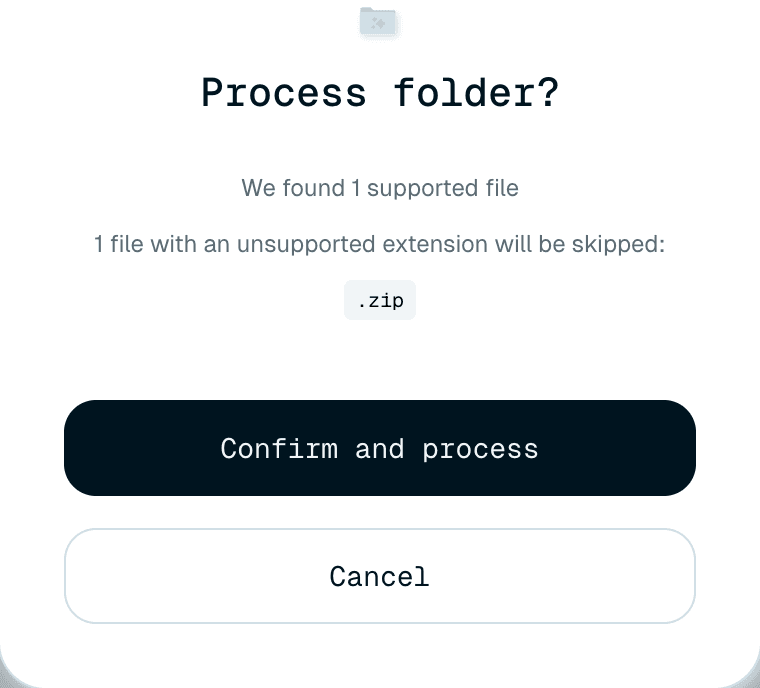
- Drag and drop - files, folders, or a mix, anywhere onto the app window. A dropped folder is added with everything in it, including subfolders. If a dropped folder contains 20 or more supported files, the app asks first - Process folder? with "We found 46 supported files" and Confirm and process / Cancel - a guard against renaming more than you meant to.
- Click the drop zone - on Mac, one picker lets you select files and folders together. On Windows, you get two options - Choose files and Choose folders - because Windows dialogs can't combine the two.
A few practical boundaries:
- Files up to 100 MB each are accepted. The drop zone shows the current limit and how many formats are supported (29 formats · 100MB max size) - hover it for the list.
- Unsupported file types are reported before anything starts. If a dropped folder contains some, the confirmation lists them - e.g. "1 file with an unsupported extension will be skipped:" followed by the extension - and the rest is processed after you confirm. Nothing is silently dropped except true system clutter (
.DS_Store,Thumbs.db,desktop.ini), which is skipped automatically. - Files inside a folder watched by a Magic Folder can't be renamed manually - the app tells you which Magic Folder they belong to.
What a batch remembers
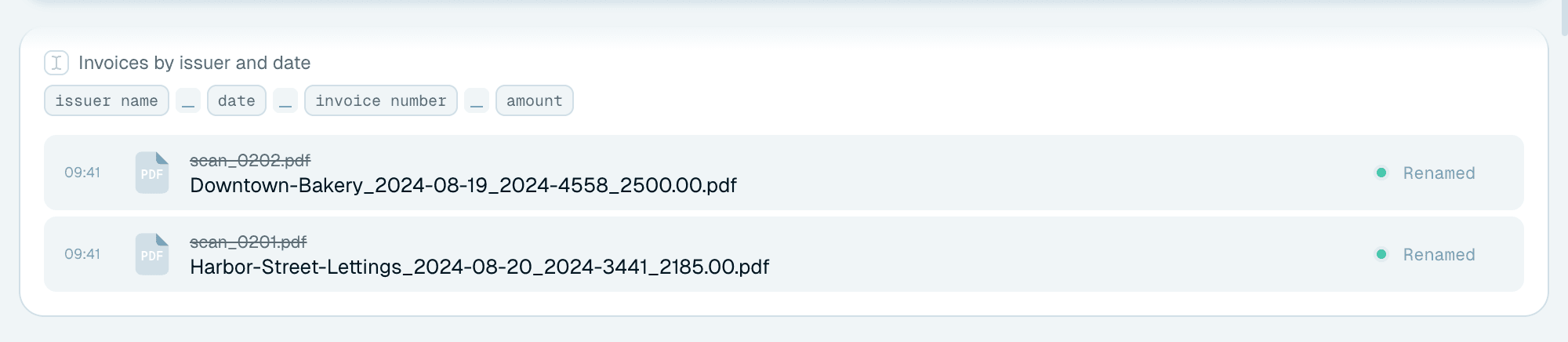
A batch takes a snapshot of your setup at the moment you drop the files: the naming template, the organization template and the destination folder selected at that instant.
That means you can immediately change the Template line and drop a different set of files - the running batch keeps renaming with the template it started with, and only the new batch uses the new choice. Two batches with two different templates can happily process side by side.
The card shows which setup a batch is using: the template name on top (Auto for the Auto template), and - when an organization or destination is involved - a Show details control that reveals the template, the organization template and the destination folder path the batch is working with.
Reading the batch card
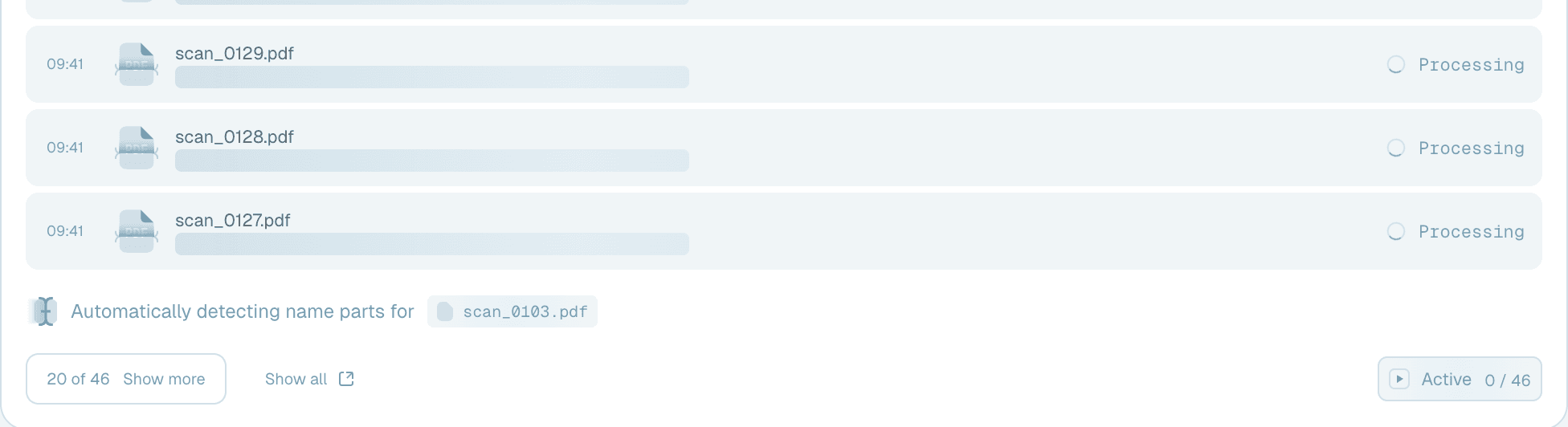
- The footer shows whether the batch is Active or Paused, with a progress count like 3 / 10, while the processing line above it narrates the file being worked on. Once every file is done, the run control disappears.
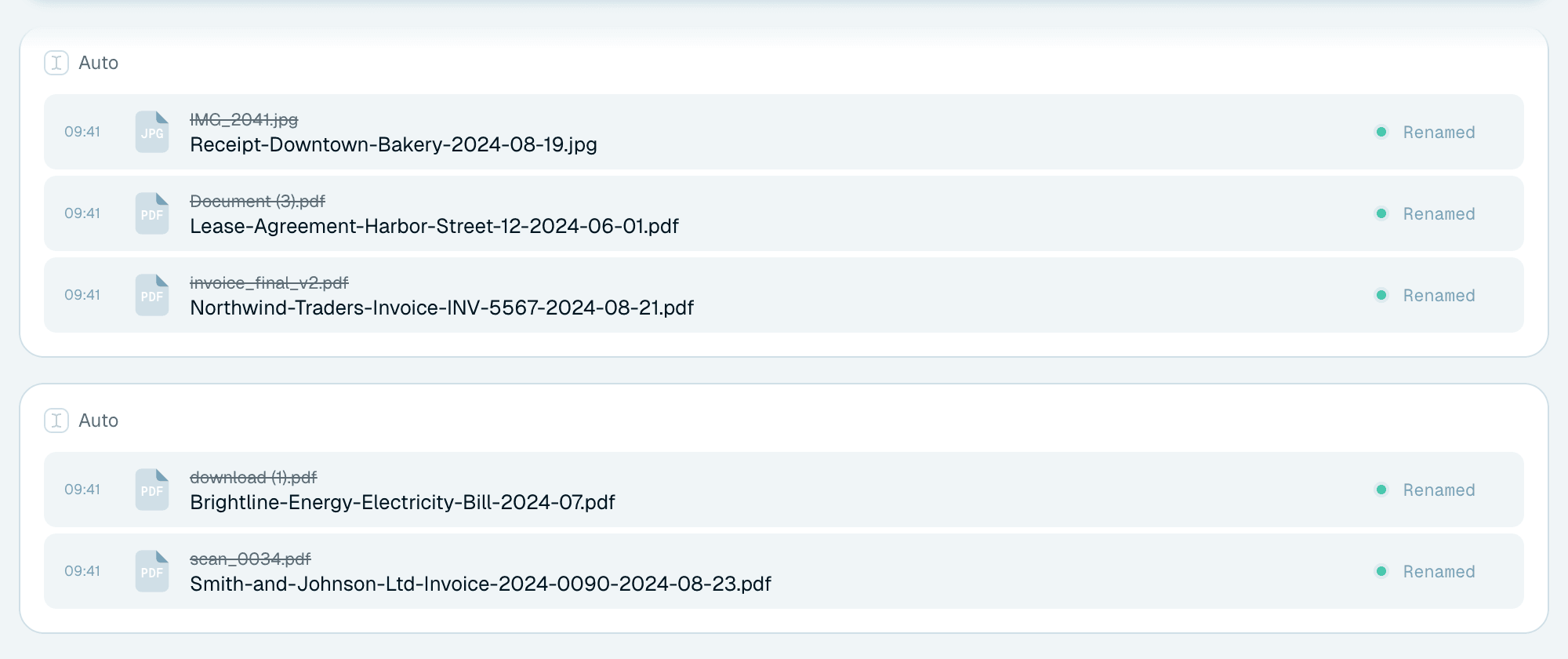
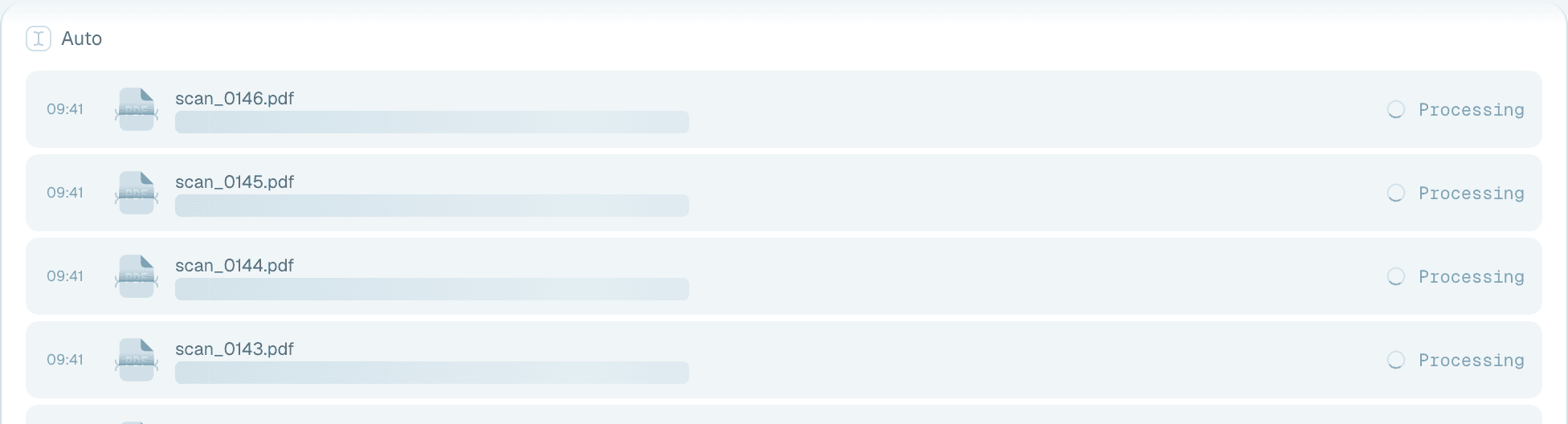
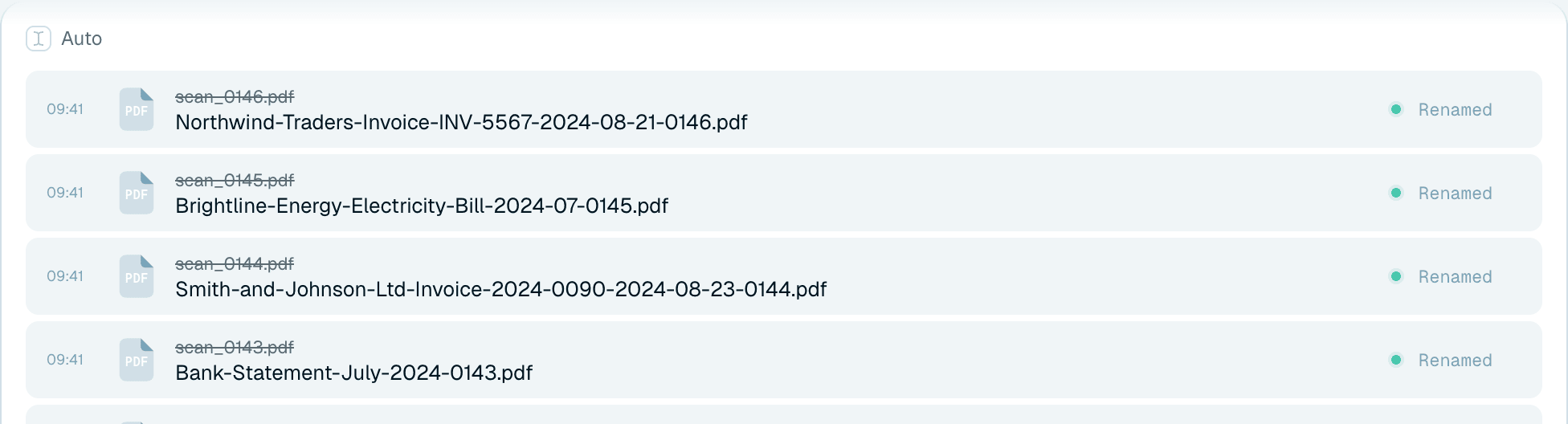
- Each file row shows the time, a file-type icon, the original name (struck through once renamed), the new name, and a status: Pending, Renaming, Renamed, Failed or Reverted. Hover the time to see the exact date and time.
- Files renamed by the local AI model carry a small LOCAL badge ("Renamed on this computer"), and files renamed through your own API key carry the provider's name. Cloud renames have no badge. See Where your files are renamed.
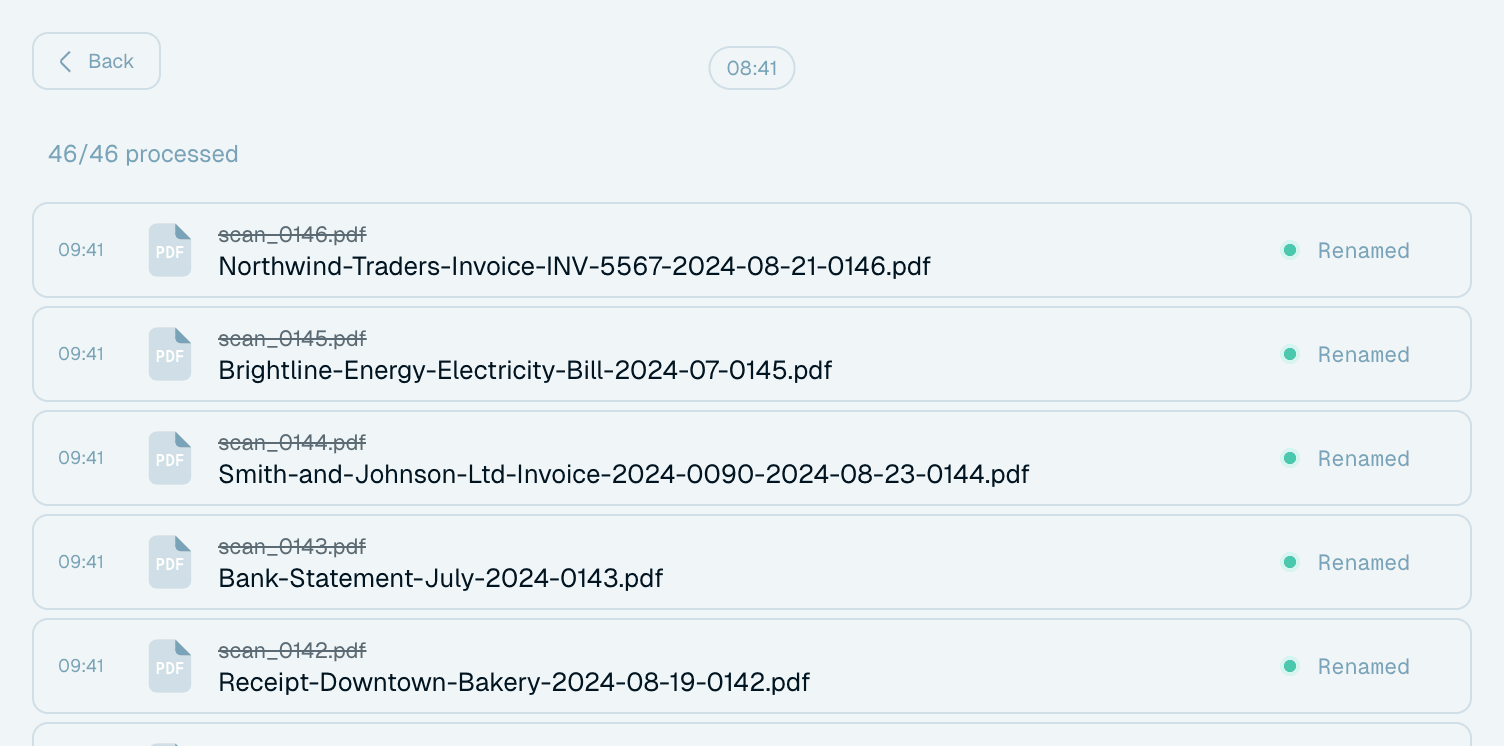
- A card lists the first 20 files. In longer batches the footer shows a count like 20 of 46 · Show more - click it to load more on the card (up to 40). Batches with more than 40 files also get a Show all button that opens the batch's own full-page view: Back, the batch date, a 46/46 processed style count and the Pause / Start control while it runs, and every file in the batch, scrolling as you go, with the same per-file actions as the card - the place to work through a big drop comfortably.

Pausing and starting again
Every batch can be stopped and restarted at any point:
- Pause - "files already processing will finish. Pending files (files not yet being processed) won't start". Nothing is cancelled mid-rename, so you never get a half-processed file.
- Start - "start processing the pending files again", right where the batch left off.
Pausing one batch doesn't touch the others - they keep processing. The classic use: drop a big folder, pause after the first few results, check that the names look right, then let the rest run - or adjust the template and drop again as a fresh batch.

Fixing individual files
- Revert - hover a renamed file's status and click Revert: the file gets its original name (and location) back on disk, immediately, without affecting the rest of the batch.
- Retry - shown on a file whose upload failed, whose final rename or move on disk failed, or whose revert failed ("Could not undo the rename"). It repeats just the step that failed. Files the AI couldn't process show Failed without a Retry - hover the status to see the reason, such as "An error occurred while processing the file".
- Retry with Auto - hover a reverted file in a batch that used a custom template and a Retry button marked Auto appears: it renames that file again with the Auto template. Files renamed this way carry a small Auto badge ("Auto template has been used").
Every result - renamed, failed, reverted - is also recorded in Activity history, so nothing about a batch is ever lost, even days later.


Where to go next
If the names a batch produces aren't what you want, the template is the lever - see Choosing a template. And once you find yourself dropping the same kind of files every week, that's the signal to set up a Magic Folder and let the drops happen by themselves.