Understanding credits and plans
Every file Renamer.ai renames uses one credit - one file, one credit, no surprises. Your subscription gives you a monthly allowance, and the app keeps you posted on where you stand at all times. This guide explains the whole system, including the two moments that actually matter: running low, and running out.
Where to see your credits
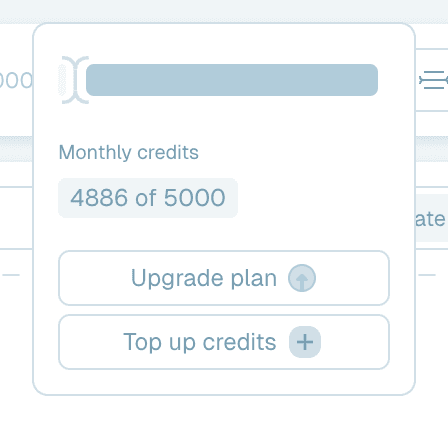
The credits indicator in the header is always visible: a small bar and your remaining monthly credits out of your plan's total, like 4904/5000. Hover or click it for the details:
- Monthly credits - e.g. 4904 of 5000, with the date your allowance resets.
- Extra - shown when you have bought credits on top of your plan, e.g. +479.
- Upgrade plan and Top up credits buttons - your cue to decide between waiting for the reset, topping up, or upgrading.

The monthly allowance
- Credits refresh at the start of each billing cycle.
- Unused monthly credits don't carry over - there's no reason to hoard them. Rename away.
- Everything that renames a file draws from the same pool: Quick Rename batches and every Magic Folder alike.
- Renames that run through your own AI provider key (where that option is available) don't use credits - see Where your files are renamed.
When you run out
Try to add more files than you have credits for, and the app shows a Not Enough Credits notice with your plan's monthly credits and the date your limit resets. From there - or any time from the credits popover or the user menu in the top right - you have two options:

Upgrade Subscription
Moves you to a plan with a larger monthly allowance. Upgrade Subscription in the user menu (or Upgrade plan in the credits popover) opens your subscription page in the browser, where plan changes and billing live.

Top Up Credits
Buys a one-time pack of extra credits on top of your monthly allowance - and unlike monthly credits, top-up credits don't expire at the end of the cycle: they're permanent and work as long as your subscription is active. Top Up Credits opens the Buy extra credits window: choose the Credits amount, see the price, and click Buy … credits to pay in the browser. The same window also shows what upgrading your plan to that many monthly credits would cost instead.
Top-ups are available on paid plans only - on a free plan the button is disabled and explains why, so the way forward is an upgrade.
A practical rule of thumb: an occasional heavy month is a top-up, every month being a heavy month is an upgrade.

Magic Folders and credits
Magic Folders rename files without you watching - so what happens when credits run out mid-stream? Renaming pauses safely instead of failing: a No credits remaining banner says "Queue processing paused.", files that are waiting show Waiting for credits, and a Magic Folder's run button explains "Processing is paused due to credits issue". Nothing is lost and nothing is skipped: the waiting files stay queued, and once credits are available again renaming resumes and processes everything in order. Details in Managing Magic Folders.
This is worth knowing before it happens: if you're planning a large scanning session, a quick glance at the credits indicator first saves an interrupted run.
Payment issues
If a card payment fails, the credits popover shows a Fix payment button, and trying to top up or running out of credits opens a Payment Failed notice with Fix payment. Both take you to your billing page in the browser. Until it's resolved, credit top-ups are unavailable - updating the payment method brings everything back.

If your subscription is a custom plan managed by our team, the app says so instead and shows the email address to contact.
Where to manage everything
All subscription management - plan changes, invoices, payment methods - lives on the website. The app's Upgrade Subscription and Top Up Credits entries in the user menu take you to the right place. The app itself only ever needs you for one decision: more credits now, or wait for the reset.