Welcome to Renamer.ai
Renamer.ai gives your files meaningful names by actually reading them. Instead of guessing from the file extension, the AI looks at the contents of your PDFs, images and documents and renames them using a naming template you control - so scan_0034.pdf becomes something like 2026-03-12 Acme Invoice 1042.pdf, and a folder of cryptic downloads becomes an archive you can actually search.
How it works in one paragraph
You point Renamer.ai at files - by dropping them in manually, or by letting it watch a folder. For each file, the AI reads the actual content, extracts the pieces your template asks for (a date, a company, a document type…), and renames the file on disk. Optionally it also sorts the file into a folder structure and moves it to a destination of your choice. Every rename is recorded, and manual renames can be reverted.
Logging in
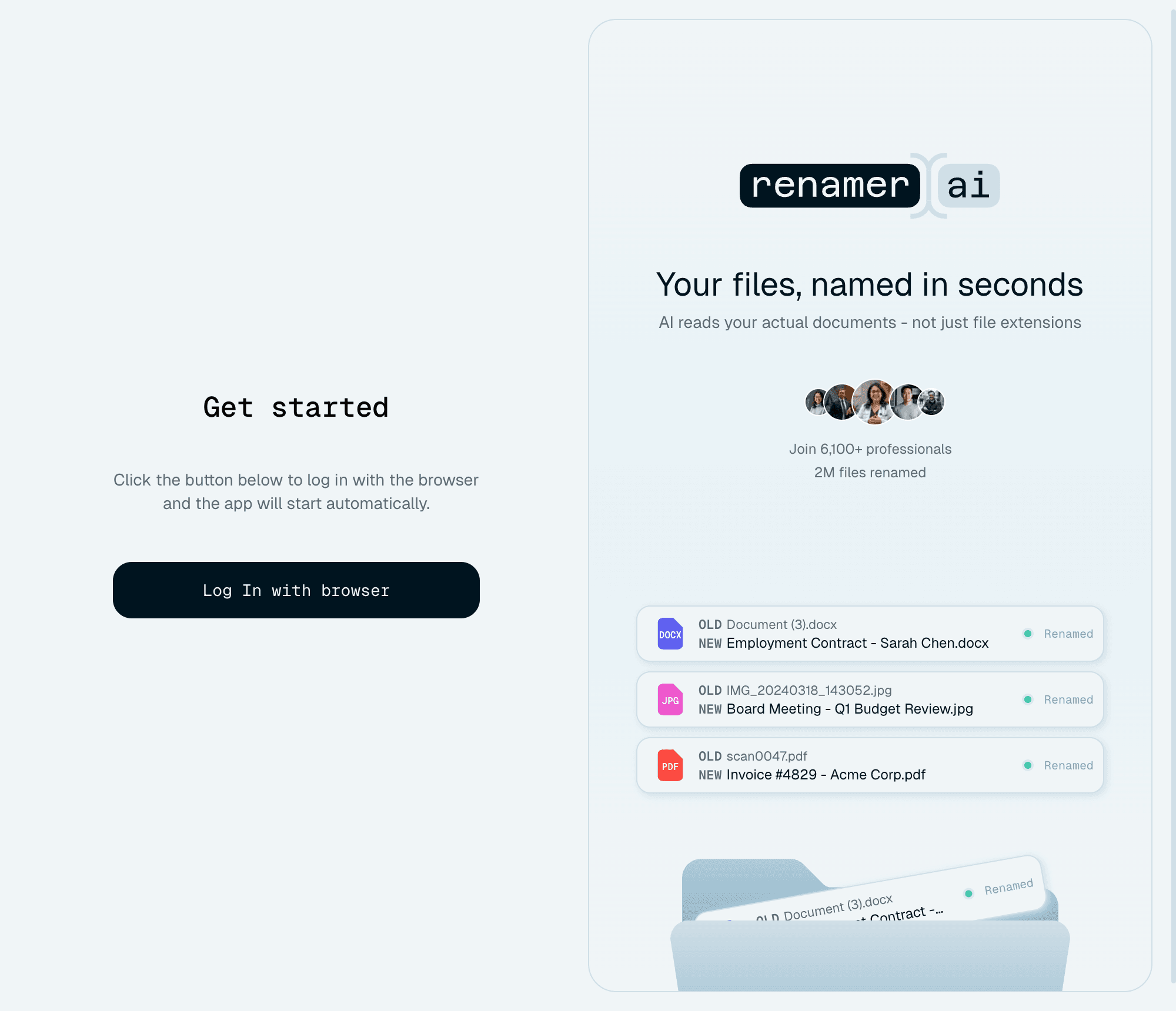
The desktop app signs you in through your browser:
- On the Get started screen, click Log In with browser.
- Finish signing in on the website.
- The app picks up your session automatically and opens the main screen.
There is no separate password to manage inside the app, and you stay signed in between launches.
A tour of the app
Quick Rename - the home screen
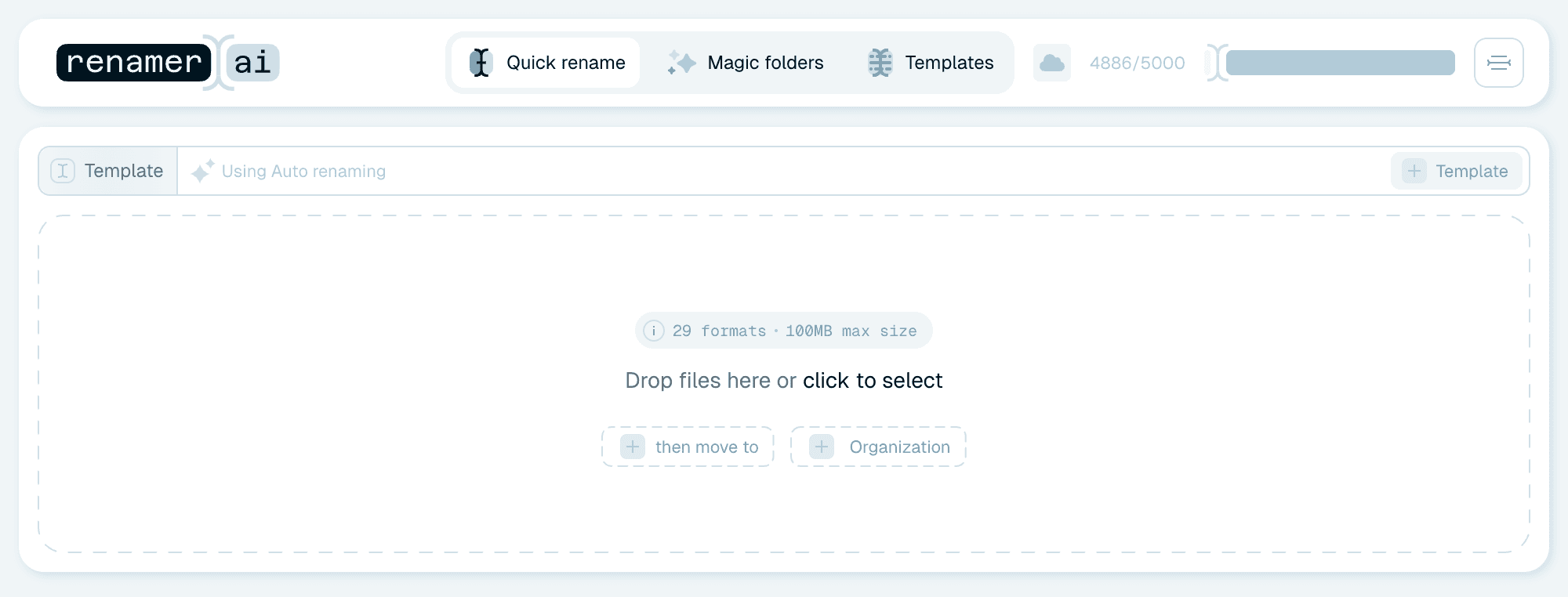
The first tab, Quick rename, is where you'll start. Drop files or folders here and they're renamed on the spot using the selected template. The Template line sits above the drop zone, and two small dashed buttons inside the drop zone - then move to and Organization - let you add a destination folder and a folder structure when you need them. Full walkthrough: Your first rename with Quick Rename.
Magic Folders - the automation
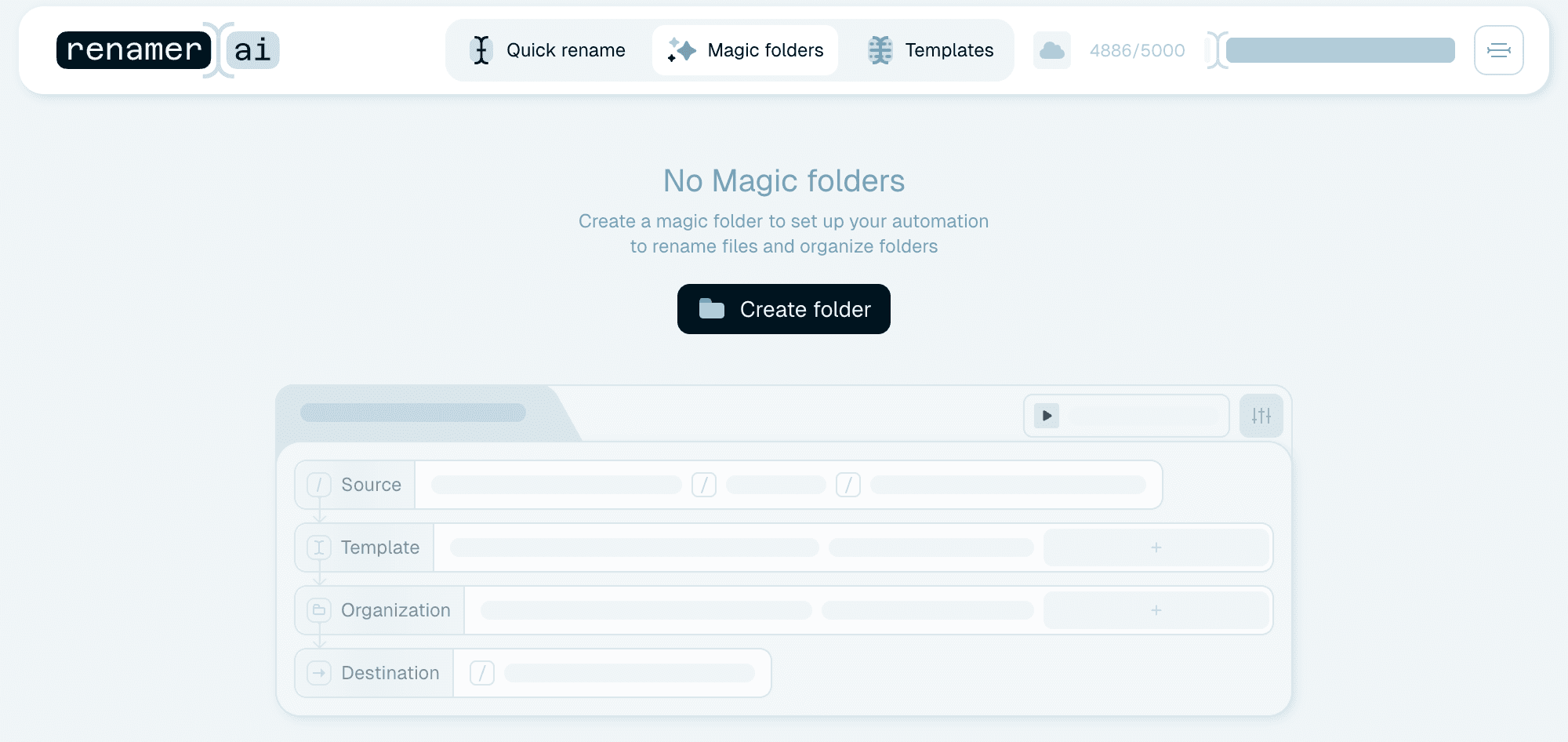
The second tab, Magic folders. A Magic Folder is a folder on your computer that Renamer.ai watches - every file that lands there is renamed automatically, and optionally sorted and moved. One good Magic Folder on your scanner's output means never naming a scan by hand again. Start here: Setting up your first Magic Folder.
Templates - the naming patterns
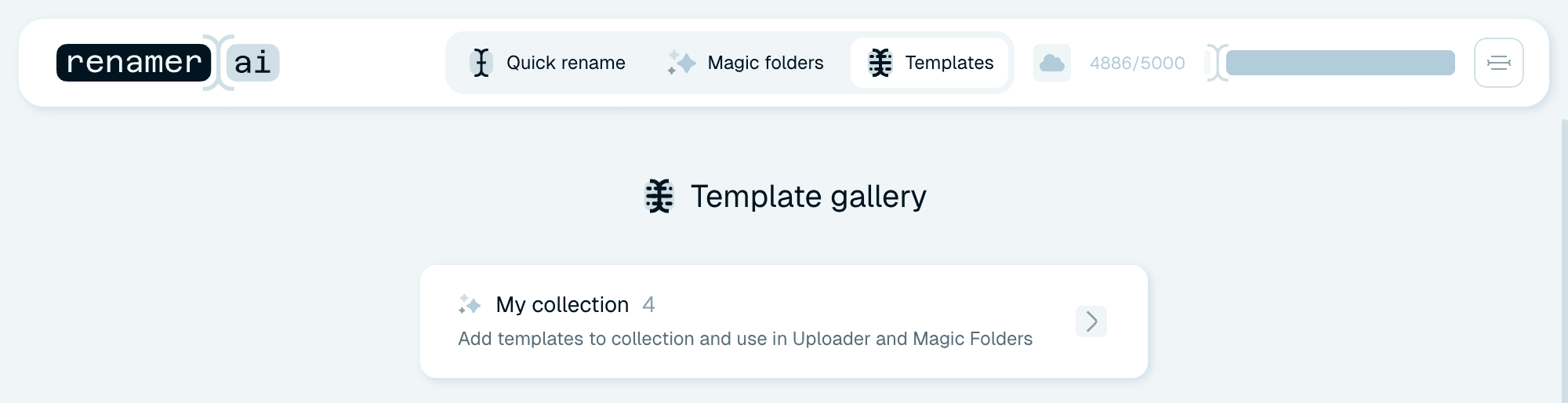
The third tab, Templates, is the home of the patterns behind every rename:
- The Template gallery holds ready-made templates for common cases, filterable by topic. Use them as-is with To collection, or hit Customize to make a personal copy.
- My collection holds the templates you own - Gallery templates you added or customized, and ones you built yourself in the template editor.
Guides: Choosing a template and Building your own naming template.
The credits indicator
In the header, always visible: your remaining monthly credits out of your plan's total, e.g. 4904/5000. Every renamed file uses one credit. Hover or click it for the details - Monthly credits, any Extra credits you bought, the date your credits reset, and the Upgrade plan and Top up credits buttons. The full picture: Understanding credits and plans.
Next to it, a small icon shows where renaming runs right now - hover it for a line like "Currently running on our servers", click it to open the Processing settings (Where your files are renamed).

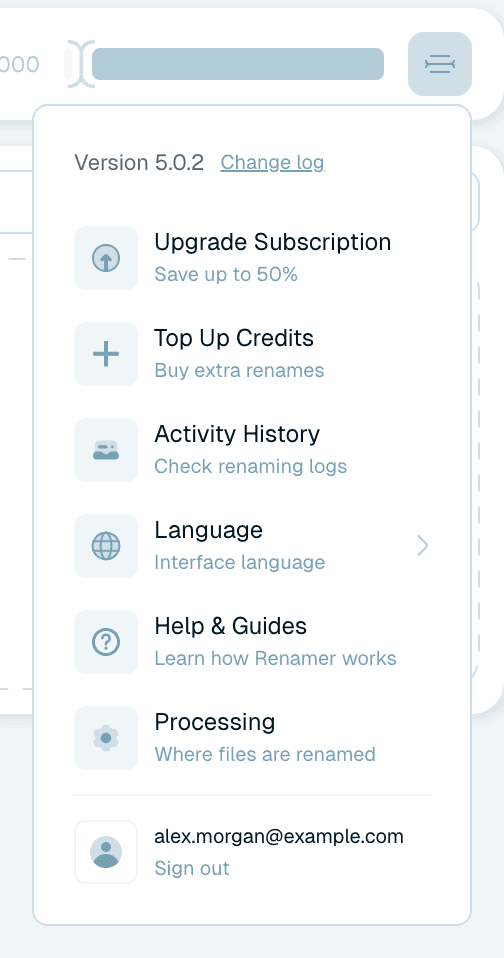
The user menu
Top right, behind the menu icon:
- The app version and a Change log link, which opens the release notes in your browser.
- Upgrade Subscription and Top Up Credits - manage your plan and buy extra renames.
- Activity History - the complete log of every rename, grouped by source, with revert for manual renames. See Activity history and reverting renames.
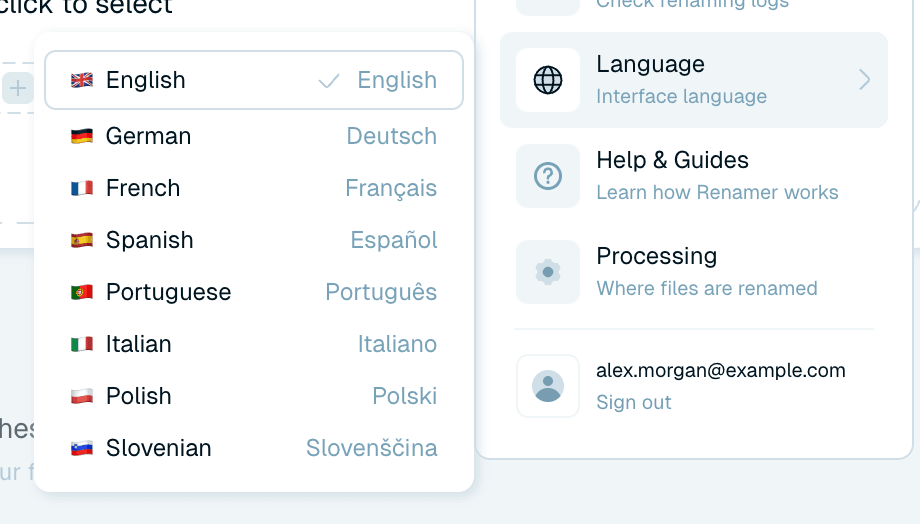
- Language - the interface language: English, Deutsch, Français, Español, Português, Italiano, Polski or Slovenščina (separate from the language used in generated file names).
- Help & Guides - opens these guides in your browser.
- Processing - choose where renaming happens.
- Your account email and Sign out.

The processing bar
Along the bottom of the app, a status bar narrates what's being renamed right now - for example "Looking for the best filename for…" or "Applying the name: …", with a chip showing the source (Quick rename or the Magic Folder's name) and its progress. If the app is working, this is where you see it.

Contact us
In the bottom-left corner, Contact us opens two quick forms: Share feedback for ideas and questions, and Report a bug to describe a problem. Type your message and click Send message or Report bug.

Your first five minutes
- Open Quick rename and drop in a handful of files - old scans or downloads work great.
- Leave the template on Auto (Using Auto renaming) - the AI picks sensible names with zero setup.
- Watch the new names appear in the batch card. Hover a renamed file's status and click Revert if you prefer its old name.
- Like what you see? Open the Templates tab and browse the gallery for a pattern that matches your documents.
- When you're ready to stop renaming by hand, create your first Magic Folder.
Each of those steps has its own guide in the sidebar - they're short, and in the order you'll need them.