Activity history and reverting renames
Renamer.ai keeps a complete record of every rename it performs - what changed, when, and where it came from. Two practical powers come from that: you can audit everything the app has ever done, and you can undo manual renames, even long after the fact.
Opening your history
Open the user menu (top right) and choose Activity History (Check renaming logs). You land on the overview, where renames are grouped by where they came from - your Quick Rename batches and each of your Magic Folders. There are three ways to look at the data:

The overview
One group per source - Quick rename and each Magic Folder - showing its newest renames, with Show all to open that source's full list. A Magic Folder's group also has a To folder link that takes you to its card. Best for "what happened today?"
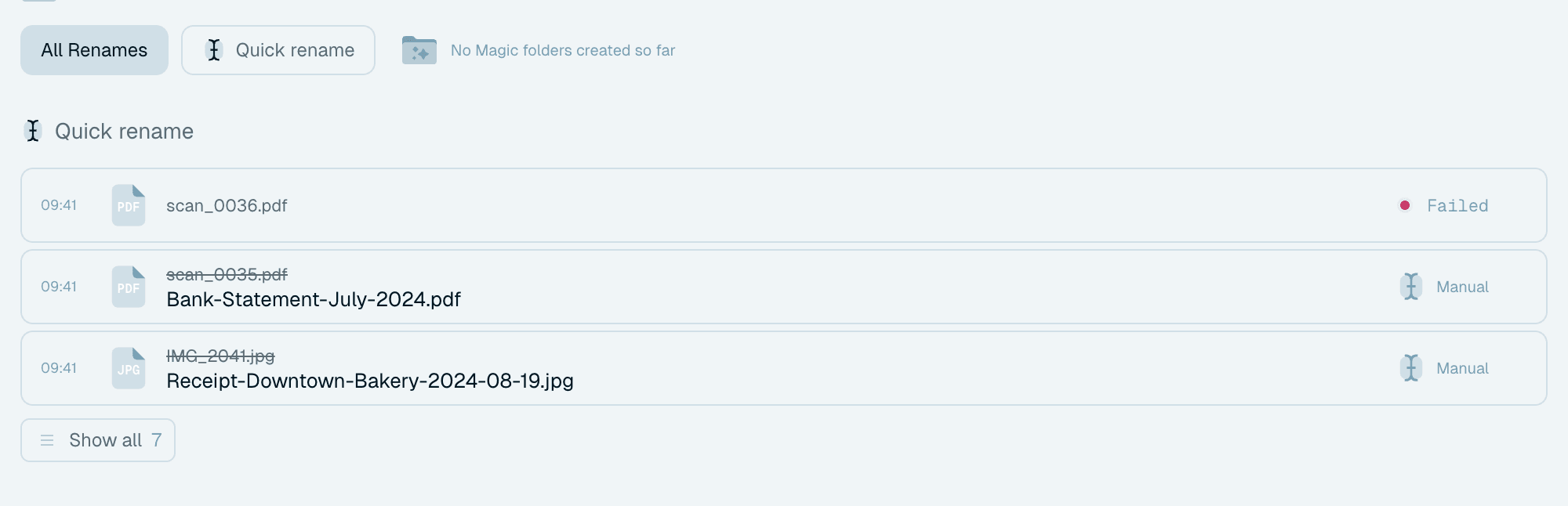
Per-source views
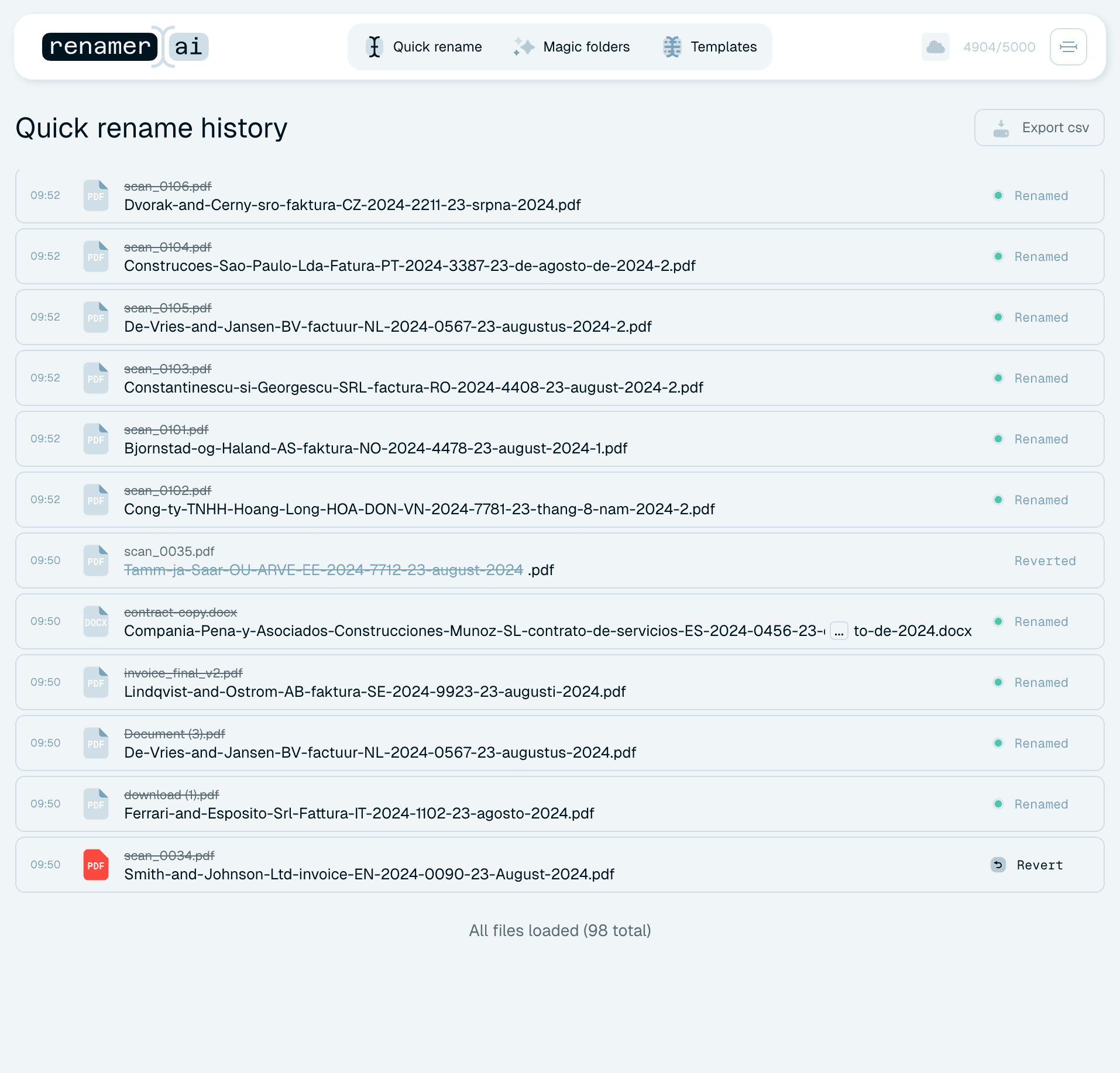
Open a single source for just its renames: Quick rename history, or "<folder name> history" for a Magic Folder. The list loads as you scroll, until "All files loaded (… total)". A Magic Folder's card jumps here too, via Show all in its feed or Folder Activity in its menu - and when you arrive that way, a Back to Magic Folders button takes you back. So "what has my scanner folder been doing?" is one click.
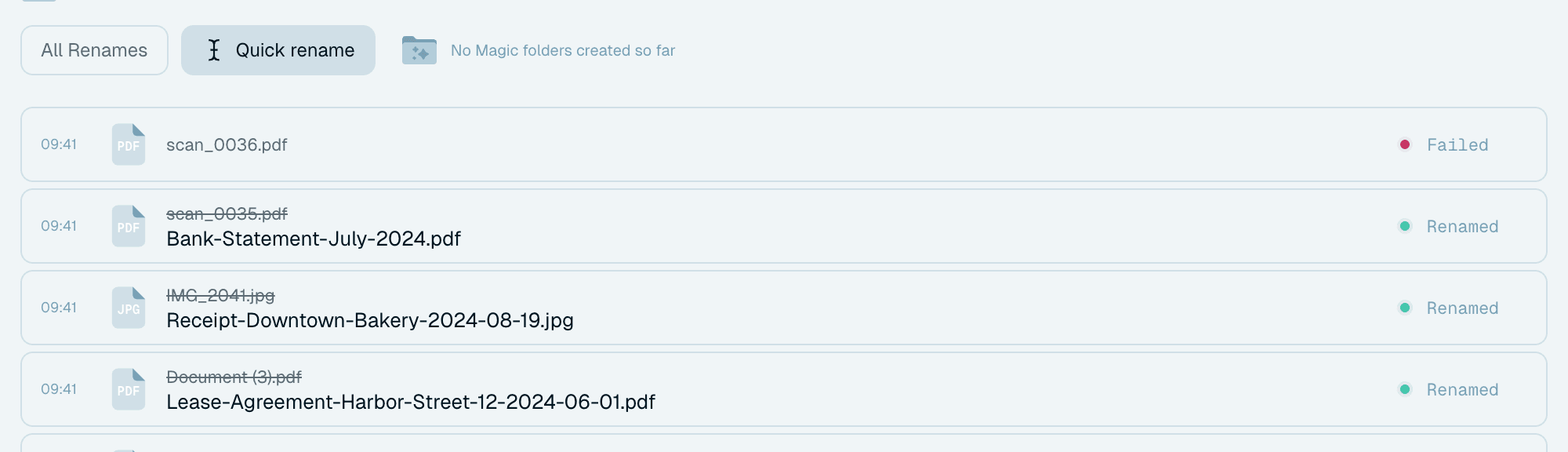

Filters
The filter panel (above the list, or beside it in a wide window) switches between sources: All Renames (the overview), Quick rename, and one entry per Magic Folder. Magic Folders you've removed stay listed, marked Deleted, so their history isn't lost.

Reading a history row
Each row is one rename, with everything you'd ask about it:
- the original name and the new name,
- when it happened (hover the time for the full date),
- where it came from - a Manual badge for Quick Rename, a folder icon for a Magic Folder,
- a LOCAL badge if it was renamed by the local AI model, or the provider's name if it ran on your own API key,
- its status - for example Failed, with the reason on hover, and a Retry button where the failed step can be repeated.

Reverting a rename
Reverting gives a manually renamed file its original name back on disk, immediately:
- Right after a rename - hover the file's status in the batch card on the Quick Rename screen and click Revert.
- Any time later - open Quick rename in Activity History, find the file, hover its row and click Revert.
Reverts are strictly per-file: in a batch of ten you can keep nine good names and undo one. The history marks reverted files (Reverted), so the record always reflects reality. Files renamed by a Magic Folder don't offer Revert.
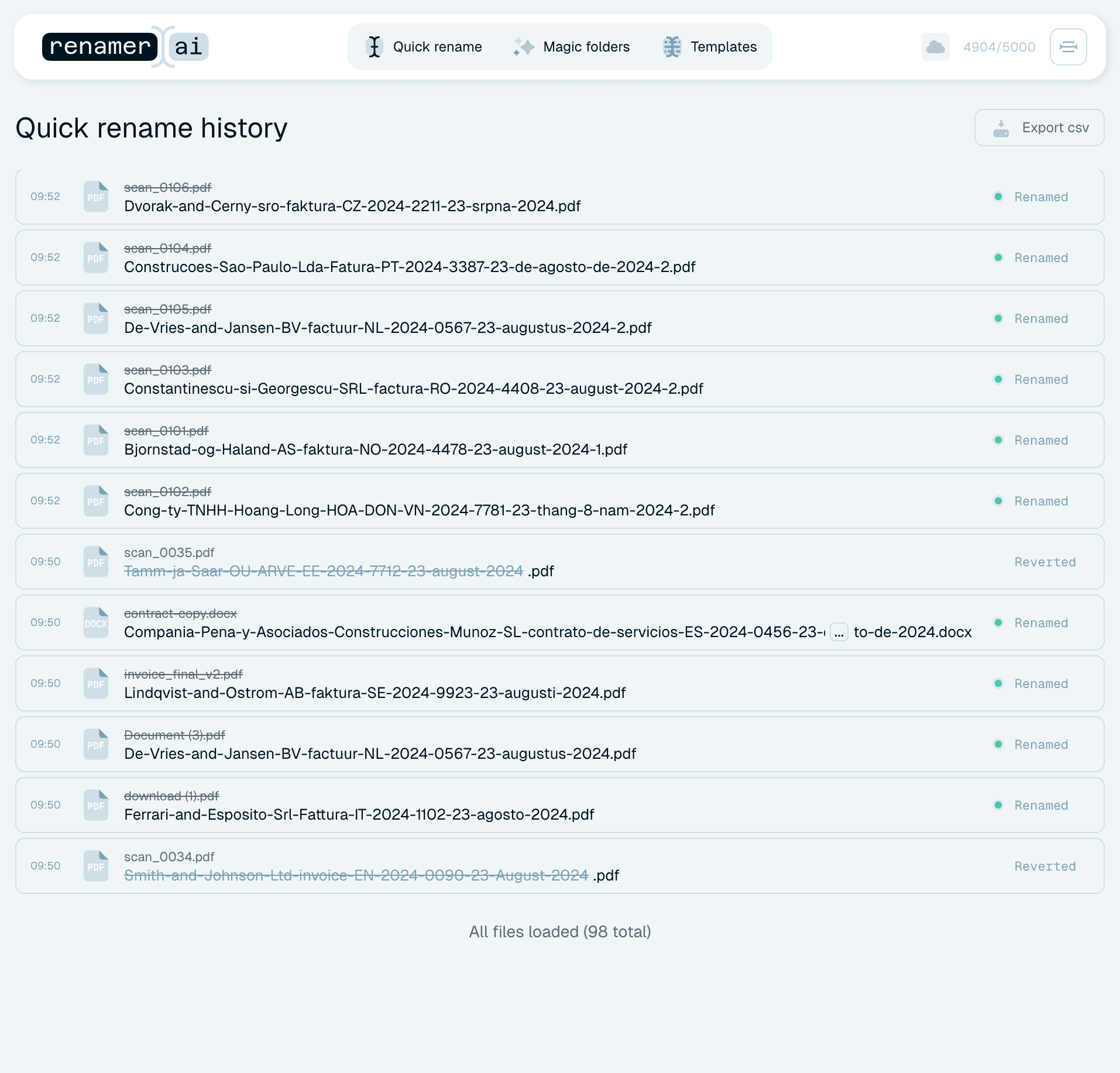
What revert does and doesn't do
- It restores the original name and location. If the rename moved the file to a destination folder, Revert moves it back to its original folder. If another file already occupies the original path, Revert reports a failure ("Could not undo the rename") instead of overwriting it - a Retry button lets you try again once the path is free.
- It doesn't consume a credit.
- It doesn't stop the file from being renamed again later - drop it into a batch or a Magic Folder and it goes through the normal flow.
Exporting your history
Need the log outside the app - bookkeeping, an audit, a colleague who wants proof the files were processed? Export csv at the top of Activity History asks where to save the file and writes every successful rename as a spreadsheet, with the columns Original Name, New Name, Magic Folder Path (empty for Quick Rename) and Date/Time.

What the history doesn't see
Activity History records what Renamer.ai did. Renames or moves you make yourself in Finder or Explorer happen outside its view - so if a file seems to have "disappeared" from the history, the usual explanation is that it was renamed by hand, not by the app. The history is an honest witness, but only to its own actions.