Managing Magic Folders
Every Magic Folder gets a card in the Magic folders tab, and that card is the folder's dashboard - status, counts, recent activity and every control in one place. This guide reads the card top to bottom, then covers the situations where a folder stops on its own and what to do about each.
Reading the folder card
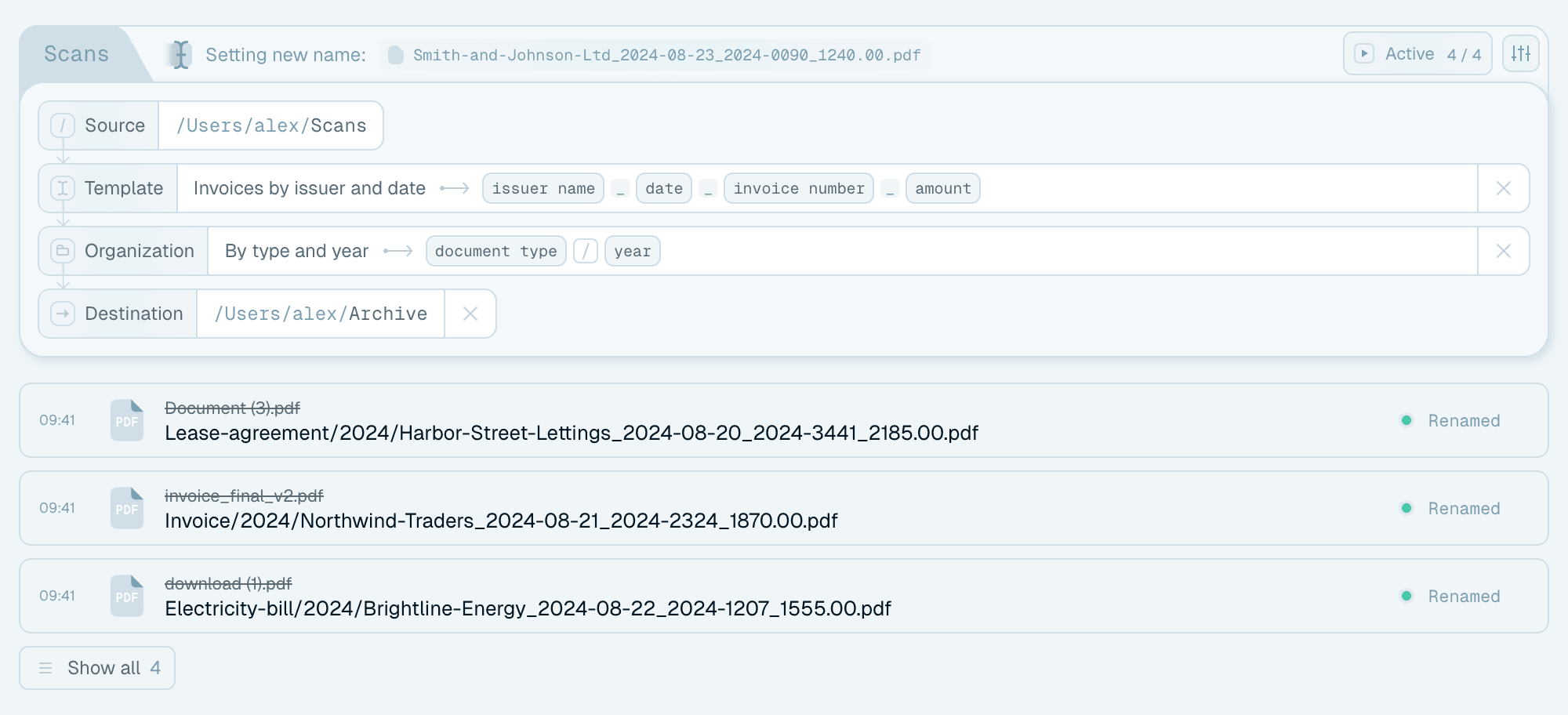
Status badge
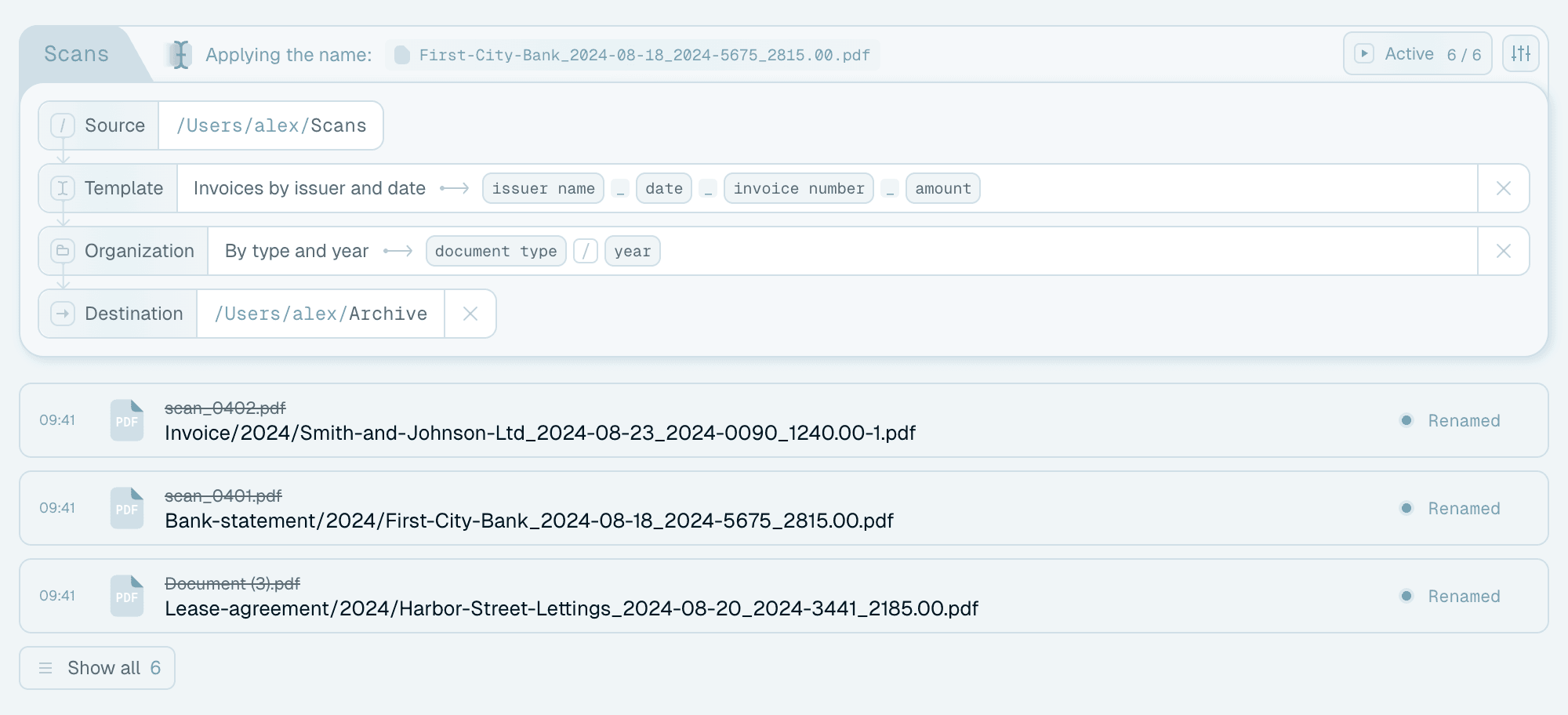
The run button in the card's top-right corner shows the folder's state and is also the switch:
- Active (or Running while files are being renamed) - watching the source folder, new files are processed as they arrive. Hover it and click Pause to stop.
- Paused - watching is stopped, the setup is intact and nothing is lost. Click Start to resume.
- Inactive - the source folder can't be found on disk (see below).
Hovering the button also explains anything that's holding the folder back - for example "Processing is paused due to network issue".
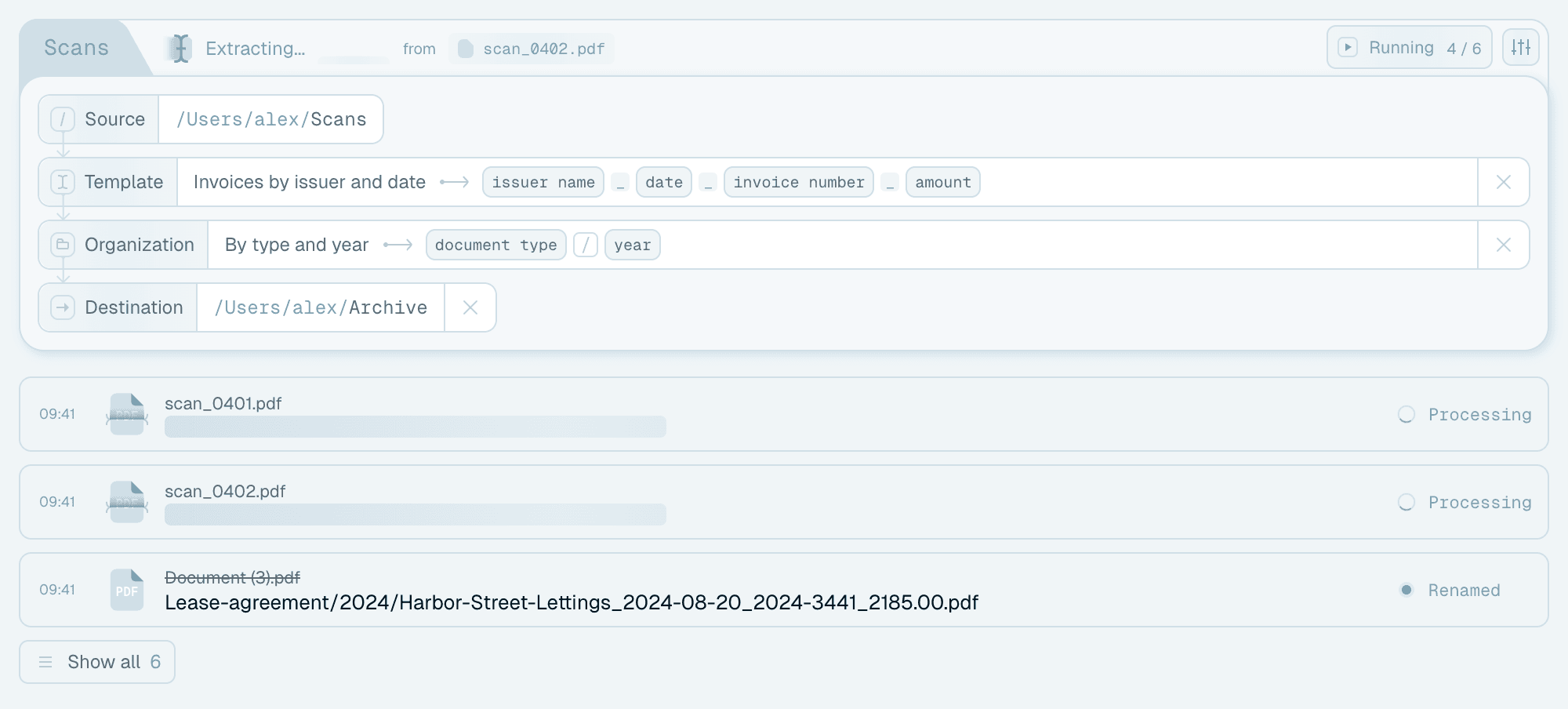
Counts
Next to the status, a done / total count shows how many of the folder's files have been processed, so a glance tells you whether the folder is keeping up.

Setup summary
The card's title is the folder's name, followed by four lines: Source (the watched path), Template, Organization and Destination. If something about the output looks wrong, these lines are the first thing to check - they tell you exactly which template produced it. Each line can be changed right there: the Template and Organization lines open their dropdowns, and the Destination line opens a folder picker (its × clears it).
Activity feed
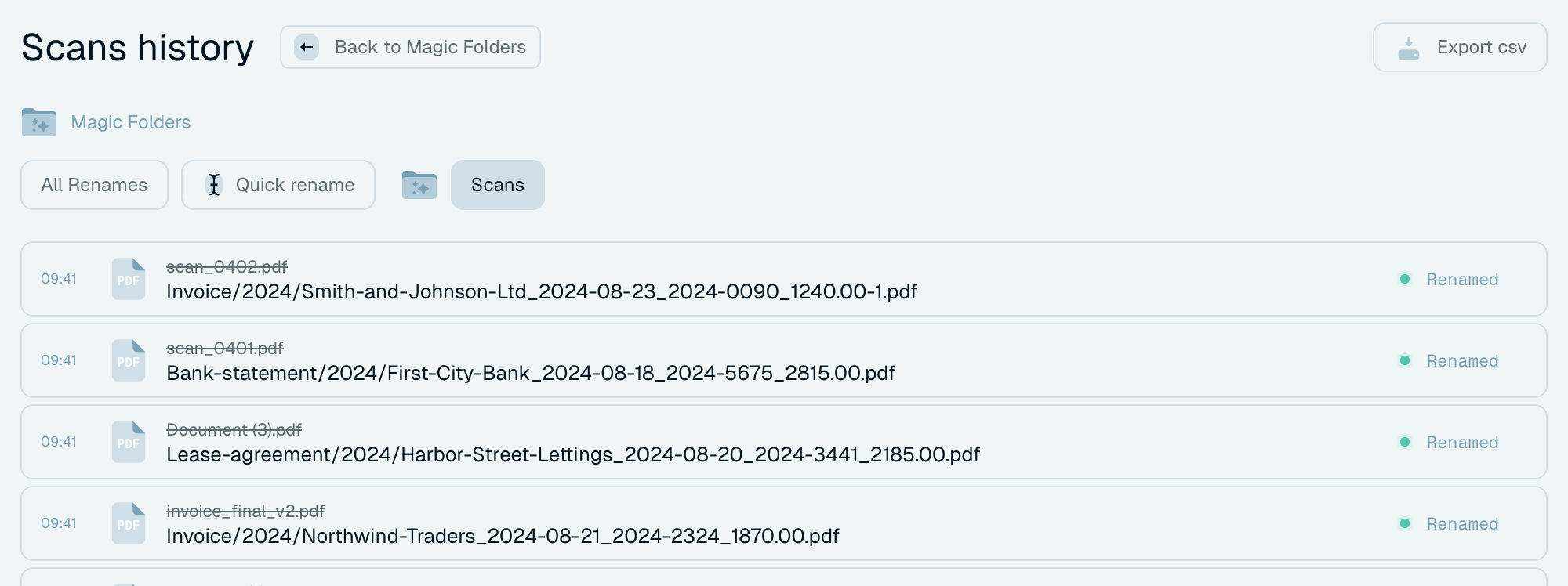
The most recent renames, live, with each file's status - queued files show Waiting. An empty feed says "No files renamed so far" with an Open folder button. Click Show all to open the folder's complete history ("… history") with Export csv and a Back to Magic Folders button - the same view described in Activity history and reverting renames.

Pause and resume
The pause button stops watching without losing anything. Resume with Start and it picks up right where it left off - including files that arrived while paused, which are processed on resume. Pause is the right tool whenever you want to make changes calmly: adjusting templates, reorganizing the destination, or just stopping the flow during a big file move.


Changing settings later
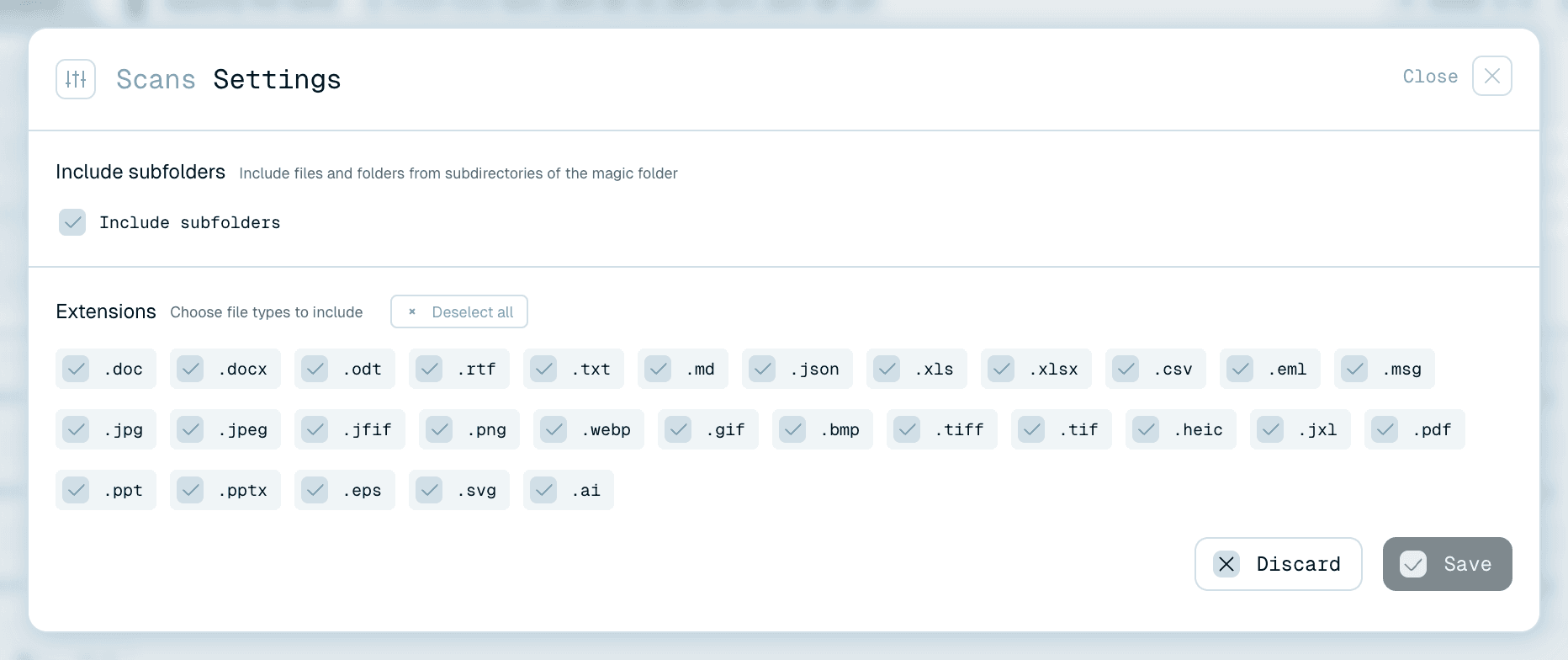
Open Settings from the card's Folder actions menu. The dialog has Include subfolders and Extensions (with Select all / Deselect all). Changes apply after you hit Save - or walk away with Discard and nothing changes.
A key thing to understand about Extensions and Include subfolders: saving a change to them affects which new files get processed, but it does not go back over the files already in the folder. So if you widen the extensions or switch subfolders on, the folder won't suddenly rename the files that setting now covers - applying the change to what's already there is a deliberate Rerun folder (next section).
One extra appears here only when it's needed: if the folder has Skipped files - files that were already in the folder when it was created with Ignore initial files ticked - the settings show "… files were skipped on creation, click to process them" with a Process … skipped files button. Click it and Save, and they go through the pipeline after all.
The actions menu
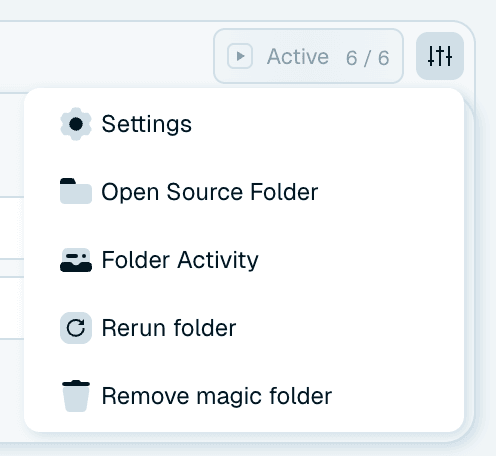
The Folder actions menu (the menu button on the card) holds:
- Settings - the dialog described above.
- Open Source Folder - jumps to the source folder in Finder or Explorer.
- Folder Activity - opens the folder's full history in Activity History.
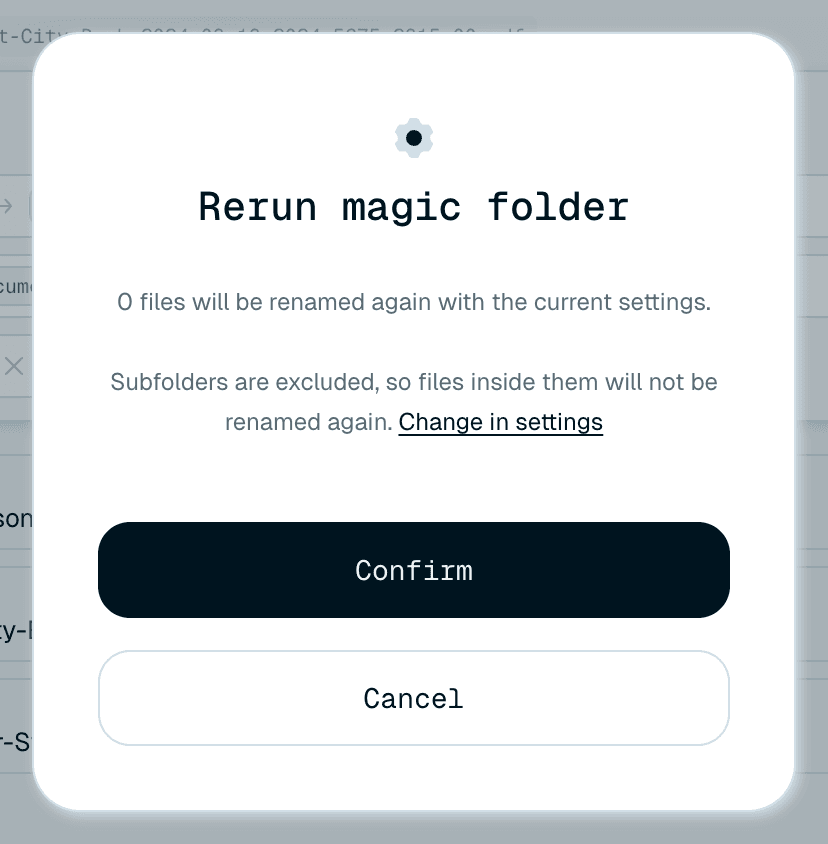
- Rerun folder - shown once the folder has processed files. It re-scans the folder and renames its files again with the current template and settings. This is how you apply a changed template, a widened Extensions list or a newly enabled Include subfolders to files that are already there. A confirmation (Rerun magic folder) tells you how many files will be renamed again. If subfolders are off it notes "Subfolders are excluded, so files inside them will not be renamed again." with a Change in settings link. Rerun works on the files that are in the source folder - files already moved to a destination aren't picked up.
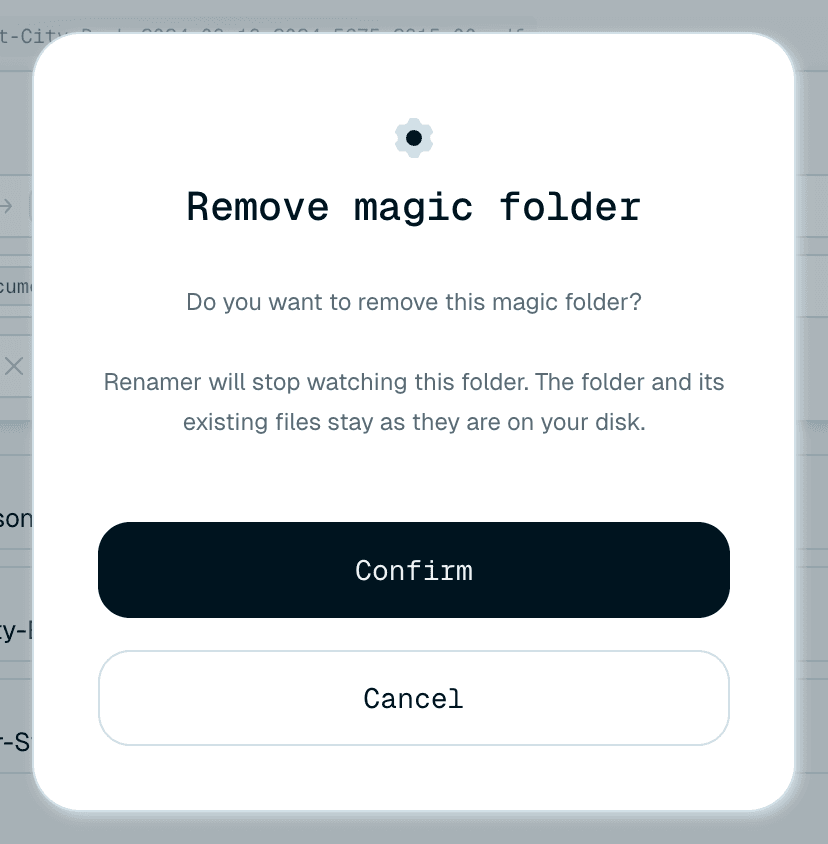
- Remove magic folder - stops watching and removes the card after you confirm. As the confirmation says: "Renamer will stop watching this folder. The folder and its existing files stay as they are on your disk." Removal only forgets the automation, not its results - the folder's history stays in Activity History, marked Deleted.
Dropping files onto a card
You can also drop files straight onto a Magic Folder's card:
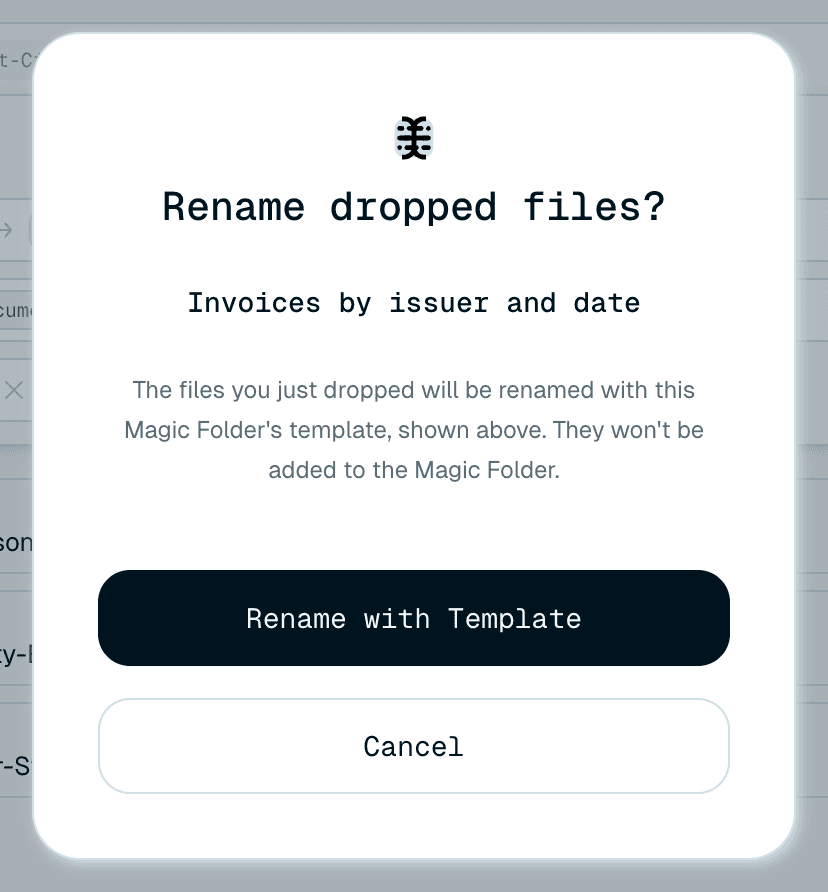
- Files - a Rename dropped files? dialog offers Rename with Template: they're renamed right away with this folder's template, like a Quick Rename batch, but they aren't added to the Magic Folder.
- A folder - you're asked whether to Create magic folder for it, or Rename manually its files with this folder's template.
When the source folder goes missing
If the folder Renamer.ai is watching gets moved, renamed or deleted on disk, the app can no longer watch it and marks the card Inactive - the Source line still shows the old path, now with a warning icon. Nothing is lost: the card, its settings and its history all stay put.
To fix it, click Relink on the Source line and choose the folder's new location in the picker. Renamer.ai re-points the Magic Folder to that path and marks it valid again. Your template, organization and settings are kept exactly as they were - Relink only restores where the folder is, never how it renames.
One thing to expect: after relinking, the folder comes back Paused, so you decide when it picks up again - click Start to resume watching the new location. (Relink is only about the folder path. To change the template a folder uses, pick a different one on its Template line instead.)



When a folder pauses itself
A Magic Folder protects you by stopping instead of failing silently. The card always says why:
Out of credits
Renaming would fail mid-file, so processing waits: a No credits remaining banner appears and the run button explains "Processing is paused due to credits issue". Top up or upgrade (see Understanding credits and plans) - once credits are available again, the waiting files are processed in order. Nothing is skipped or lost.

Template removed
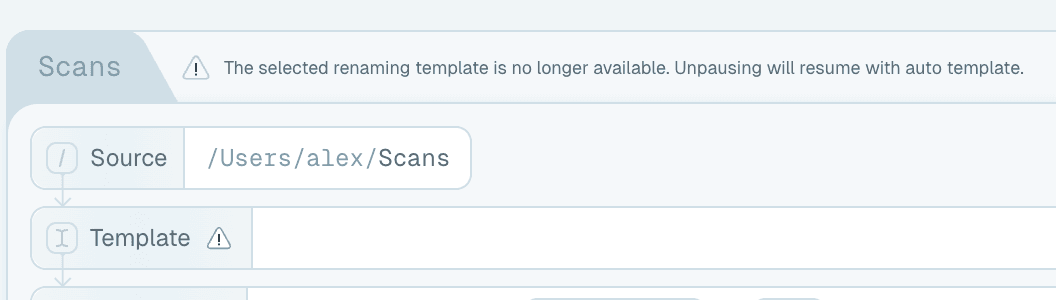
The folder's naming template was deleted, so the folder is paused and the card explains: "The selected renaming template is no longer available. Unpausing will resume with auto template." (For a deleted organization: "Unpausing will resume without organization.") To use a specific template instead, pick one on the folder's Template line before resuming.
Connection trouble
If the app can't reach the renaming service, folders hold their work and a Something went wrong banner explains the situation ("No internet connection. Renaming will resume once the issue has been resolved." or a server issue) - Learn more gives the details. When the connection returns, processing continues by itself.

The common thread: a paused folder is never a broken folder. The queue, the settings and the history are all intact - fix the stated reason, resume, and it continues as if nothing happened.