Fine-tuning your file names
Two files renamed with the same template can still look very different depending on a few formatting settings - 2026-03-12_acme_invoice.pdf versus Acme Invoice 12.03.2026.pdf is purely these dials. This guide explains each setting, then - just as important - where each one lives.
The four settings
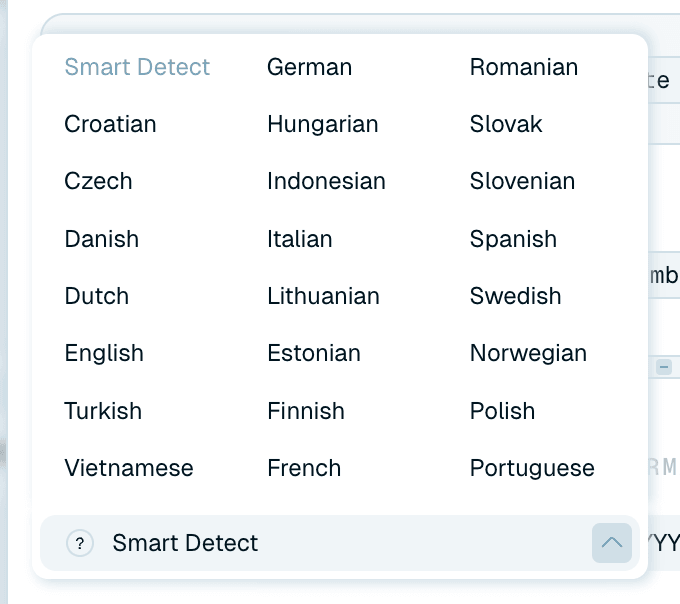
Language
The language the AI writes file names in. Smart Detect (the default) lets the AI choose. Otherwise pick one from the list - English, German, French, Spanish, Italian, Portuguese, Dutch, Polish, Czech, Slovak, Slovenian, Croatian, Hungarian, Romanian, Danish, Swedish, Norwegian, Finnish, Estonian, Lithuanian, Turkish, Indonesian or Vietnamese. Two things people mix up at first:
- It's independent of the document's language - a German invoice can produce an English filename, and vice versa.
- It's independent of the app interface language (set under Language in the user menu) - you can run the app in English and name files in German.
Date format
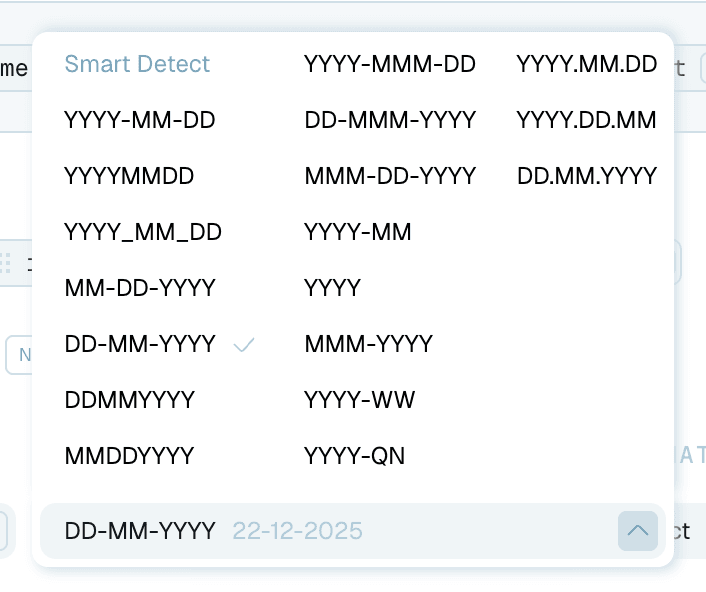
How dates extracted from documents are written - Smart Detect, or a fixed style from YYYY-MM-DD and DD.MM.YYYY to YYYYMMDD, DD-MMM-YYYY, MM-DD-YYYY, or coarser ones like YYYY-MM, YYYY, YYYY-WW (week) and YYYY-QN (quarter). A tip from the trenches: a year-first format makes files sort chronologically in any file manager, which is worth a lot if your template starts with a date.
Text format
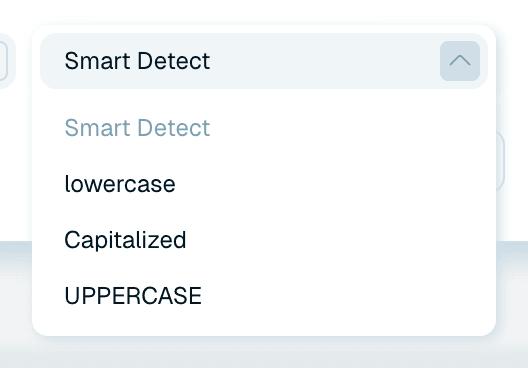
The letter case applied to generated names: Smart Detect, lowercase, Capitalized or UPPERCASE. Capitalized reads best for human browsing. Lowercase is the traditional choice for files that scripts and servers will touch.
Separators and connectors
Two separate choices, each offered as small buttons - dash, underscore, space or None: Separators are the "Symbols between name parts" (2026-03-12 acme vs 2026-03-12_acme), and Connectors are the "Symbols within name parts", between the words inside one part (acme corp vs acme-corp). Spaces read naturally. Dashes and underscores are friendlier to systems that dislike spaces in filenames. The combination of the two gives names like 2026-03-12_acme-corp_invoice.pdf their exact texture. (In Auto mode only Separators is shown.)

Where the settings live
All of these dials live in one place - the template - and that's the part worth understanding:
In Quick Rename
The Quick Rename screen has no formatting controls of its own: a batch uses the settings of the template on its Template line. To change them, click the template's name to open it in the editor - for the default Auto renaming too, whose editor shows just the formatting settings.
Inside a template
The template editor carries the Separators, Connectors, Language, Date format and Text format settings - saved as part of the template, so a template produces consistently shaped names wherever it's used. Your Invoices template can be underscore-separated and year-first while your Photos template uses spaces, and neither interferes with the other. See Building your own naming template.
One nuance for organization templates: they have no formatting settings of their own. Language, date format and text format are "inherited from the naming template" they run alongside (the editor shows them greyed out), so filenames and folders always agree.
Per Magic Folder
A Magic Folder takes its formatting from the template it uses - which means different folders can produce differently formatted names simply by using different templates. Your scanner inbox can emit 2026-03-12_acme_invoice.pdf while manual renames keep friendly spaces.
Experimenting safely
The template editor's Sample preview updates live as you change the pattern, separators and connectors, and you can drop a real file onto it to see the exact result with every setting applied - see Previewing and testing your template. That's the place to find your style, before any real file is touched. Nothing sticks until you click Save template: Back and Cancel discard your changes, and clicking outside the editor with unsaved changes asks first.
