Your template library
The Templates tab is where every template lives - the ready-made ones Renamer.ai ships with and the ones you make your own. This guide is a tour of the screen: how it's laid out, how the two kinds of template are shown, and what each card lets you do.
Gallery and Collection
The tab has two views you switch between:
- Template gallery - the ready-made templates, grouped and filterable, ready to adopt.
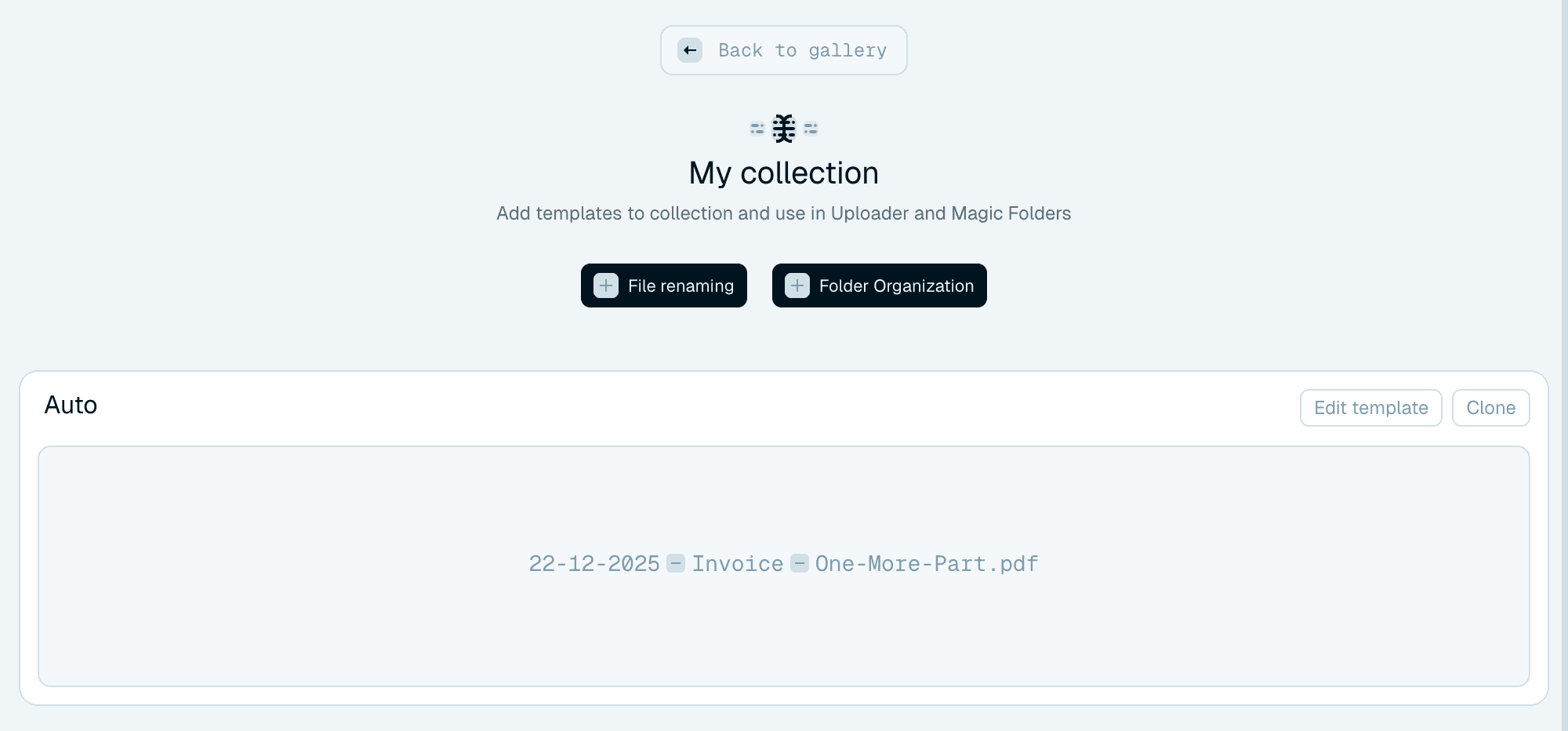
- My collection - the templates you've added or created, and the ones you actually use in Quick Rename and Magic Folders.
Move between them with the My collection card at the top of the gallery (it shows how many templates you own) and Back to gallery. The subtitle sums up the flow: "Add templates to collection and use in Uploader and Magic Folders." A template has to be in your Collection to use it, so the Gallery is really a shelf you pick from.

Two kinds of template
Both kinds share this tab:
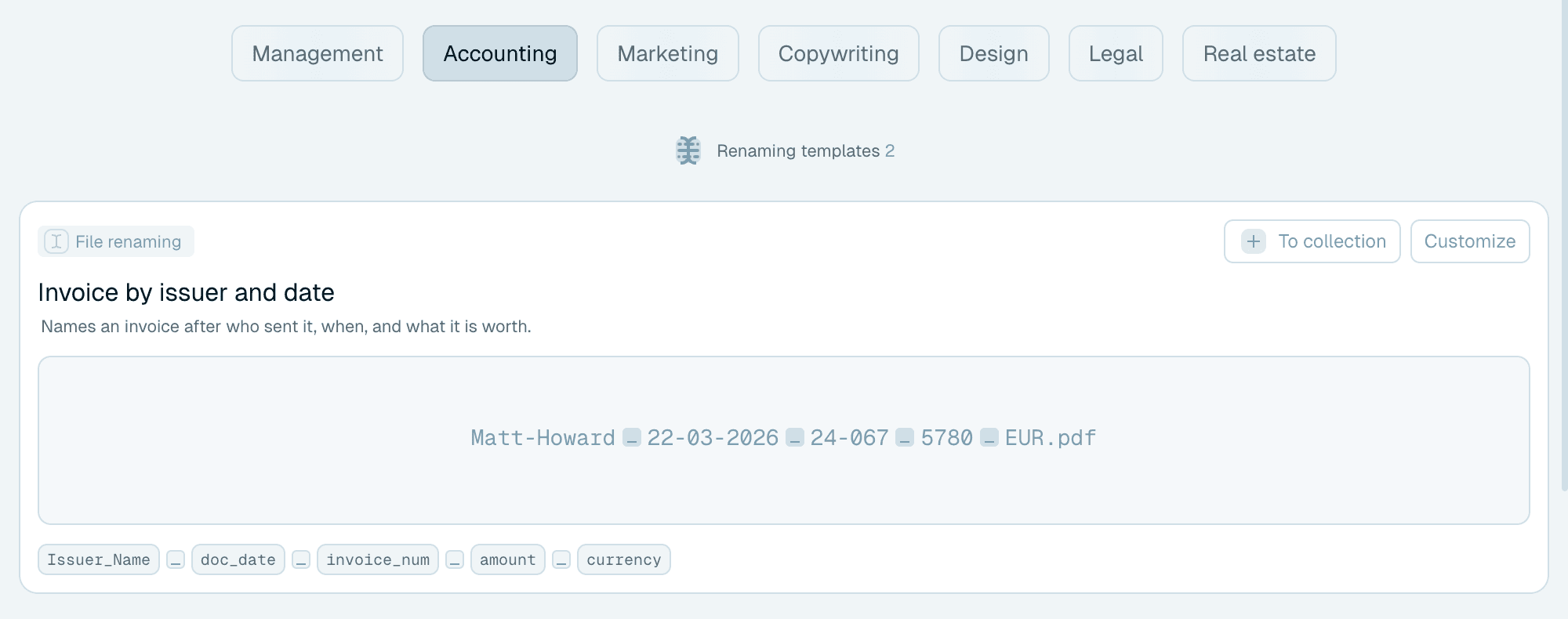
- Naming templates (badge: File renaming) decide what a file is called.
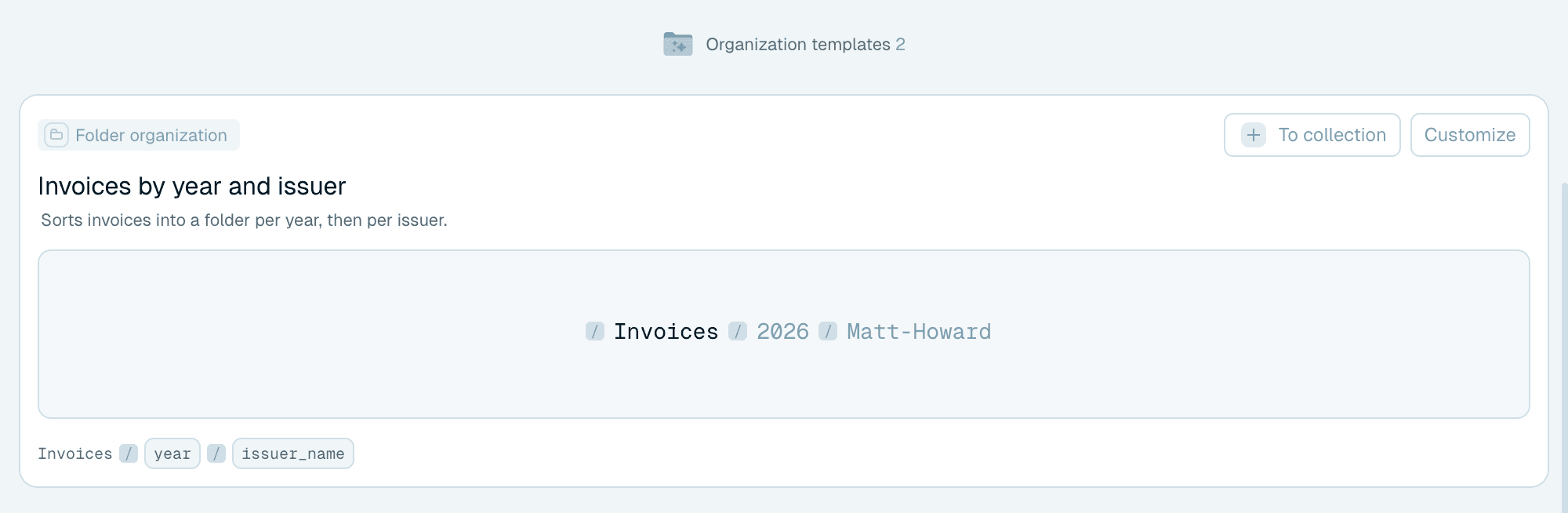
- Organization templates (badge: Folder organization) decide which folders a file is sorted into.
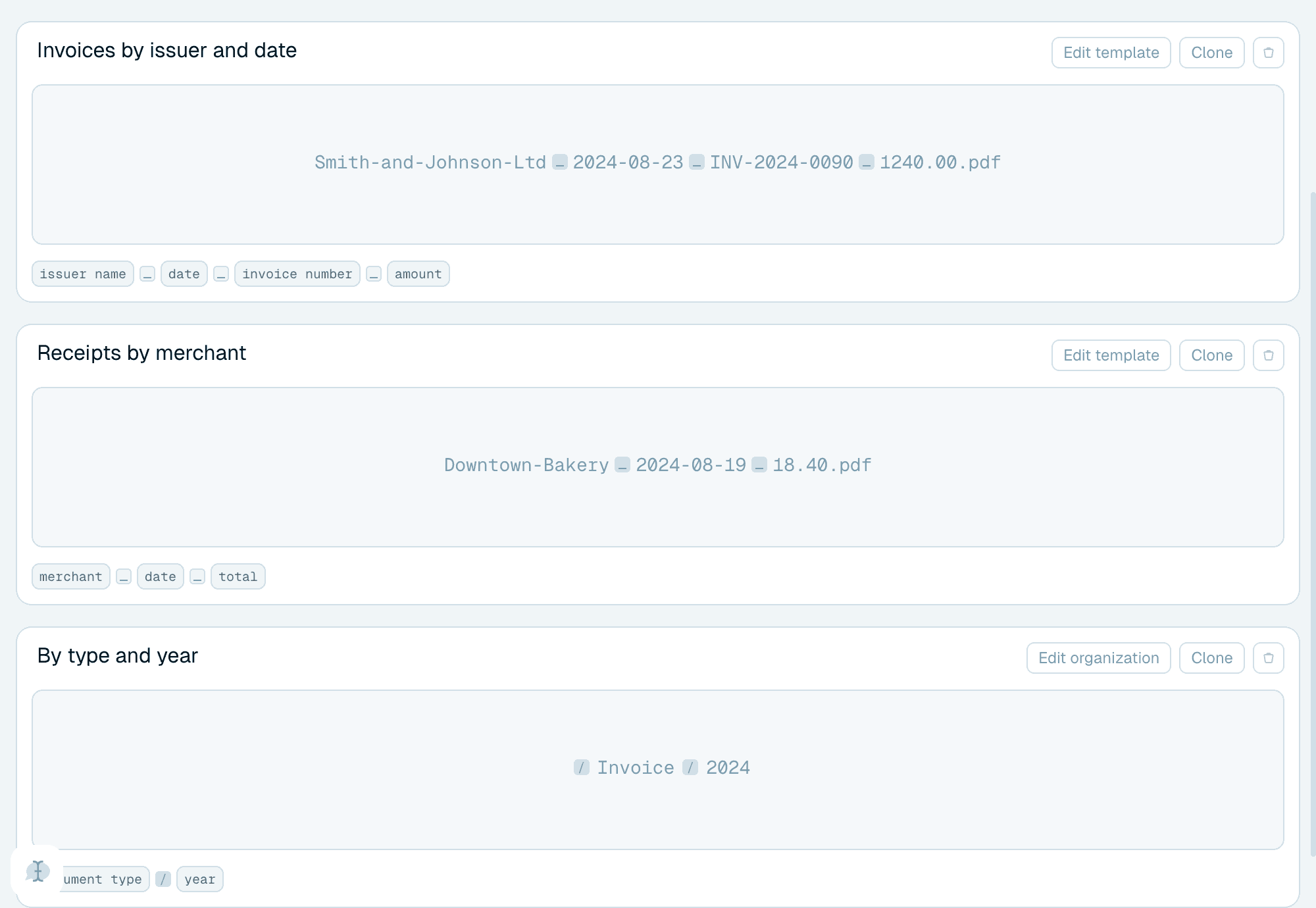
In the Gallery, every card wears a small badge with its kind, and when both kinds are shown they sit under headers - Renaming templates and Organization templates, each with a count - with the Gallery's topic chips (Accounting, Legal and so on) to filter the list. In your Collection the two kinds are mixed together without badges - the sample tells them apart: a filename for a naming template, a folder path for an organization template.
What a card shows
Every card gives you a preview before you commit:
- The template name (and, in the Gallery, a short description and tags).
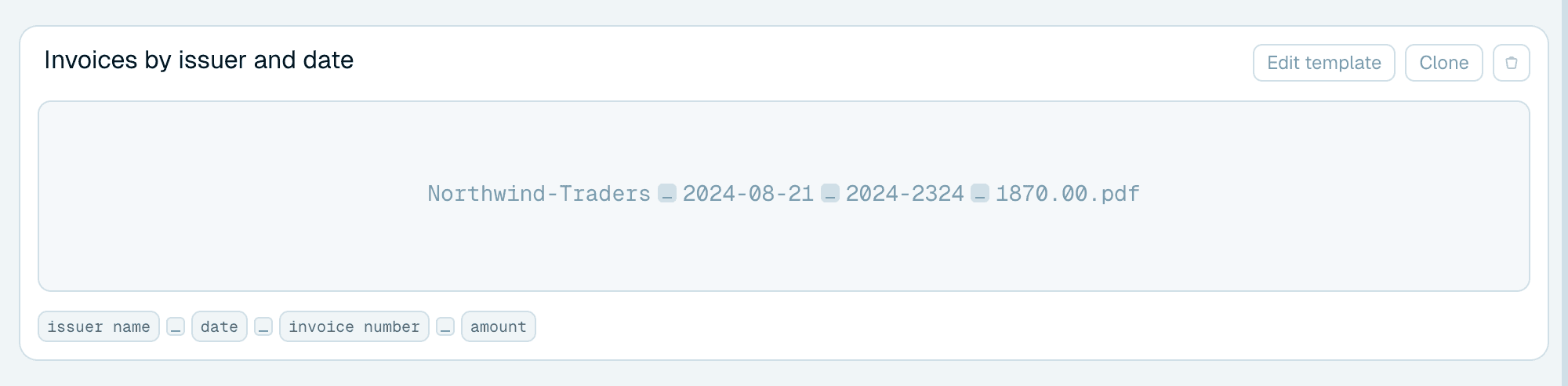
- A sample - a finished filename for naming templates, or a folder path for organization templates - built from the template's sample values.
- A row of chips showing the parts the template is built from.
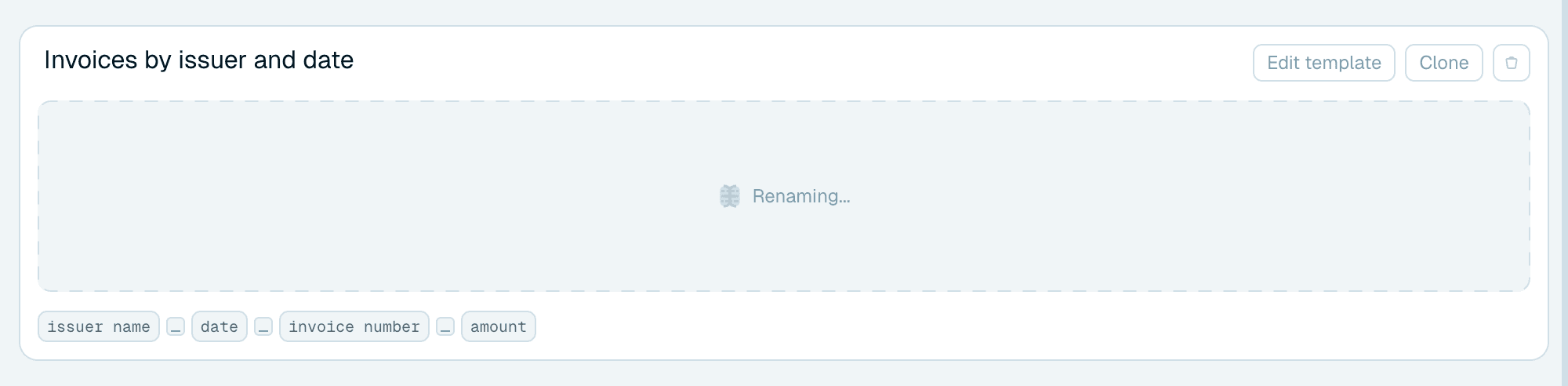
The sample is interactive: drop a real file onto a card ("Drop your files here") to test that template on your own file. The card shows Renaming... and then the name your file would get. It's only a test - the file itself isn't renamed.
Adding from the Gallery
Each Gallery card offers two buttons:
- To collection - adds the template to your Collection exactly as it is. A toast confirms "… added to your collection". Use it when a template already fits.
- Customize - opens an editable copy in the editor. It joins your Collection when you click Save template ("Template was added to your collection"), and the Gallery original is left alone. Use it when a template is close but not quite right.
More on choosing between them in Choosing a template.
Making your own
In My collection, two buttons create a template from scratch:
- File renaming - a new naming template. Walkthrough: Building your own naming template.
- Folder Organization - a new organization template. Walkthrough: Organizing files into folders.
Both open the editor overlay. If your Collection is still empty you'll see "No templates added yet" with a hint to add from the Gallery "... or create your own", and the same two buttons.
Managing a Collection card
Each template you own offers these actions on its card:
- Edit template / Edit organization - open it in the editor. See Editing templates, and - when Magic Folders use it - Changing a template that Magic Folders use.
- Clone - make a full copy (name, pattern, variables and settings) with clone added to the name. The copy opens in the editor and the original is untouched. Cloning works for both naming and organization templates - see Working faster with templates.
- Delete (the small delete icon that appears when you hover the card) - remove the template. A confirmation titled Delete followed by the template's name explains the consequences and lists the Magic Folders that use it - see Editing templates. The Auto template has no delete button - it's always there.