Changing a template that Magic Folders use
A template is often used in more than one place at once - several Magic Folders, Quick Rename, even other devices. So when you edit and save a template that Magic Folders depend on, Renamer.ai stops you with a dialog first, to make sure the change goes exactly where you intend. This guide explains that dialog.
When the dialog appears
Saving an edited template brings up the dialog only when at least one Magic Folder uses it (or it's in use on another device). The count doesn't matter - one folder is enough to trigger it, and several are all listed together.
If the template is used only in Quick Rename and by no Magic Folder, there's nothing to warn about - the save just goes through. The same dialog appears for both naming templates and organization templates.
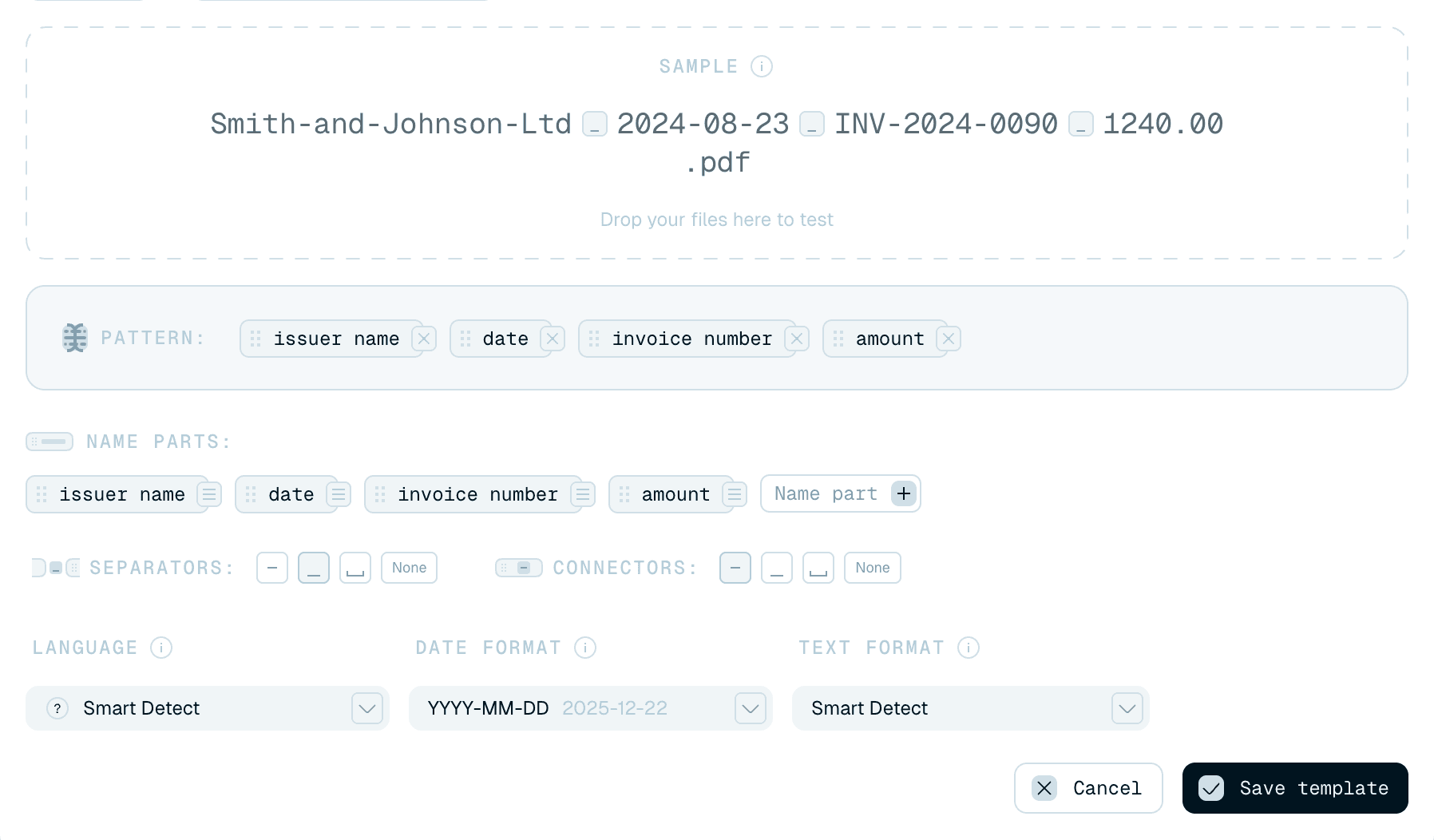
What it shows
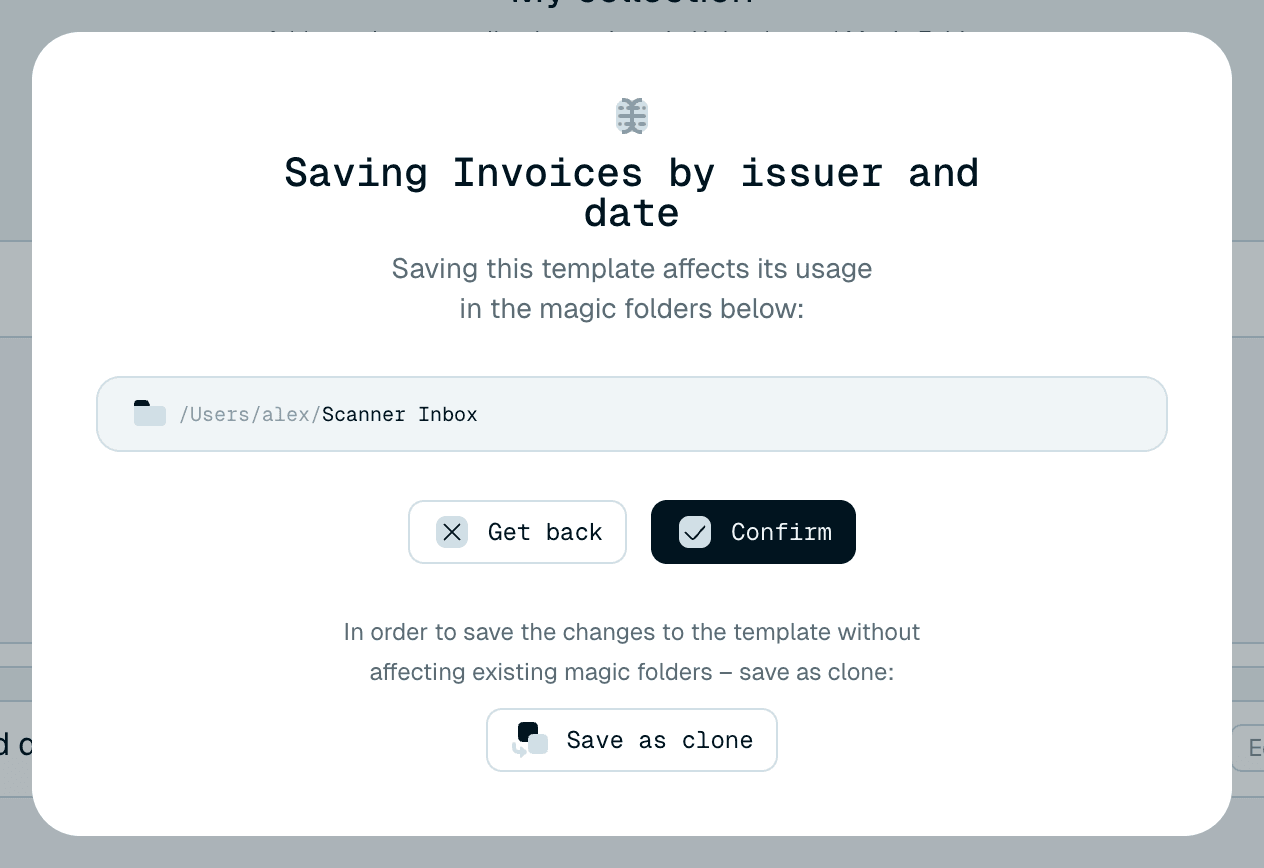
- A title - Saving followed by the template's name (or Save Naming Template when it has none).
- The line "Saving this template affects its usage in the magic folders below:"
- A read-only list of every affected Magic Folder, each with its folder path. It's there to inform you, not to pick from - there are no per-folder checkboxes. If the template is also used on other devices (by Magic Folders or Quick rename there), that's noted too.
Read the list before you choose. If a folder you'd forgotten about is on it - a scanner inbox that's been quietly working for months - that's your cue to protect it (see below).
Your choices
The dialog offers three buttons:
- Confirm - save the edit and apply it everywhere. Every listed Magic Folder keeps running and starts producing names with the new version from its next file onward. Choose this when the change is an improvement you want for all of them.
- Save as clone - save your edits as a new template instead. The original is left exactly as it was, so every Magic Folder on it keeps behaving the same. The clone gets clone added to its name, and only the place you're currently editing for (Quick Rename, or the Magic Folder whose template you opened) switches to it. Its helper line says it plainly: "In order to save the changes to the template without affecting existing magic folders – save as clone:" This is the safe answer when you want a variation for one purpose without disturbing a working setup.
- Get back - close the dialog without saving and return to the editor to keep working.
What this dialog does not do
Saving a template never reruns or pauses a Magic Folder. The folders stay active and simply use the updated template on the next file they process - files already renamed are never touched. Rerunning a folder over its existing files, or pausing it, are separate actions on the folder's own card - see Managing Magic Folders.
The safe habit
When a template is shared, decide by the list:
- Want the change for all of them? Confirm.
- Want it for one purpose only, leaving the rest alone? Save as clone, then point just that folder (or your next renames) at the clone.
- Not sure? Get back, and clone the template first from its Collection card - see Editing templates - so you're always editing a copy, never the shared original.