Choosing a template
A naming template is the pattern Renamer.ai follows when it names your files - which pieces of information to extract, in what order, and how to format them. Picking the right template is the single biggest lever for getting names you love. This guide covers the three places templates come from and how to select one for any rename.
The Auto template - zero setup
Out of the box, Quick Rename shows Using Auto renaming: the AI reads each file and composes a sensible, descriptive name entirely on its own. No fields to configure, nothing to learn first.
Auto is the right choice when:
- you're new and want to see what the app does before investing in setup,
- a batch is mixed - receipts next to photos next to contracts - so no single pattern fits,
- "a clear, descriptive name" is all you need, without a fixed structure.
The moment you want consistent names - every invoice shaped the same way - a real template takes over.

The Gallery - ready-made templates
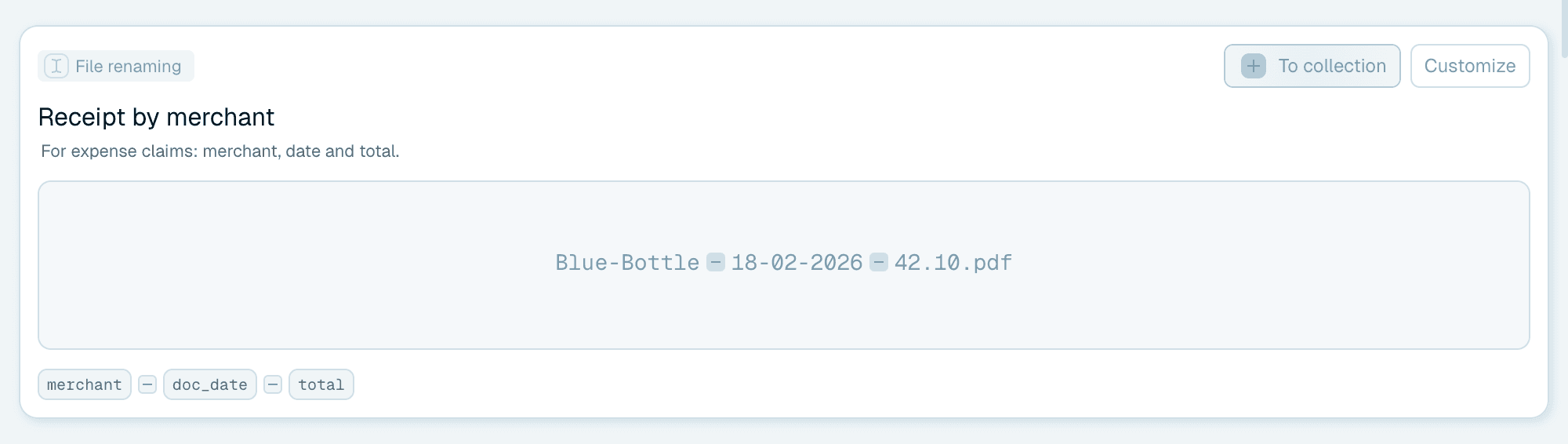
Open the Templates tab. The Template gallery holds ready-made templates for common situations, and the topic chips above the cards (such as Accounting, Legal or Real estate) filter the list. Each card shows a badge for its kind (File renaming or Folder organization), the template's name, a description, chips for the parts it's built from, and - most usefully - a sample of a finished filename, so you can compare candidates at a glance. Drop one of your own files onto a card's sample to see what that template would call it.
Two buttons matter on a Gallery card:
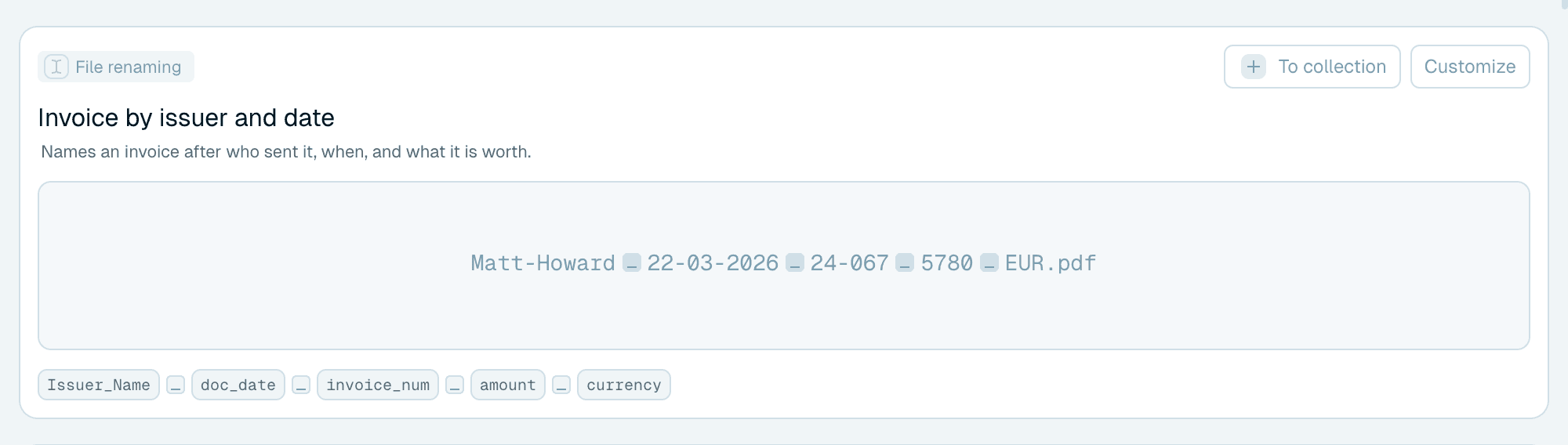
Customize
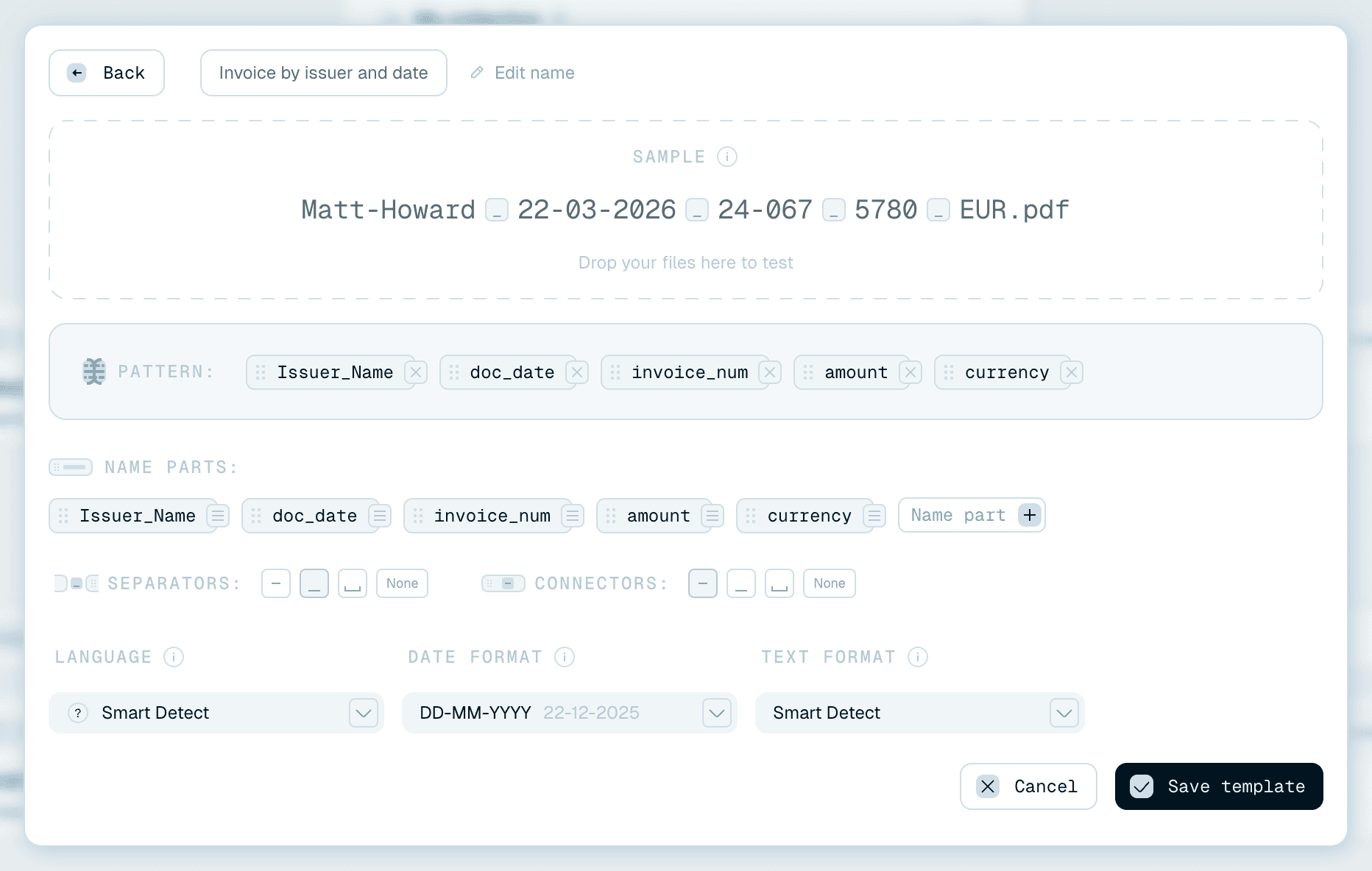
Opens an editable copy of the template in the editor. Tweak the name parts, the context, the formatting - then Save template, and the result lands in My collection as your own template ("Template was added to your collection"). The Gallery original stays untouched for next time. This is the recommended way to start: a working example beats a blank editor.

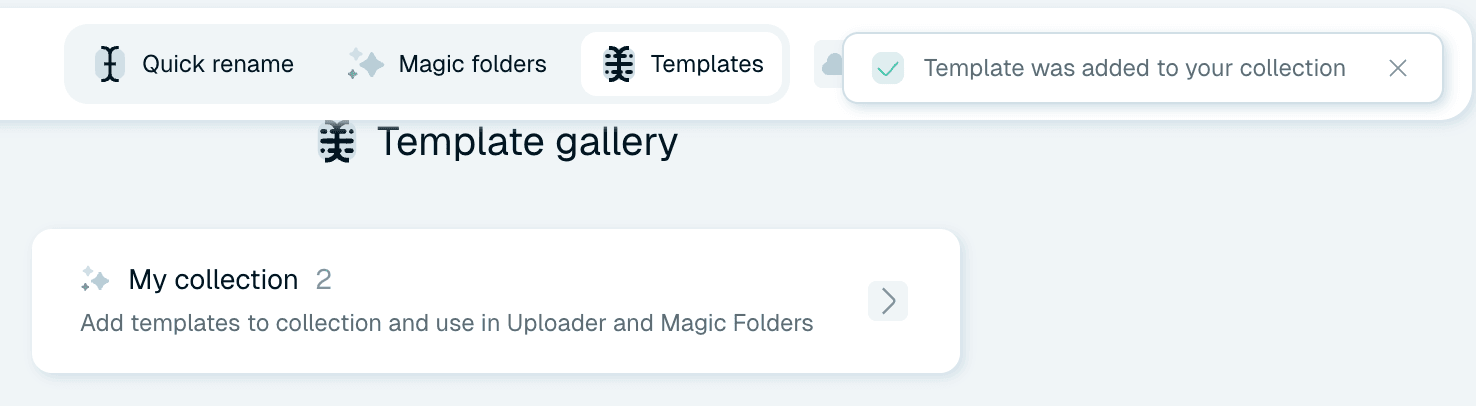
To collection
Adds the template to My collection exactly as it is, no editor detour - a toast confirms "… added to your collection". Use it when a Gallery template is already a perfect fit.

Your Collection - templates you own
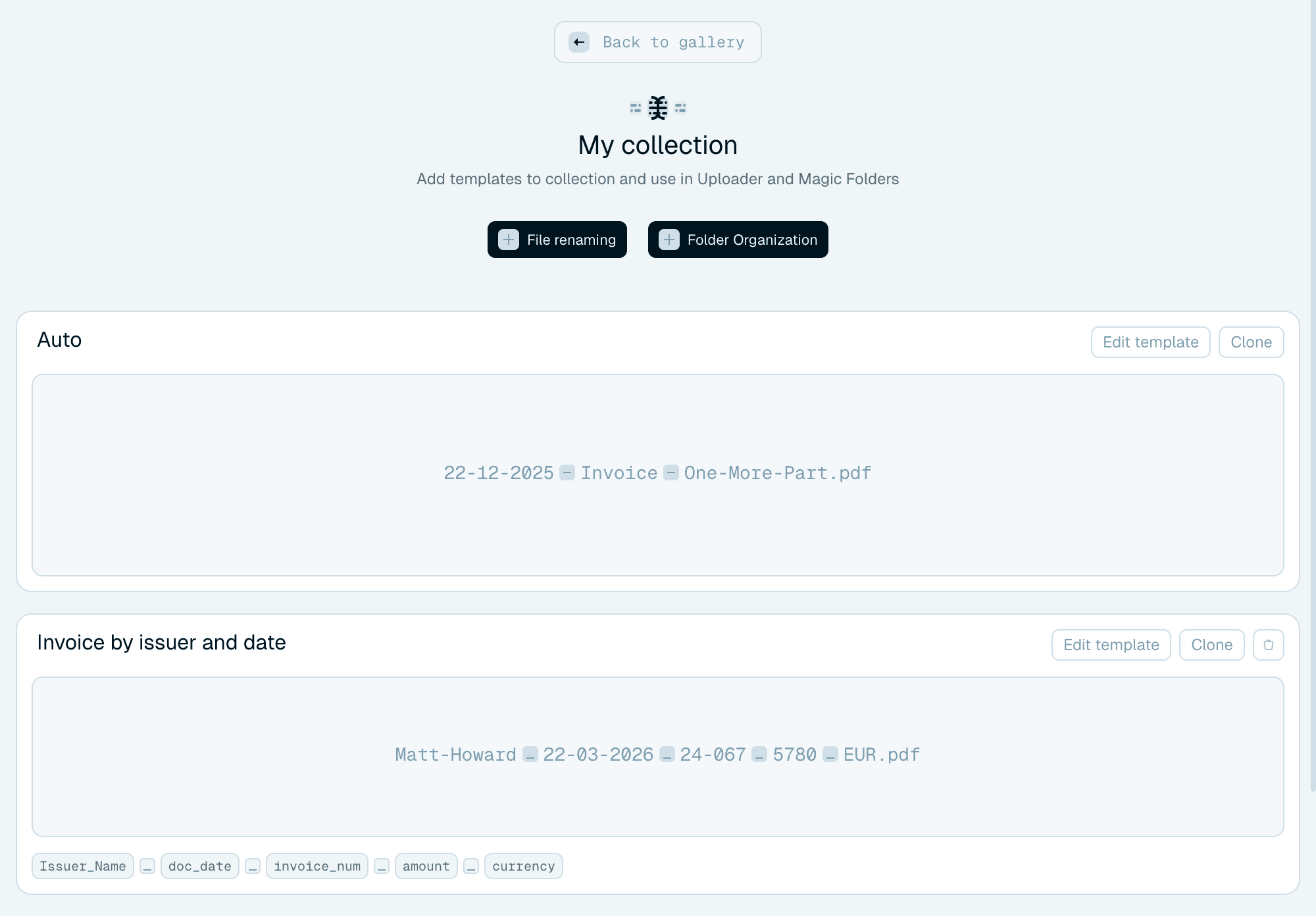
My collection (the card at the top of the gallery, or the view it opens) holds your templates: Gallery templates you added or customized, and ones you built from scratch. Each card shows its name, a sample and the chips of its parts. For the full tour of the tab, see Your template library.
From the card you can:
- Edit template - open it in the editor (see Editing templates for what happens when Magic Folders use it).
- Clone - create a copy to experiment on, leaving the original alone.
- Delete - the small delete icon that appears on hover removes it, with a clear warning about the consequences for Magic Folders that use it. The Auto template can't be deleted.


Selecting a template for a rename
In Quick Rename
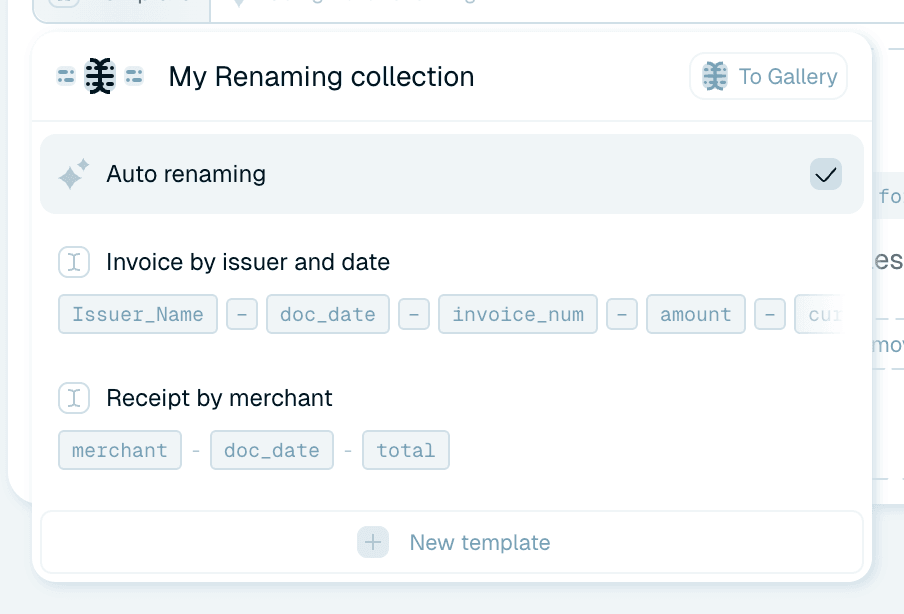
Click the Template label on the line above the drop zone. The My Renaming collection dropdown lists Auto renaming and your collection templates - each with a chip preview of its pattern - plus To Gallery to browse the gallery and New template to open the editor. Whatever you select applies to the files you drop next.

In a Magic Folder
The Template line on the Magic Folder's card works the same way, and can be changed at any time. One folder, one template - different folders can use different templates, which is exactly how you give your scanner inbox and your photo dump different naming styles.
How to decide, quickly
- One-off mixed batch? Auto template, done.
- A recurring document type? Check the Gallery first - if a card's sample preview looks close, hit Customize and adjust.
- Something specific to your business? Build it yourself: Building your own naming template walks through every part of the editor.