Building your own naming template
A naming template is built from two things: a pattern that defines the shape of the filename, and name parts - the AI-powered pieces that fill it in. This guide covers the essentials, from a new template to a saved one. The craft of writing instructions and testing is split into two short reads at the end.
Opening the template editor
Two ways in:
- From the Templates tab - open Templates, go to My collection and click File renaming. A new template opens in the editor overlay, already stocked with a set of ready-made name parts.
- From the Quick Rename screen - click the Template label, then New template at the bottom of the dropdown.


Naming your template
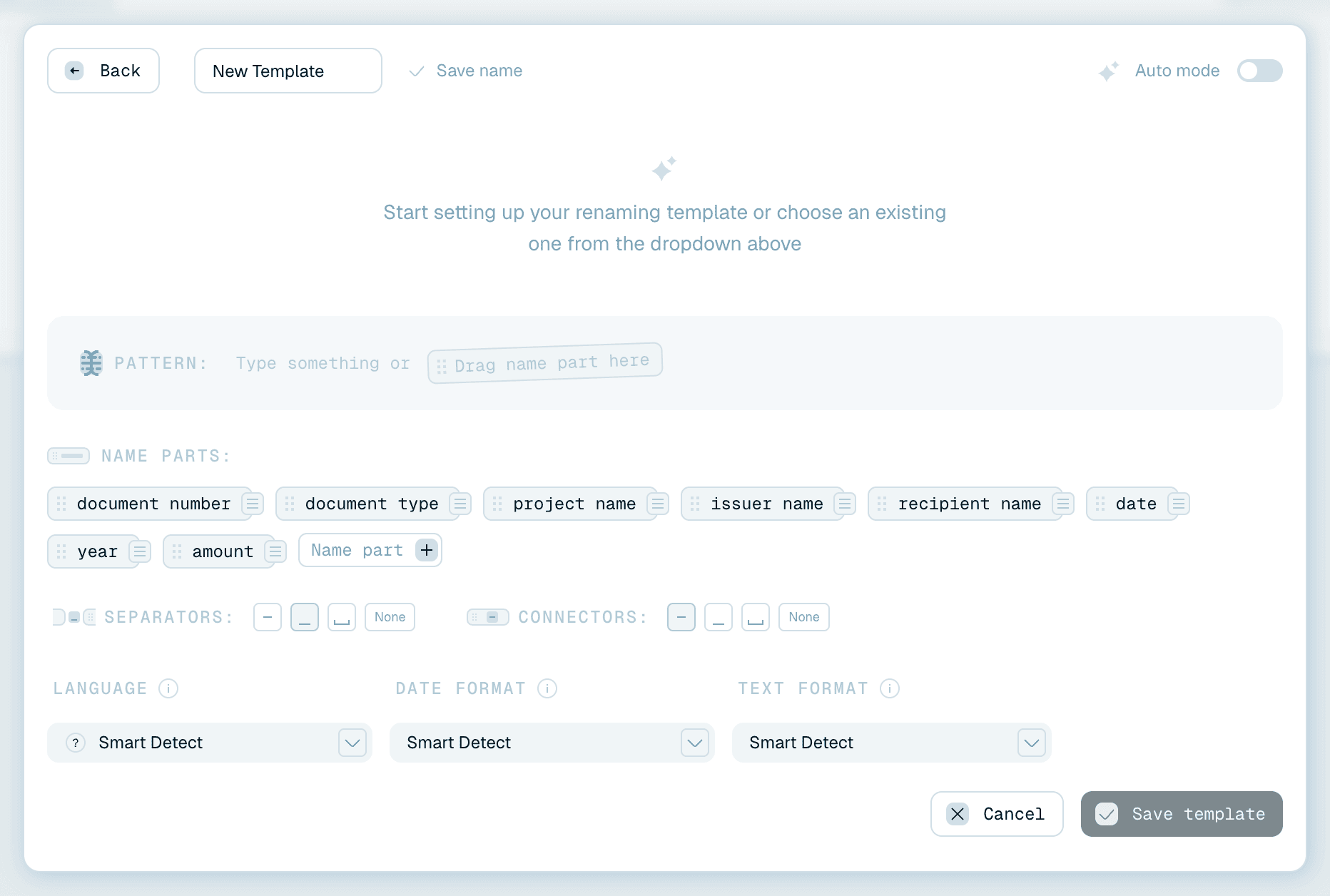
At the top is the name field (Template name). Name it for its job - Invoices, Scanned Contracts, Vacation Photos - and click Save name. This is what you'll see in dropdowns and on your Collection cards later. On an existing template the name sits in a dropdown that switches between your templates; click Edit name to rename it.
The pattern
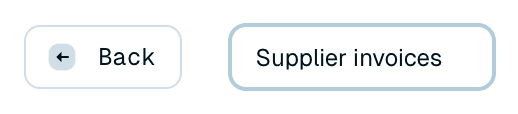
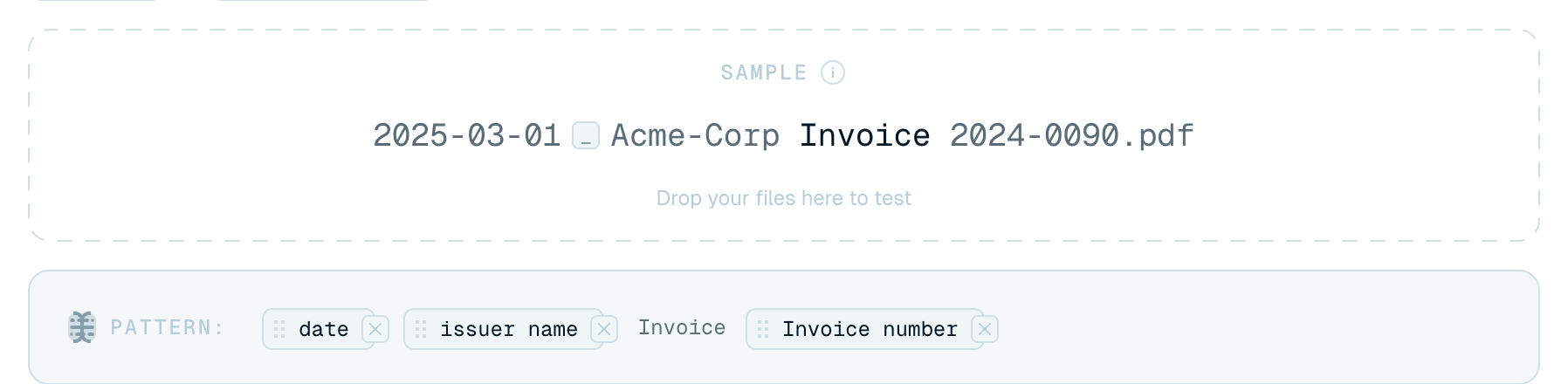
The Pattern section defines the shape of every filename. While it's empty it invites you to "Type something or Drag name part here". It mixes two kinds of content:
- Static text - anything you type appears verbatim in every name (a prefix like
ACME, or the wordInvoice). - Name parts - placeholders the AI fills per file, shown as chips like
@Dateor@Company.
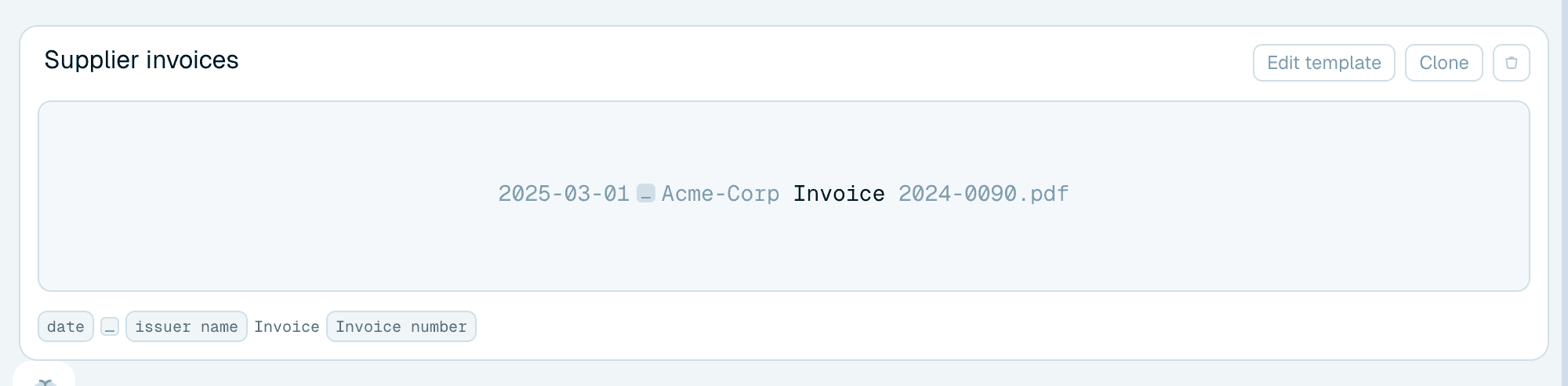
A pattern like @Date @Company Invoice @InvoiceNumber produces 2026-03-12 Acme Invoice 1042.pdf.
Creating name parts
A new template already includes common name parts (document type, date, issuer name and more) - keep the ones you want and delete the rest. To add one the set doesn't cover, use the Name parts section:
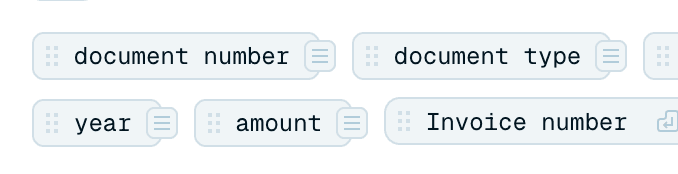
- Click the + Name part button at the end of the list.
- Type a name (up to 48 characters), e.g. Invoice Number, and confirm.
- The part appears as a chip, ready to place. The app writes a first Context for it automatically (Generating context...), which you can refine.

Inserting name parts into the pattern
Three ways, whichever fits:
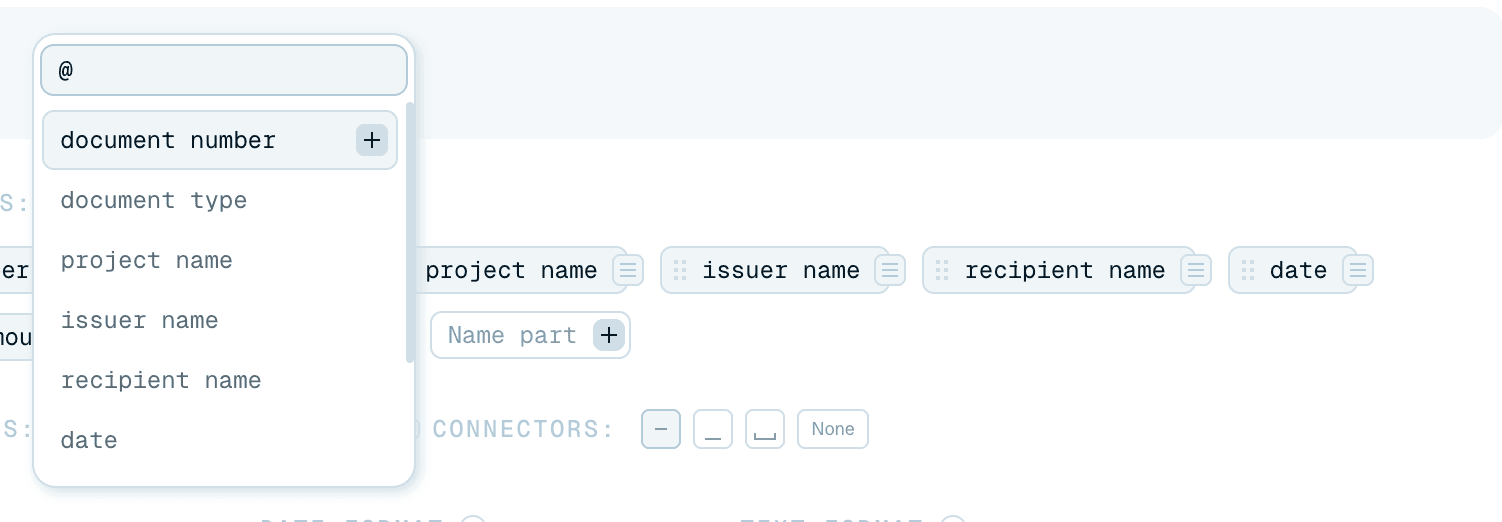
- Type
@in the pattern - an autocomplete opens (@Search...), pick a part. - Double-click a chip - inserts it at the cursor.
- Drag a chip into the pattern.
Mix static text freely around the parts.
Giving the AI instructions
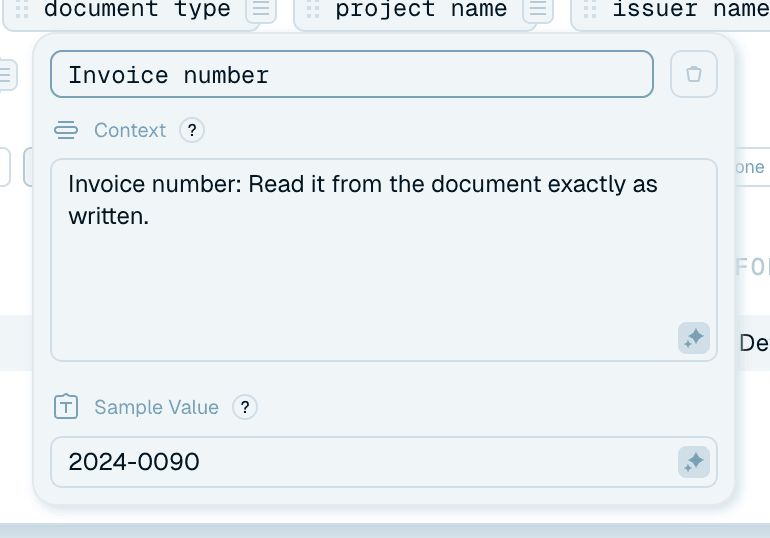
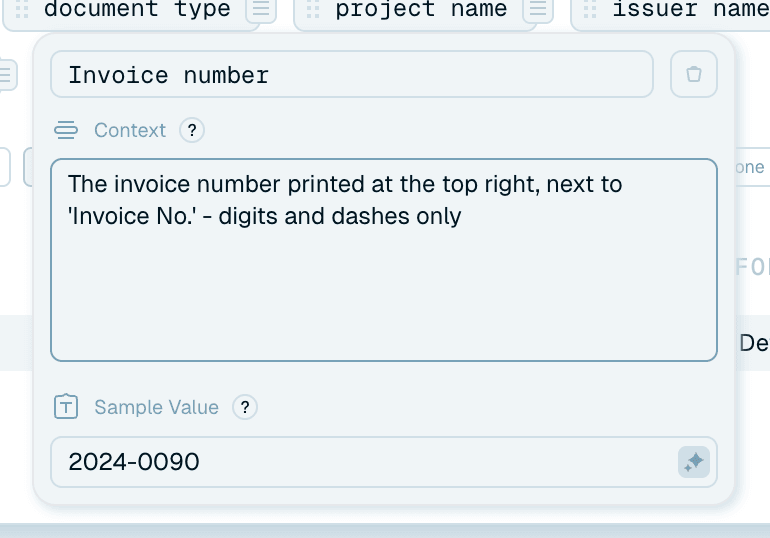
Click the small icon on a name part chip to open its popup. The key field is Context - the instruction the AI follows to fill this part for each file:
- Vague: "the number"
- Good: "the invoice number near the top right, digits only"
Context is the single biggest lever on name quality - it's worth its own short read: see Writing great AI context.
Saving
Click Save template (or Cancel to close without saving). It joins your Collection and is available immediately in the Quick Rename dropdown and on your Magic Folders. A pattern needs at least one name part - fixed text alone would name every file the same, so the app won't save it. To change it later, see Editing templates.
Between the name parts and the save button you'll also find the formatting settings - Separators, Connectors, Language, Date format and Text format. They're covered in Previewing and testing your template.
Going deeper
- Writing great AI context - precise instructions, sample values, and fixing a template that pulls the wrong text.
- Previewing and testing your template - the formatting settings, the live Sample, and testing on a real file before you commit.
- Working faster with templates - the ready-made variables, cloning templates and organizations, and the no-setup Auto mode.