Writing great AI context
Context is the instruction the AI follows when it generates a name part for each file - the single most powerful field in the template editor. This short guide is about using it well.
What context does
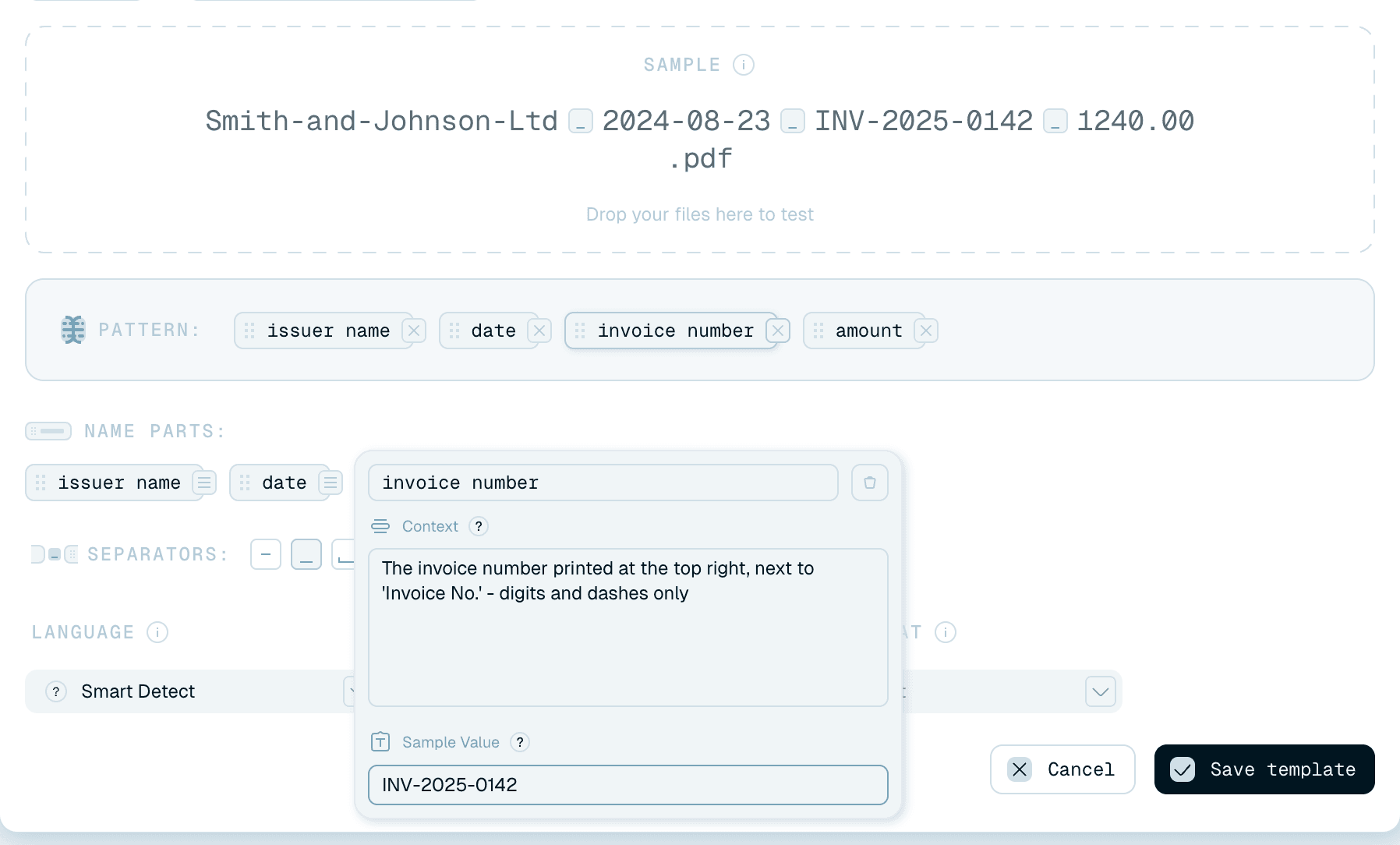
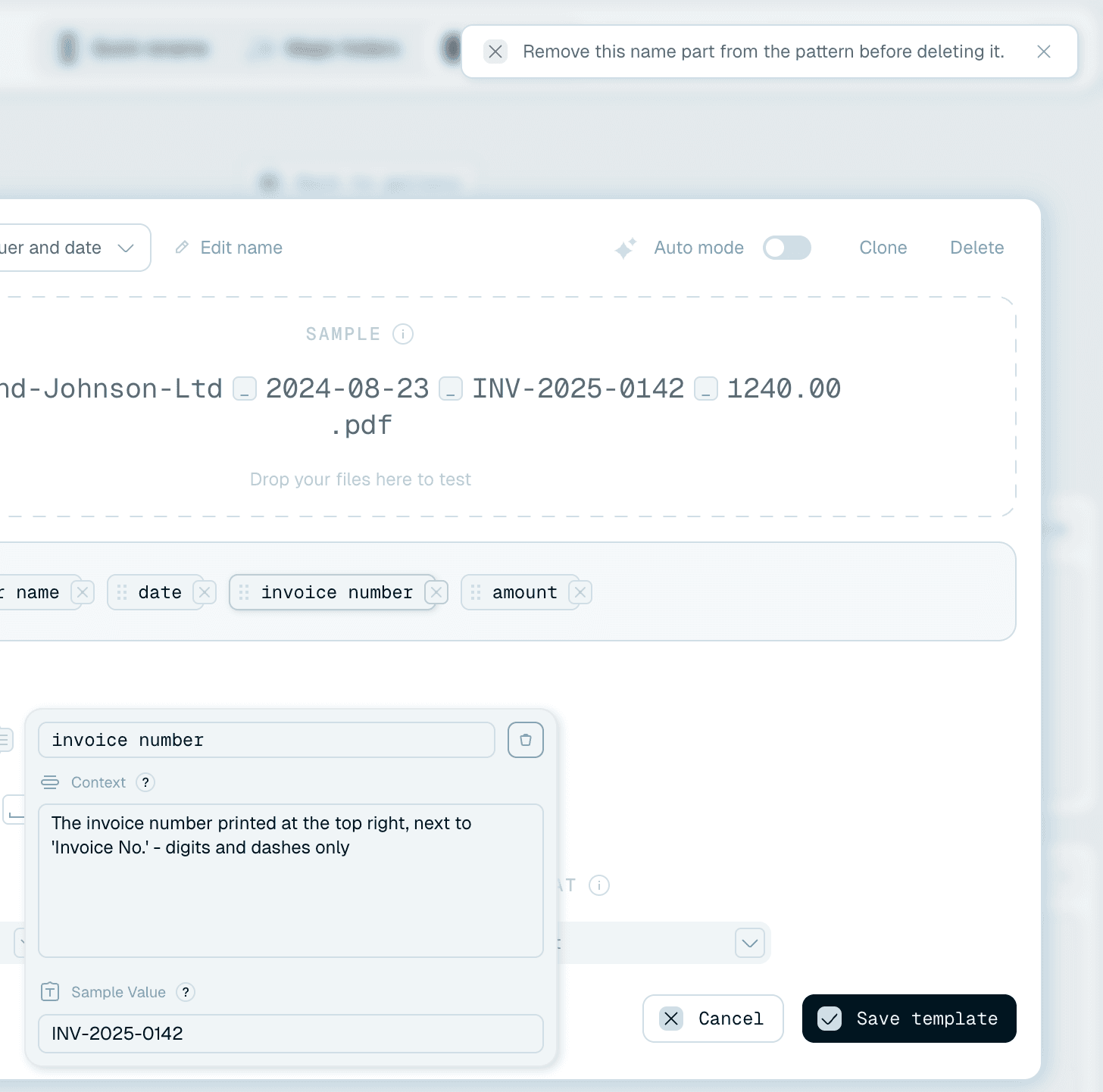
Each name part has a Context field (Add context...) - open it with the small icon on the part's chip. It tells the AI exactly what to look for in the file. When you create a new part, the app writes a first context for you (Generating context...), marked "This field has been generated by AI" - treat it as a draft to sharpen. The difference it makes:
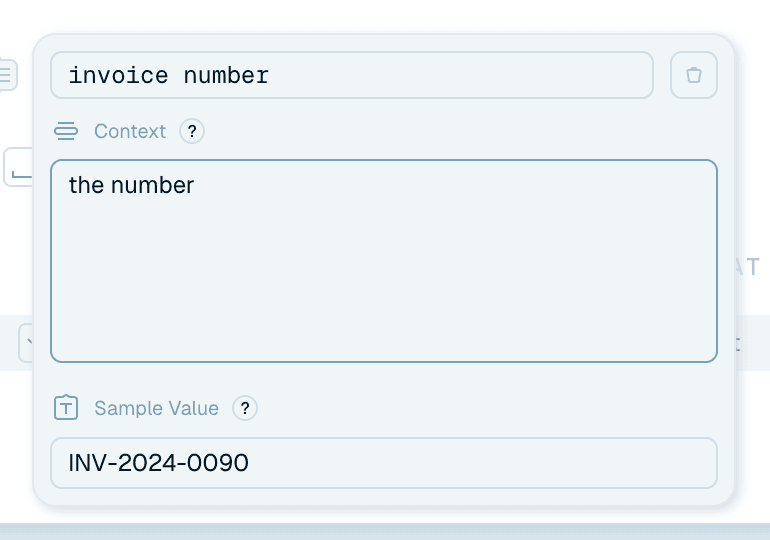
- Vague: "the number" - the AI has to guess which number on the page.
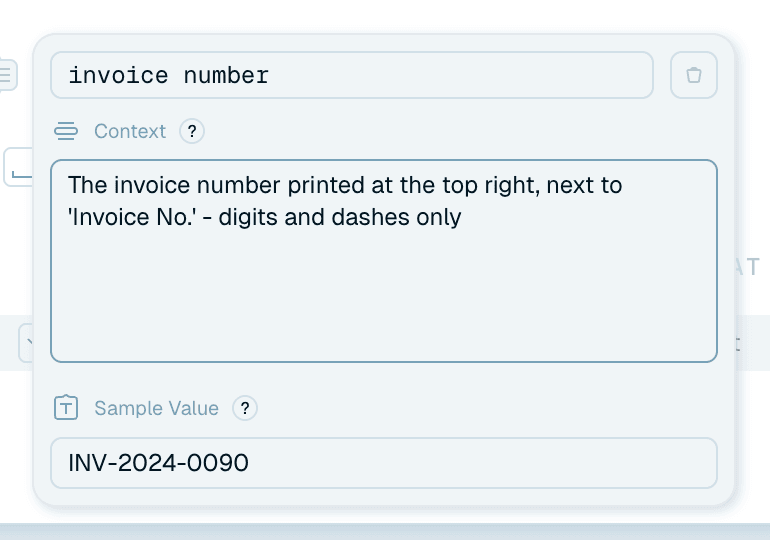
- Good: "the invoice number printed near the top right of the document, digits only, without the # symbol" - consistent results across hundreds of files.
The more precise the context, the more consistent your filenames. Name where the value sits, its format, and what to leave out.
When a template misbehaves
If a template pulls the wrong text - a date instead of an invoice number, the vendor instead of the client - don't start over. Open the name part and sharpen its context: say where the value is on the page, how it's formatted, and what to exclude. Tightening context is almost always the fix, and it's faster than rebuilding the template.
Sample values feed the preview
Each part also has a Sample Value (Add sample value...) - an example like 1042. It never affects real renames. It only makes the Sample preview (and the samples on your template cards) look like a realistic filename instead of a row of part names. Fill it in so your preview is meaningful while you work.
Removing a name part
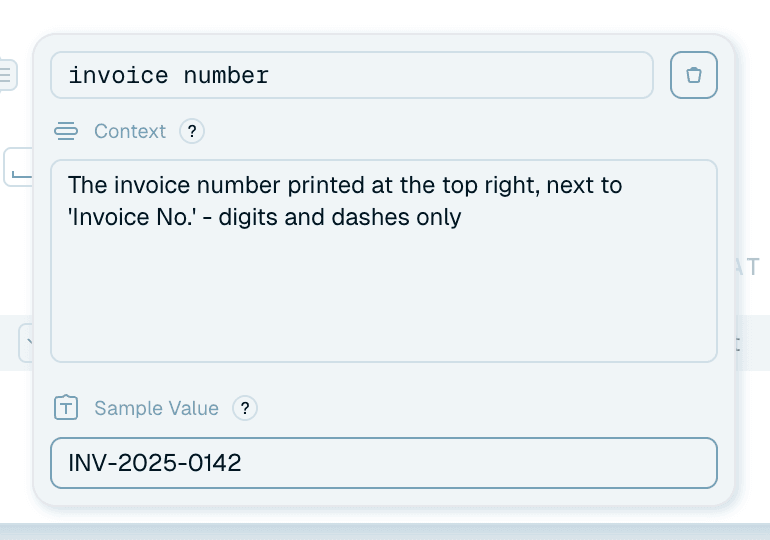
Open the part's popup and click the trash icon. The same popup lets you rename the part. One safeguard: if the part is still used in the pattern, the app refuses with "Remove this name part from the pattern before deleting it." - delete the chip from the pattern first, then the part.
Next
Once your context reads well, preview and test the template on a real file before using it.