Where your files are renamed
By default, Renamer.ai reads your files and renames them on our servers. The Processing settings let you change that - keep it in the cloud, run everything on a model downloaded to your own computer, or send files straight to your own AI provider with your own key. The choice applies to all renaming, both Quick Rename and Magic Folders.
Opening Processing
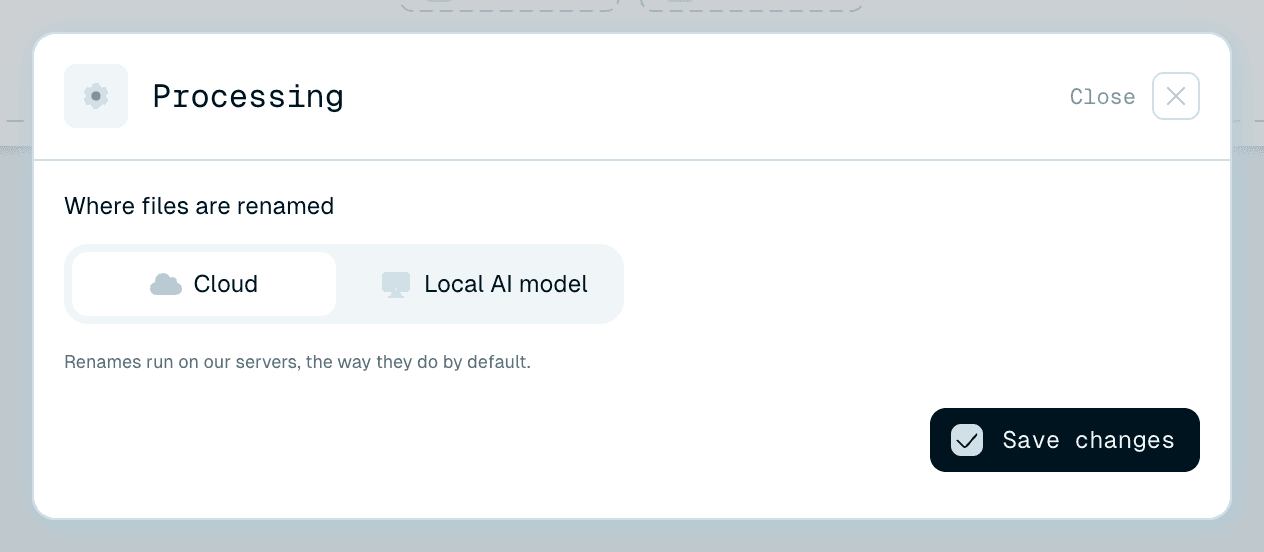
Open the user menu (top right) and choose Processing - or click the small processing icon next to your credits in the header. The window's heading, Where files are renamed, is exactly the decision you're making. Pick a mode from the tabs, set it up if needed, and click Save changes (or Close to leave without changing anything). A status line always tells you what's running right now - for example "Files are renamed on our servers."

Cloud - the default
"Renames run on our servers, the way they do by default." Nothing to set up, the fastest and highest-quality option, and what every rename uses until you choose otherwise. It draws on your plan's credits like normal.
Local AI model - on your own computer
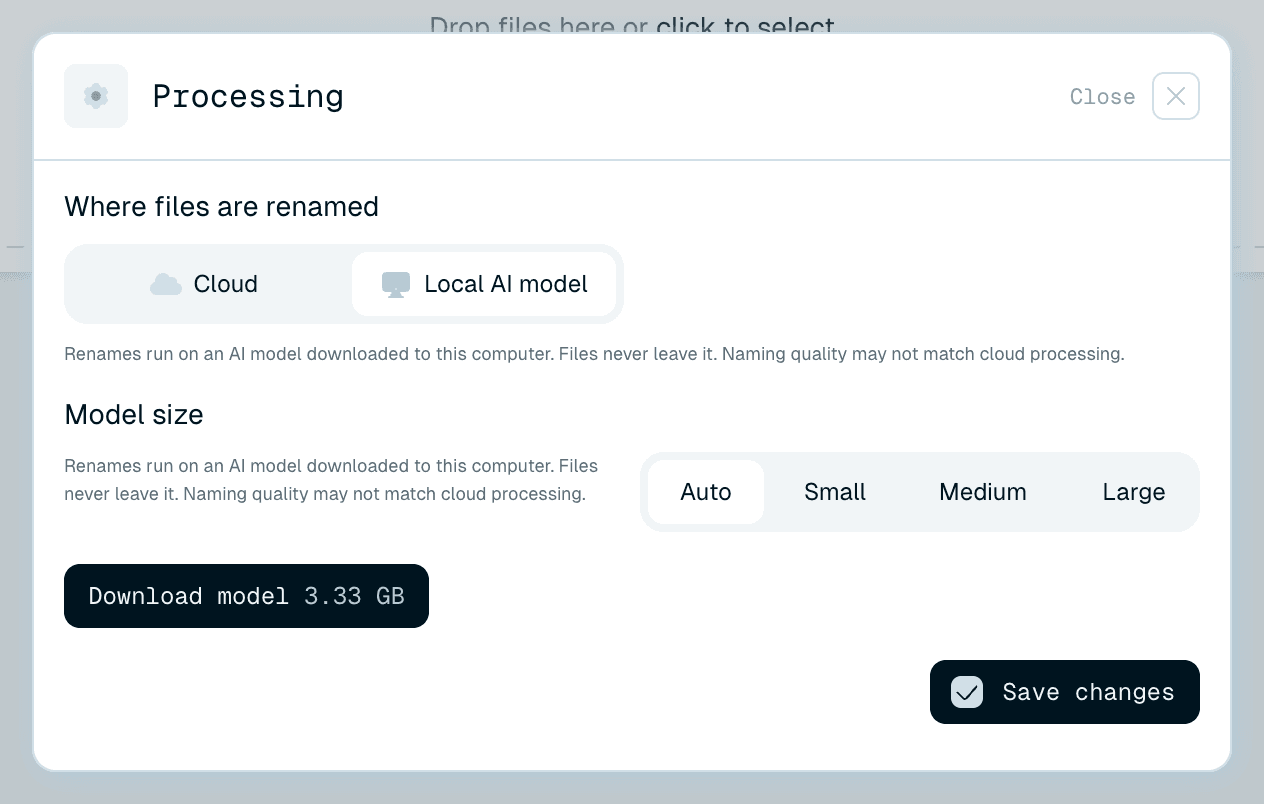
"Renames run on an AI model downloaded to this computer. Files never leave it." This is the private, offline option - your documents are read and named entirely on your machine.
A few things to know before you switch:
- It downloads a model first. Click Download model - the button shows the download size - and the app fetches it (you'll see "Downloading AI model..."). The model stays on disk afterwards, ready for next time. The AI models list shows what's downloaded, and you can remove a single model or use Delete all models to reclaim the space.
- Model size is a trade-off. Under Model size you can pick Small, Medium, Large, or Auto, which picks the largest model this computer can run. Larger models mean a bigger download and slower renames. Sizes your computer can't run are marked "Not supported by this computer".
- Check compatibility in the app. Support depends on your platform, graphics hardware and available memory. A dedicated GPU is not required on every supported computer. The Processing settings show whether local processing is available and which model sizes you can use - if your computer can't run it, the window says so ("Local mode cannot be run on this computer due to hardware requirements.").
- Quality may differ. As the app notes, naming quality on a local model may not match cloud processing.
Your own API key - your provider account
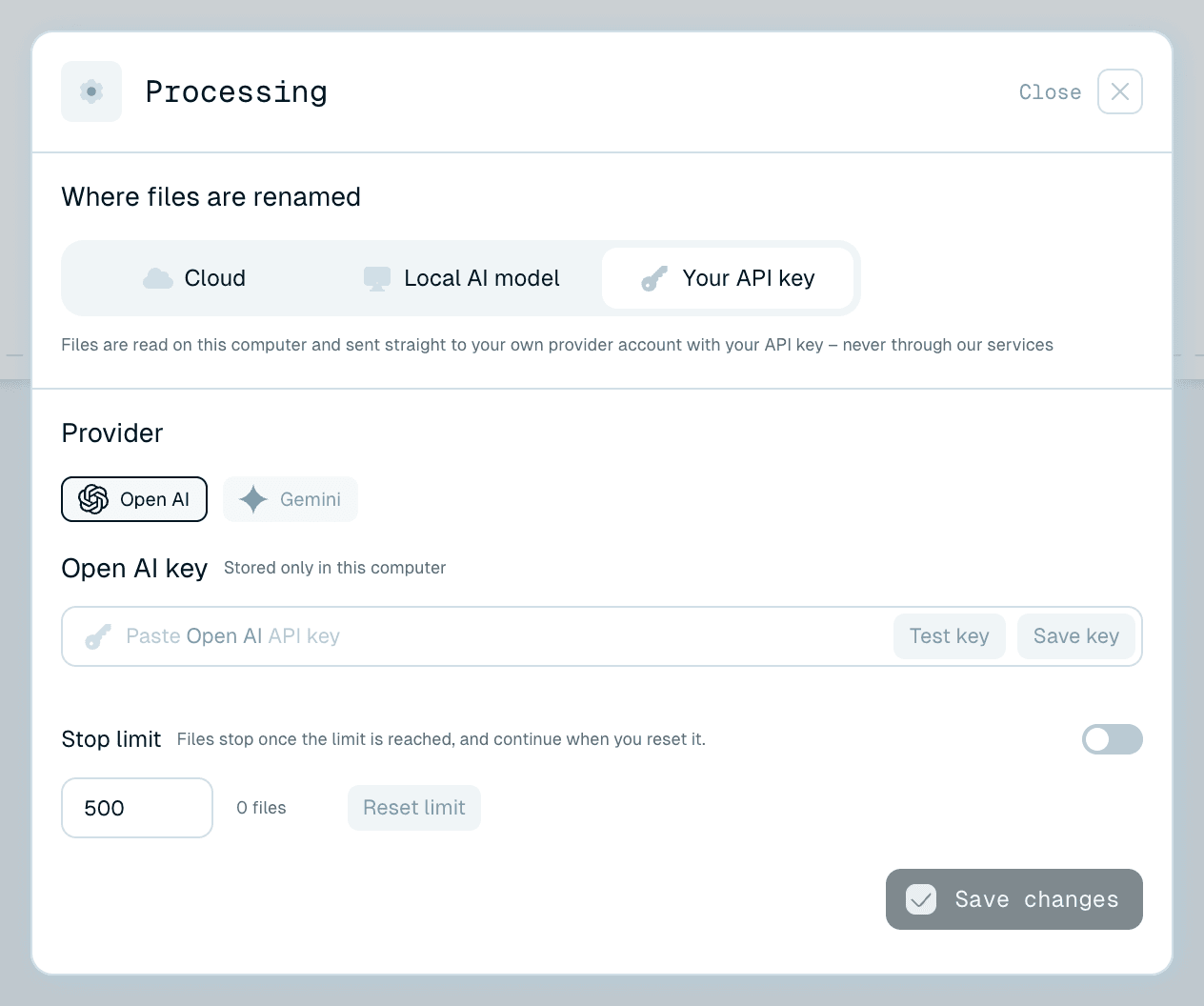
If your account has this option enabled, a third tab, Your API key, lets you rename through your own AI provider: "Files are read on this computer and sent straight to your own provider account with your API key – never through our services"
- Choose a provider (OpenAI or Google).
- Paste your key - it's "Stored only in this computer".
- Click Test key to check it, then Save key.
You can switch on an optional Stop limit to cap how many files run on your key: "Files stop once the limit is reached, and continue when you reset it." The window shows how much of the limit is used, with a Reset limit button. Renames on your own key don't use your Renamer.ai credits. Use Replace or Remove to manage the saved key later.
Knowing what's active
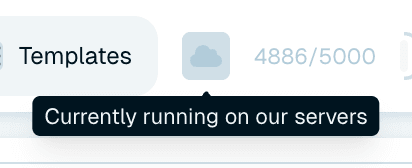
After Save changes, the processing icon in the header shows the current mode - hover it for "Currently running on our servers" for cloud, "Currently running on local mode with … model" naming the model size, or "Currently running on your own key on … provider" - so there's never any doubt about where your files are being named. While the app switches modes, a banner explains what's happening (for example Switching to local processing), and files already in flight finish first. Renamed files show where they ran, too: a LOCAL badge for the local model, or the provider's name for your own key. Switch back to Cloud at any time from the same window.