Working faster with templates
Three things speed up template work: start from the built-in variables, clone a setup that already works, or skip the pattern entirely with Auto mode. This guide covers all three.
Start from the built-in variables
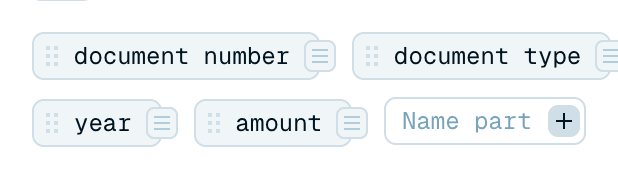
You don't build a template from a blank slate. Every new template opens with a ready-made set of name parts already in place - common ones like document number, document type, project name, issuer name, recipient name, date, year and amount. Put them to work:
- Insert the ones you want into the pattern - type
@, double-click the chip, or drag it in. - Delete the ones you don't need.
- Rename any of them, or open one to adjust its Context - the AI instruction behind it.
To add something the set doesn't cover, click + Name part and name it. Writing a good instruction for a part is its own short read: Writing great AI context.
Everything lives in the @ list
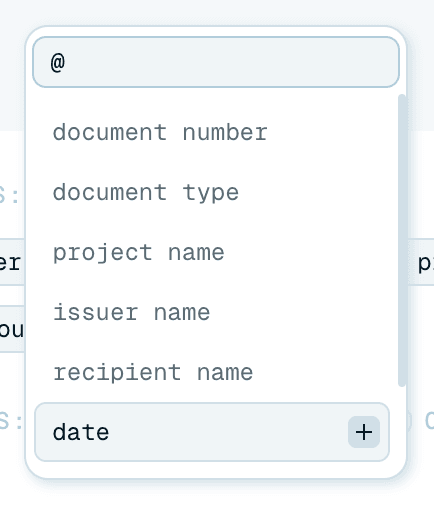
Predefined or custom, every variable shows up in the same place: type @ in the pattern and the autocomplete (@Search...) lists them all, filtered as you type. There's no separate menu to hunt through. The full pattern mechanics are in Building your own naming template.
Clone a template or an organization
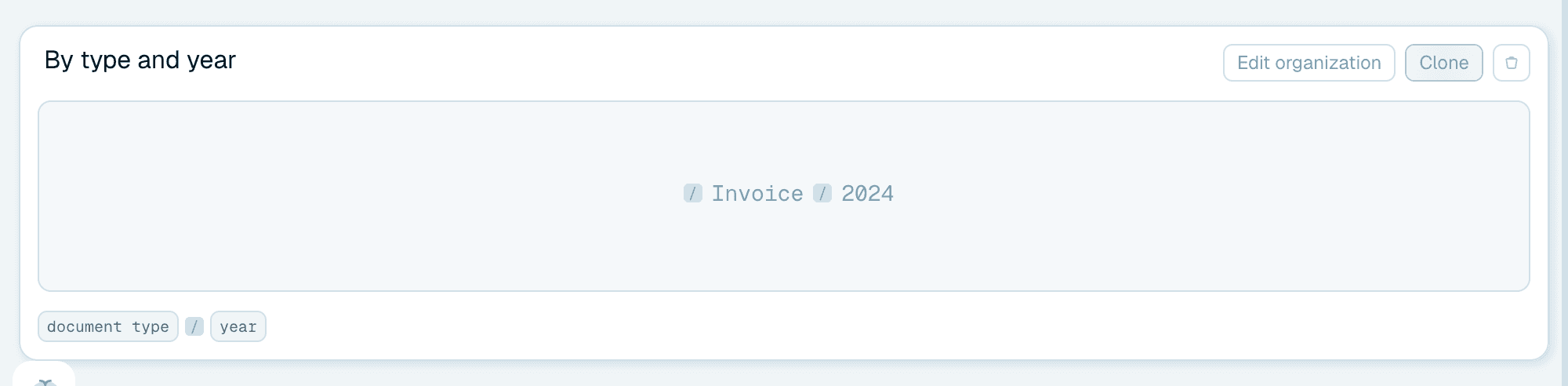
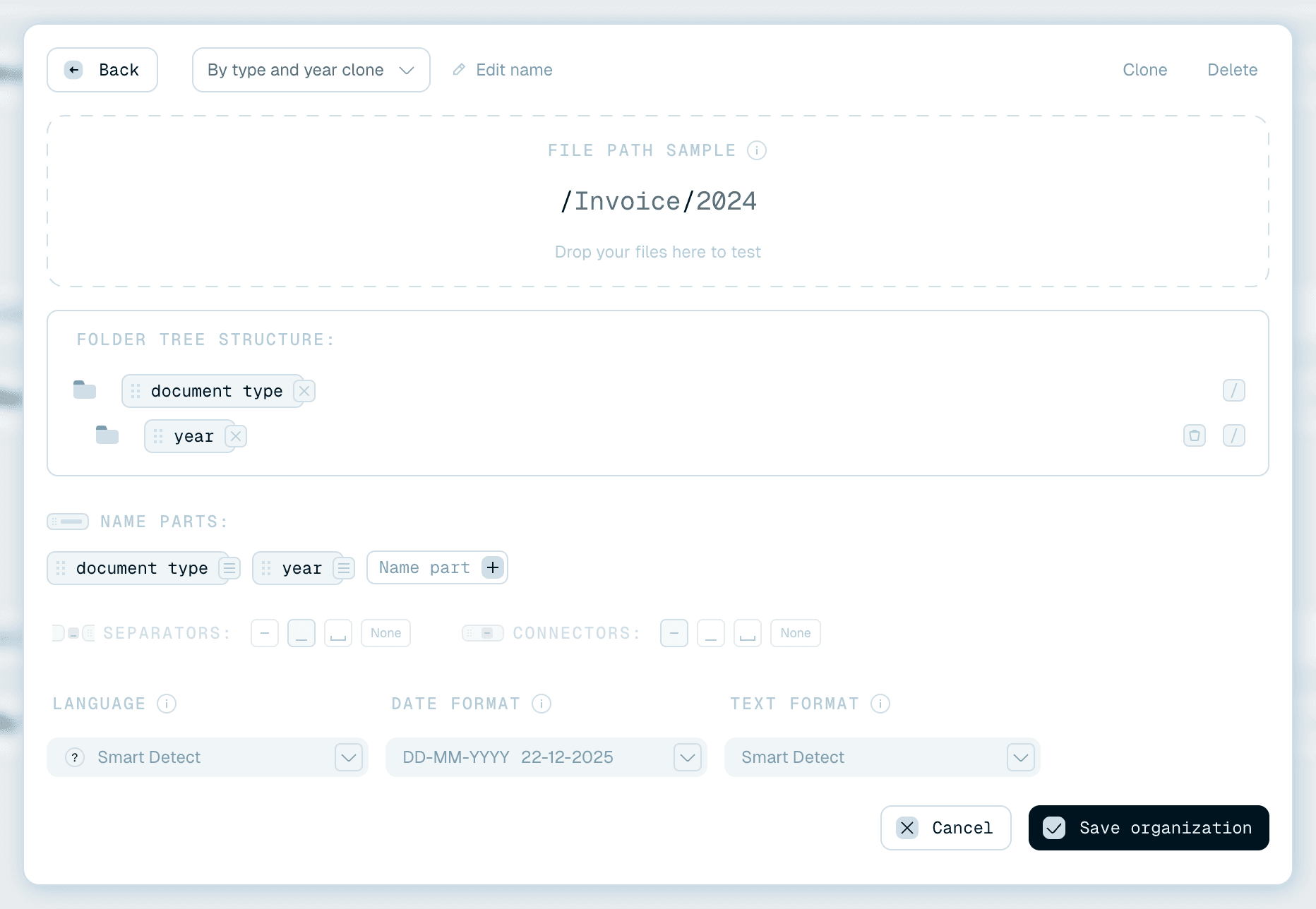
Found a setup that works and want a variation? On its card in My collection, click Clone (or use Clone at the top of the editor). Renamer.ai duplicates it - name, pattern, variables and settings - with clone added to the name, and opens the copy in the editor. The original is left untouched, so it's the safe way to experiment.
Cloning works the same for organization templates as for naming templates, so you can branch a folder structure without rebuilding it. (To change a template in place instead - and understand what that does to the Magic Folders using it - see Editing templates.)
Skip setup with Auto mode
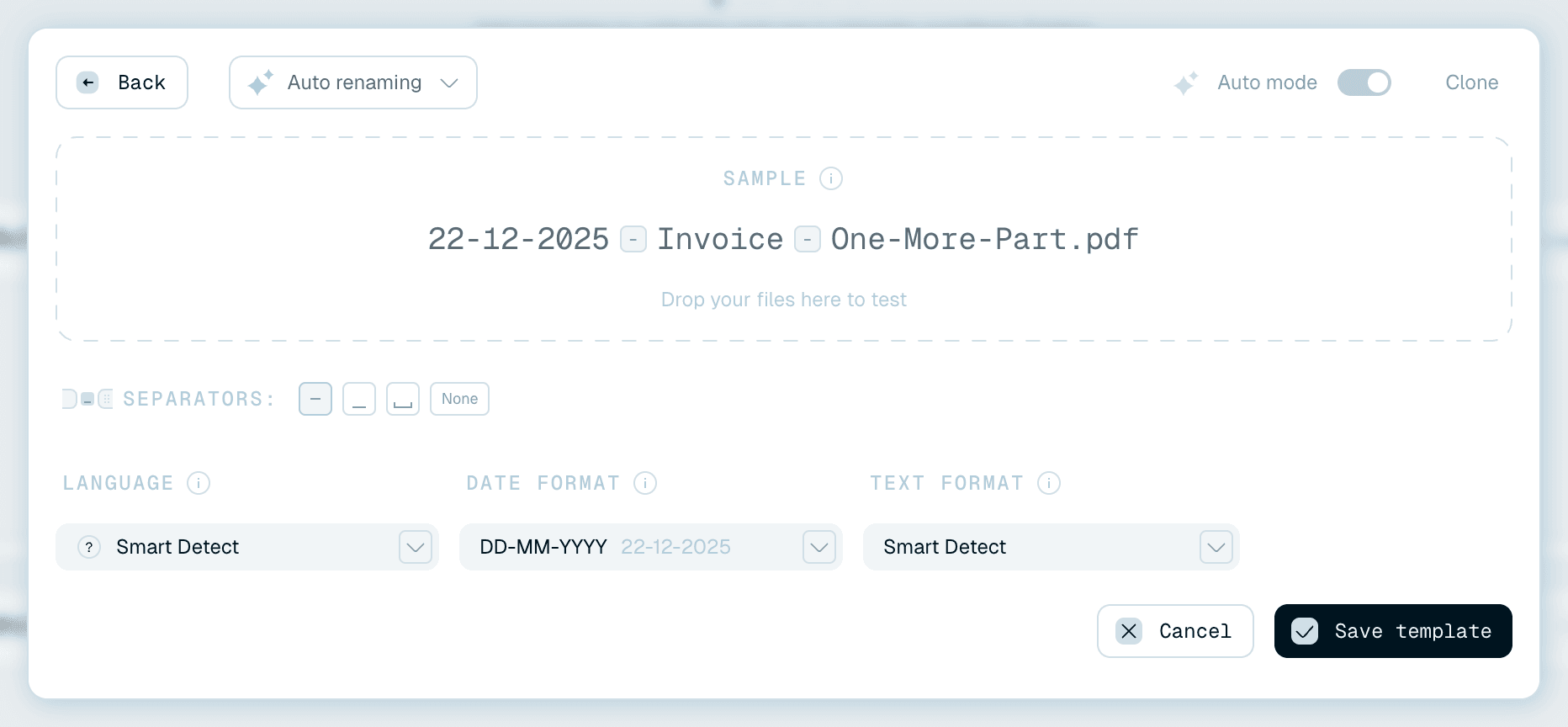
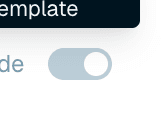
Some renaming needs no pattern at all. In Auto mode the AI composes a sensible name from each file's contents on its own. The Auto template always runs this way, and every other naming template has an Auto mode toggle at the top of the editor too - switch it on and the pattern and name parts are hidden (but kept, so switching it off restores them). It takes effect when you Save template.
In Auto mode there's nothing to set up in the pattern, but you still control the finish:
- Separators - the symbol between words.
- Language - the language names are written in.
- Date format - how dates appear.
- Text format - the letter case (lowercase, Capitalized or UPPERCASE, or Smart Detect).
So even with zero pattern, your Auto-renamed files follow the language and casing you want. The Auto template stays in Auto mode - its toggle is locked on, with the tooltip "Auto mode cannot be turned off on the Auto template".
For how these formatting settings behave across the whole app, see Fine-tuning your file names.