Editing templates
Templates are living things - your first version is rarely your last. This guide covers every way to change a template, and what those changes mean for the Magic Folders and renames that depend on it.
Where you can edit from
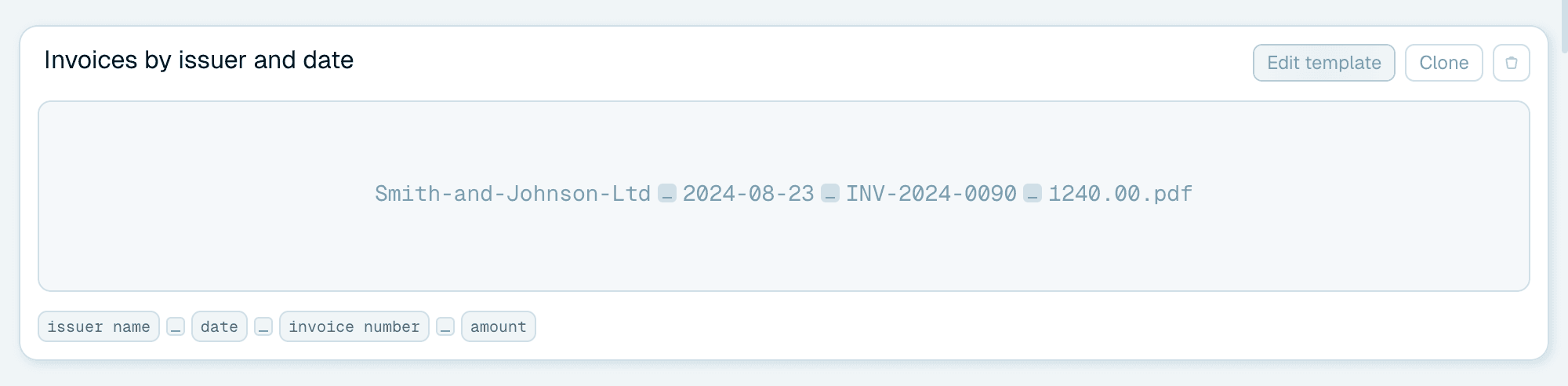
- Templates tab → My collection - every template you own has an Edit template action on its card (Edit organization for organization templates). This is the main entry point.
- From the Template line - in Quick Rename or on a Magic Folder's card, click the selected template's name to open it in the editor, or hover a template in the dropdown and click Edit - without leaving the screen you're on.
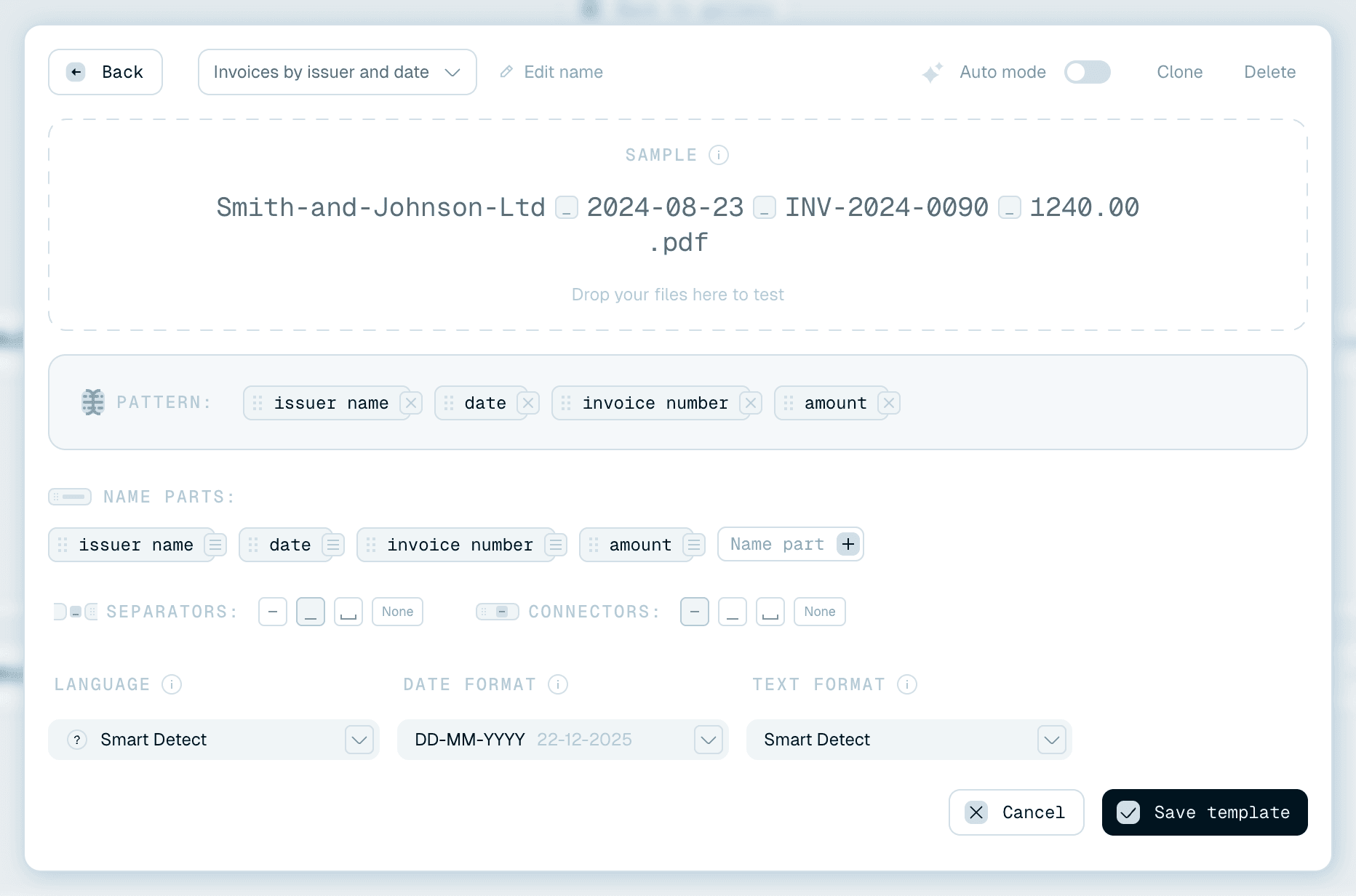
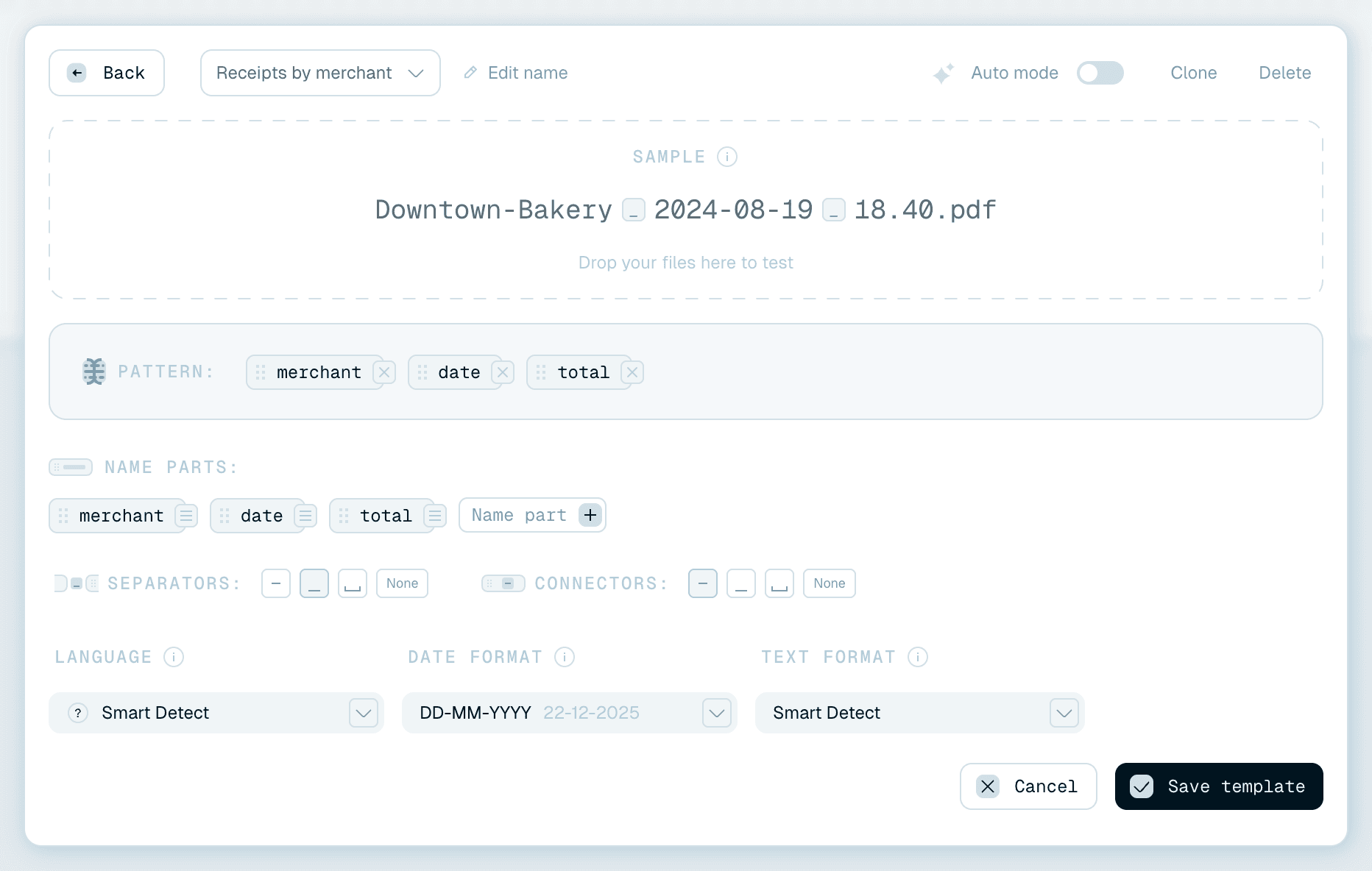
- Inside the editor - the name at the top is a dropdown of your collection, so you can switch to another template (or jump To Gallery, or start a New template) without closing the editor.
Either path opens the same editor overlay described in Building your own naming template - pattern, name parts, context, settings and the live Sample are all there to adjust.

Saving your changes
Click Save template and the changes apply everywhere the template is used from now on: future Quick Rename batches and future files in Magic Folders. Files that were already renamed are never touched by a template edit.
Back and Cancel close the editor without saving - unsaved changes are discarded. Clicking outside the editor (or pressing Escape) with unsaved changes asks you to confirm first (Unsaved changes).
When Magic Folders use the template
If the template you're saving is in use by Magic Folders, the app stops you with a dialog that lists every affected folder and asks how to apply the change - Confirm to update them all, or Save as clone to leave them untouched. The full walkthrough of that dialog is its own short read: Changing a template that Magic Folders use.
Cloning a template
To start a variation deliberately, use Clone on the template's Collection card, or the Clone button at the top of the editor. A copy appears in your Collection right away with clone added to its name, and opens in the editor. Edit the clone freely - the original is untouched.
Cloning is the right move before an experiment: clone first, change the clone, compare results in the Sample preview, and keep whichever wins.


Deleting a template
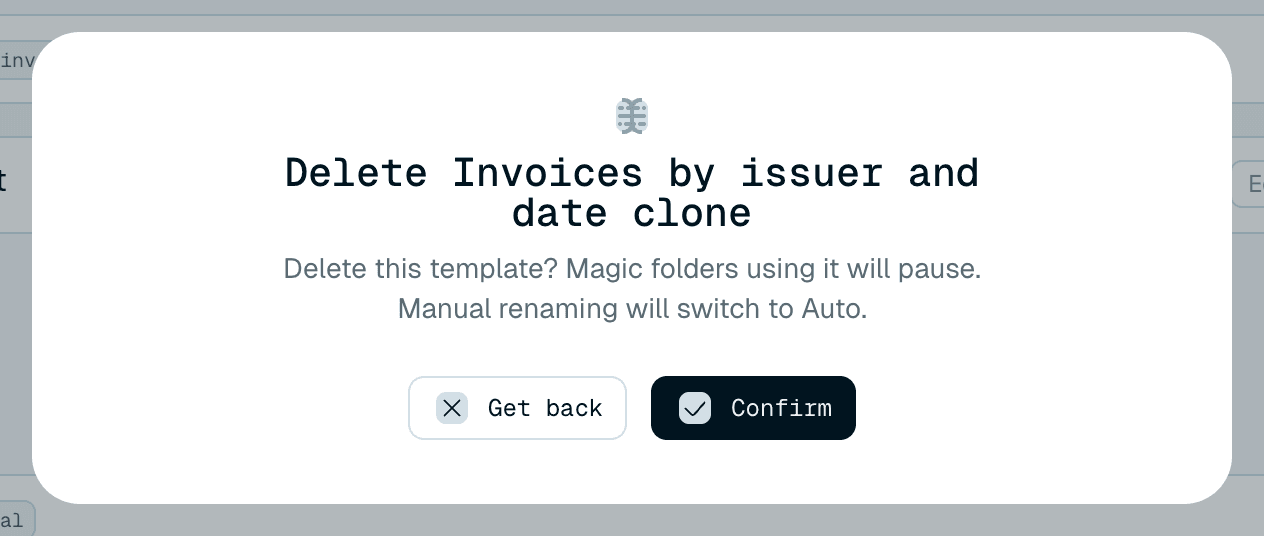
Deleting is available on the Collection card (the small delete icon) and with the Delete button at the top of the editor. A confirmation titled Delete plus the template's name spells out the consequences: "Delete this template? Magic folders using it will pause. Manual renaming will switch to Auto." - and lists the paths of the Magic Folders that use it. Confirm deletes, Get back cancels. For an organization template the warning reads "Magic folders using this organization will pause. Choose a replacement or remove it to resume."
Concretely:
- Magic Folders that used it pause themselves rather than guessing - nothing gets renamed with a template you removed. The card explains: "The selected renaming template is no longer available. Unpausing will resume with auto template." Pick a different template on the folder's Template line before resuming if you don't want Auto. See Managing Magic Folders.
- Quick Rename falls back to the Auto template if the deleted template was selected.
- Nothing on disk changes - files already renamed keep their names.

Gallery templates are read-only
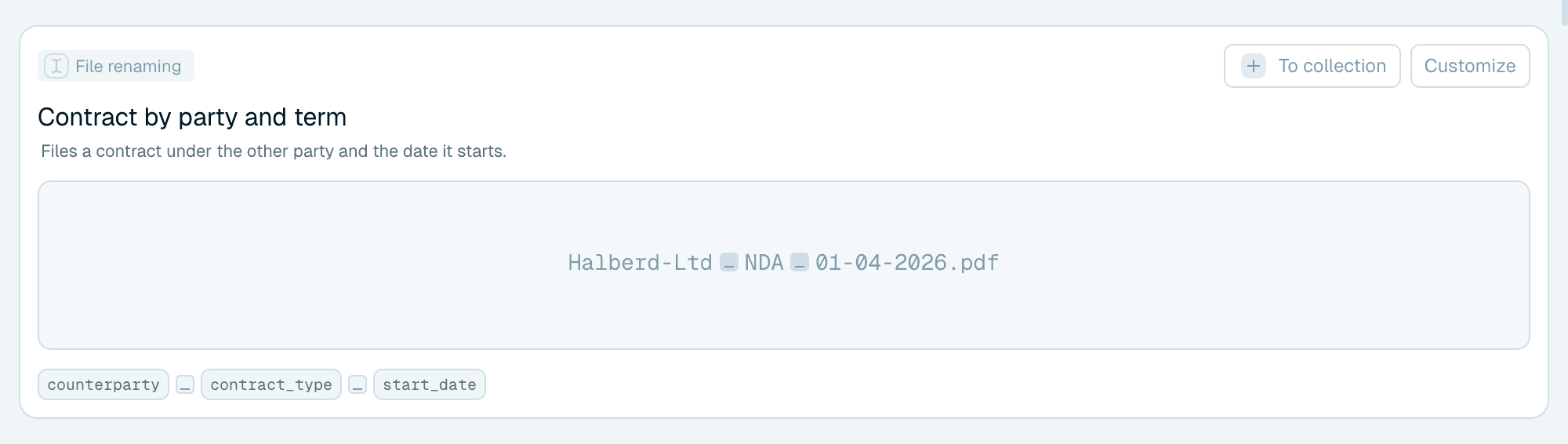
Gallery templates can't be edited in place - they're shared starting points. To make one yours, use Customize (opens an editable copy in the editor) or To collection (adds a copy to your Collection as-is). From then on it's a normal Collection template and everything in this guide applies to it. More in Choosing a template.