Bulk & Automation

How to Rename PDF Files in Bulk (2 Methods, Including One for Scanned Docs)

If you've ever tried to rename PDFs in bulk, you've probably hit one of two walls. Either your files already follow some pattern and you just need to swap a prefix or add a date, which is a five-minute job. Or your files are a pile of scans with meaningless names like Scan0043.pdf, and no renaming tool on earth can fix that unless it actually reads what's inside them. That's the real split, and most guides don't say it out loud. There are two fundamentally different ways to bulk-rename PDFs, and picking the wrong one wastes a weekend. Below, both, honestly, with the trade-offs that actually matter.

Methods compared

Method 1: Pattern-Based Bulk Renaming

Pattern-based renaming takes files you can already identify and applies a naming rule across all of them: add a prefix, insert a counter, do a find-and-replace. It's fast and it's free, but it only works if you (a human) already know what should go in each new filename, or the files share a predictable structure. A desktop utility like Bulk Rename Utility (Windows) or a simple PowerShell/Terminal script is the usual pick.

Pattern-based renaming editor showing a naming pattern with a live before/after preview column for a batch of PDFs
Pros
  • Free, works offline, fast once you know the tool
  • Full manual control over the exact pattern
  • A desktop tool can process thousands of files in seconds since there's no content analysis involved
Cons
  • It has no idea what's inside the file: it can renumber Scan0001 through Scan0214, but it can't tell you Scan_0043 is a 2019 rental agreement
  • You're still stuck opening the files by hand to find out what each one is
  • It's entirely rule-based: one typo in your find-and-replace pattern applies to every single file, so mistakes scale with your batch size
  1. Sort your files into a working folder. Pattern-based tools apply the same rule to everything in the batch, so mixing unrelated files leads to nonsense names.
  2. Decide your naming pattern before you touch the tool. Common patterns: ProjectName001.pdf, 2026-Invoice-001.pdf, or a straight find-and-replace like swapping "Scan" for "Receipt_". Write it down first, it saves you from redoing the batch.
  3. Load the files into your renaming tool. In Bulk Rename Utility this means pointing it at your folder; on Mac or Linux it's usually a Terminal command using rename or a short script.
  4. Apply a counter or prefix/suffix rule. Add sequential numbers, a date stamp, or a fixed prefix across the whole selection. Most tools show a live preview column.
  5. Preview before committing. Scroll through the preview list and check for collisions (two files landing on the same name) or obviously wrong results.
  6. Run the rename and spot-check the results. Open two or three renamed files at random to confirm the pattern applied correctly, especially with a find-and-replace rule that could match unintended text.

Method 2: Content-Aware Bulk Renaming with renamer.ai

Content-aware renaming reads what's actually written inside each PDF, the invoice number, the client name, the date on the letterhead, and generates a name from that. This is the only approach that works when the filenames themselves are useless and the content is the only source of truth. Renamer.ai uses OCR to read each PDF, then suggests a descriptive filename, and you process the whole batch in one pass instead of opening each file individually.

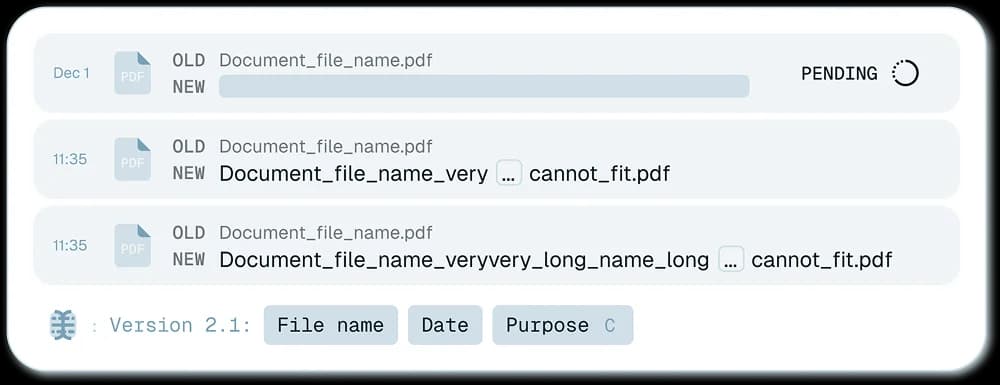
renamer.ai batch results showing original scanned filenames next to AI-suggested descriptive filenames
Pros
  • Works when filenames give you zero information
  • Handles mixed document types in one batch, invoices, contracts, and reports together
  • No syntax or naming rules to learn, since the AI reads the content for you, and it applies consistent formatting across hundreds of files at once
Cons
  • It needs readable scan quality: a badly blurred or corrupted scan may fail to extract anything useful
  • It's browser-based, so you need an internet connection, there's no offline desktop mode
  • You should still review the suggested names before confirming a large batch: OCR is accurate but not infallible, especially on messy handwriting or low-resolution scans
  1. Upload your batch of PDFs. Drag the whole folder into renamer.ai's batch upload. There's no limit on mixing document types in one batch.
  2. Let the AI read and analyze each file. The tool runs OCR against each PDF's actual content and extracts the details that matter, dates, names, document type, key identifiers.
  3. Review the suggested names. Each file gets a proposed name built from what was found inside it, something like acmecorpinvoice000730-11-2025.pdf instead of Scan_0043.pdf.
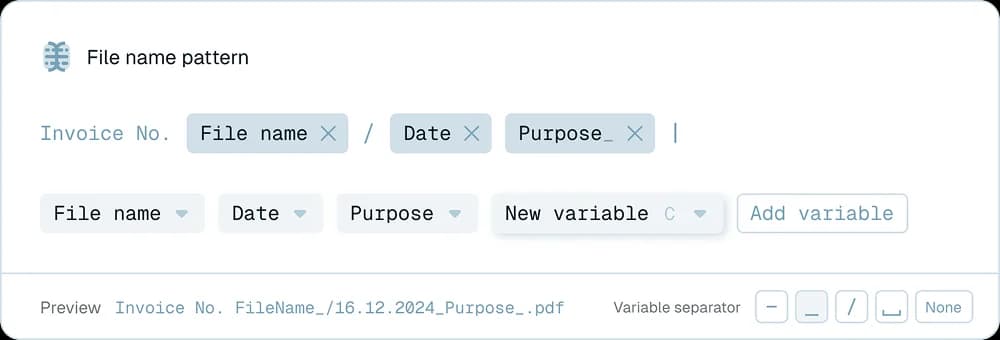
  4. Adjust formatting to match your system. Set date format (DD-MM-YYYY, YYYY-MM-DD, etc.), text case, and separator style once, and it applies consistently across the batch.
  5. Confirm and apply. Approve the batch and every file is renamed at once, no manual opening required.
  6. Set up a Magic Folder for ongoing batches (optional). If new scans land in this folder regularly, a Magic Folder watches it and renames new arrivals automatically; see the dedicated automation guide linked below.

Pattern-Based vs. Content-Aware, Side by Side

Here's the honest comparison before you pick one. If you already know what's in your files and just need consistent naming, Method 1 is enough. If you're staring at a folder of Scan_0001.pdf files with no idea what's inside, you need Method 2 and the OCR section below.

Pattern-Based ToolsContent-Aware (renamer.ai)
Best forFiles with known structure or existing naming orderFiles with generic/meaningless names
Reads file contentNoYes, via OCR
CostUsually freePaid tool
Works offlineYes (desktop)No, browser-based processing
Setup timeA few minutes to learn the syntaxA few minutes, no syntax to learn
Handles scanned documentsNo, doesn't know what's on the pageYes, this is its main strength
Risk of bad renamesLow, but only if your assumptions about the files are correctLow, but review suggested names before confirming

Renaming Scanned PDFs When the Filenames Tell You Nothing

This is the scenario that pattern-based tools simply cannot solve, and it's worth calling out on its own, because it's the exact question that keeps showing up on forums like r/DataHoarder: "I have 300 scanned PDFs named Scan001 through Scan300, and I have no idea what's in any of them. How do I rename them based on what they actually say?"

The answer is content-aware OCR renaming, because the filename was never the source of truth here, the document content is. There is no rule you can write that turns "Scan0043" into "2019rentalagreementsmith" without something actually reading page one of that PDF.

A few things worth knowing before you run a big batch of scans through OCR renaming:

Scan quality matters more than volume. A crisp 300 DPI scan reads reliably; a dark, angled phone photo of a document might not extract cleanly.

Mixed document types are fine in one batch. You don't need to pre-sort invoices from contracts before uploading, the AI identifies document type as part of the read.

This isn't a metadata reader. It's reading the visible content on the page, not EXIF data, GPS tags, or a "date taken" field. If you're trying to rename photos by when they were shot, that's a different (and unsupported) use case here.

Review before you trust it at scale. For a batch of 200+ scans, spend two minutes checking the first 15-20 suggested names before approving the rest. That catches systematic issues (like an unusual document layout) before they run through the whole folder.

If your entire workflow is document-type-specific, invoices only, or contracts only, there are pages built around exactly that content-extraction mechanism, linked below, that go deeper into what fields get pulled and how.

Which Method Should You Actually Use?

If you're renaming a folder of files where you already know what each one is (you're just cleaning up naming conventions), Method 1 costs you nothing and takes a few minutes. If you're renaming files where the name is meaningless and the content is the only clue, no free tool solves that, you need something that reads the document. That's the whole reason content-aware renaming exists.

Most people land somewhere in between: a folder that's mostly known files with a chunk of unidentified scans mixed in. In that case, it's reasonable to pattern-rename the files you already understand and run the unidentified scans through content-aware OCR separately.

Related Situations This Page Doesn't Cover in Depth

Setting up a folder that renames new PDFs automatically as they arrive, without you running a batch each time, see the guide on automatic PDF renaming with watched folders.

The exact fields renamer.ai's OCR extracts from different document types (invoice number, vendor, contract parties) and how the extraction actually works, covered in renaming files based on content and auto-renaming PDFs based on content.

Bulk-renaming files that aren't PDFs, or mixed file types generally, see bulk rename files.

Doing this specifically on a Mac, including Finder-native options, see renaming multiple files at once on Mac.

For the full picture of every bulk and automated renaming approach renamer.ai supports, start at the bulk rename software hub.

Start With the Files That Actually Need It

If your PDFs already make sense to you and just need consistent naming, grab a free pattern-based tool and you're done in a few minutes. If you're staring down a folder of scans that could be anything, that's the exact problem we built renamer.ai's OCR renaming to solve. Try it on your next batch and see what's actually inside those files.
Frequently Asked Questions

Can I bulk-rename PDFs for free?

Yes, if you already know what each file should be named or your files follow a predictable pattern. Free tools like Bulk Rename Utility (Windows) or a short Terminal script (Mac/Linux) handle prefix, suffix, and find-and-replace renaming at no cost. What free tools can't do is figure out what's inside a scan with a meaningless filename.

Can it rename PDFs using photo metadata, like the date the scan was taken?

No. Renamer.ai reads the visible content of the document itself, text, numbers, names, dates printed on the page, not EXIF or GPS metadata. If a scanned PDF has no readable date printed on it, and the only date you have is buried in file metadata, this tool won't extract that. It reads what's written, not what's embedded.

How many PDFs can I rename in one batch?

Both approaches handle large batches, but the practical limit depends on the tool and your file sizes. Pattern-based desktop tools can process thousands of files in seconds since there's no content analysis involved. Content-aware OCR renaming processes each file individually since it has to read each one, so very large batches (hundreds of scans) take longer and are worth spot-checking in smaller chunks.

What happens if a scanned PDF is too blurry to read?

OCR-based renaming depends on scan quality. Very blurry, low-resolution, or heavily skewed scans may fail to extract meaningful content, and you'll need to either rescan the document or rename that file manually. This is one of the honest limitations of any OCR-based approach, not just this tool.

Do I need to keep my files in a specific folder structure before renaming?

For pattern-based tools, it helps to group files you want renamed together, since the same rule applies to the whole batch. For content-aware renaming, no specific structure is required, you can upload a folder with mixed document types and the AI sorts out the content differences on its own.

Is bulk PDF renaming reversible if I make a mistake?

With pattern-based desktop tools, most offer an undo or a preview step before committing, so review that preview carefully. With renamer.ai, you review and approve suggested names before the rename is applied, which is your chance to catch anything off before it's final.