Bulk & Automation

How to Rename a PDF Based on Its Content (Not Its Filename)

The filename lies. The content doesn't. Renaming a PDF "based on content" means your file name comes from what's written inside the document, the invoice number, vendor name, contract date, employee name, not whatever the scanner or download button slapped on it. That sounds simple. It isn't. There are two very different ways to pull that information out of your PDF, and they behave differently once you leave a tidy sample and hit your real paperwork. Below, both methods broken down so you can pick the one that survives contact with your actual documents.

Methods compared

Method 1: Fixed-Zone / Rule-Based Extraction

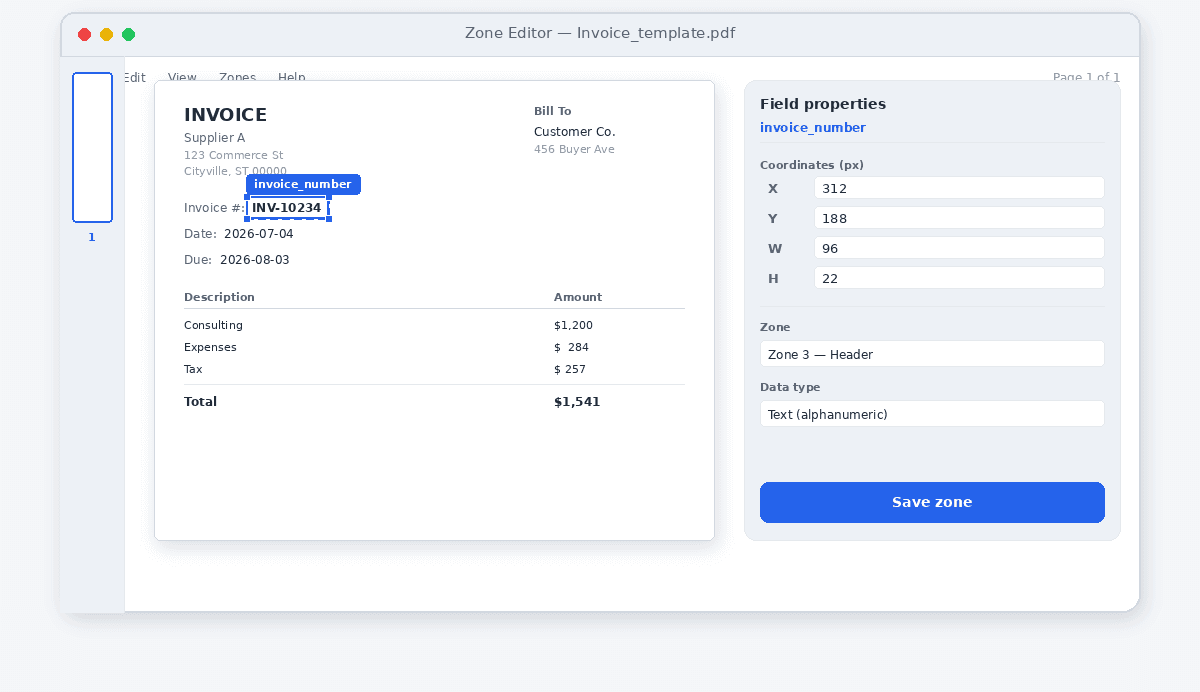
Tools like Evermap AutoBookmark, win2pdf, and Gillmeister let you draw a box on the page. You say "the invoice number is always in this rectangle, top-right." The tool pulls whatever text lands inside that box. Same goal as content reading, opposite mechanics: it reads a location, not your document.

A fixed-zone tool's field-box editor showing a rectangle drawn around an invoice number field on a sample PDF, with the coordinate values visible
Pros
  • Predictable results on perfectly uniform documents, the same form, from the same source, every time
  • Several tools offer one-time purchase pricing rather than subscriptions
  • Some run as offline desktop software with no internet dependency
Cons
  • You have to define a new zone template for every distinct document layout, one template per vendor, not one template for "invoices"
  • The moment a vendor redesigns their invoice or moves a field, the zone breaks and the tool doesn't know it's wrong
  • Mostly built for Windows and Adobe Acrobat workflows, which limits cross-platform use, and setup time scales with how many different document sources you deal with
  1. Pick one document as your template. Open a sample invoice or contract from a specific vendor or source.
  2. Draw extraction zones. Mark the exact page regions where the invoice number, date, and vendor name appear, using the tool's field-box editor.
  3. Save the zone template and tie it to a naming pattern (e.g., {vendor}{invoicenumber}_{date}).
  4. Run it on a batch of documents that match that exact layout.
  5. Check for silent failures. If a document's layout shifted even slightly, the zone pulls blank space or the wrong text, and the file gets renamed wrong without any warning.

Method 2: AI + OCR Content Reading

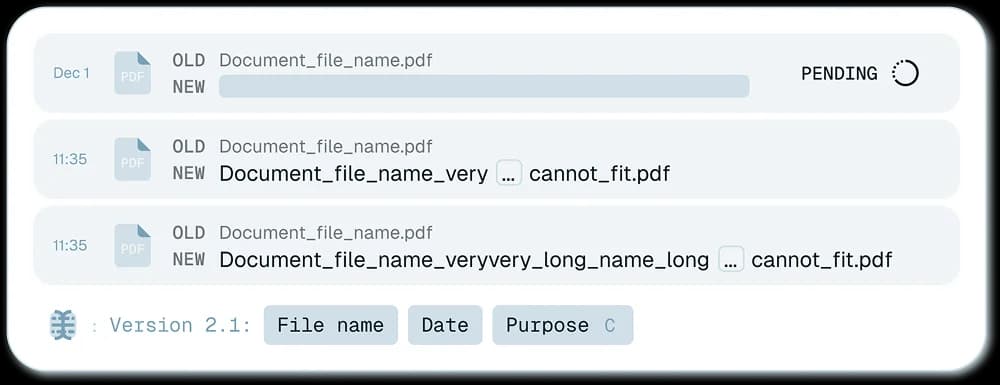
Renamer.ai reads the document the way a person would. The AI scans the whole page, understands it's an invoice, and finds the invoice number, vendor, and date wherever they sit. No coordinates required, and no per-vendor template to build first.

renamer.ai's preview screen showing a batch of PDFs with original filenames on the left and AI-suggested content-based filenames on the right, before renaming is confirmed
Pros
  • Works across mixed document sources and layouts without any setup per vendor or template
  • Resilient to layout changes, a redesigned invoice from the same vendor still gets read correctly
  • No coordinates, rules, or per-document-type configuration to maintain
Cons
  • Needs a reasonably readable scan or PDF, extremely blurry or degraded pages can cause extraction to fail
  • Suggested names should still be reviewed before confirming, especially on unusual documents
  • Renamer.ai is browser-based, not an offline desktop application, so it requires an internet connection to process files
  1. Upload your PDFs to renamer.ai, no template or zone setup required first.
  2. The AI reads each document the way a person would. It identifies the type (invoice, contract, HR form) and finds the vendor, invoice number, party, and date. Location on the page doesn't matter.
  3. Review the suggested filenames in the preview screen before anything is renamed.
  4. Adjust the naming template if you want a different order or format (e.g., date-first vs. vendor-first).
  5. Approve and rename, with undo available if something needs a second look.

Method Comparison at a Glance

The extraction method matters more than the tool. Fixed-zone extraction reads a location; AI content reading reads the document.

Fixed-zone extractionAI + OCR content reading
Setup per document typeRequired - draw zones per layoutNone - reads content directly
Handles layout changesBreaks silently when layout shiftsAdapts automatically
Works across mixed vendors/sourcesNo - one template per sourceYes - no template needed
PlatformMostly Windows / Acrobat desktop toolsBrowser-based, any OS
Best fitOne recurring source with a fixed layoutMixed invoices, contracts, HR docs from varied sources
Review stepManual spot-check recommendedPreview before confirming, built in

Where Scanned and Photographed PDFs Break Fixed-Zone Tools

This is the part fixed-zone extraction handles worst, and it's worth its own section because it's where most real-world PDF renaming actually happens.

If you scan an invoice, or photograph a contract on your phone, it won't land in the exact same spot twice. Your scanner feed might sit a few millimeters off. Your page might tilt. Your photo angle changes. Any of that shifts where the text sits relative to a fixed coordinate box. Zone-based tools can't adjust for this, because they're reading a location, not your document. So the invoice field that worked on a clean digital PDF comes back empty or wrong on your scanned version of the same form.

AI content reading handles this better, because it locates text by what it says, not where it sits. It still needs your scan to be legible. A photo so blurry you couldn't read the invoice number yourself will trip up the AI too. But it won't care if your page is rotated a few degrees, or the vendor name landed half an inch lower than usual. Think of HR paperwork scanned from paper originals, or legal files a client photographed on their phone. That's the difference between your renaming working and quietly failing.

If your PDFs mix clean digital exports with scanned or photographed pages, which describes most accounting, legal, and HR document flows, content-reading extraction is built for exactly that variability.

Automating This So New PDFs Rename Themselves

Once you've picked an extraction method, you can also automate it so new PDFs get renamed as they arrive, renamer.ai's Magic Folders handle that part. See how to automatically rename PDF files for the full automation setup.

Frequently Asked Questions

Does renamer.ai rename PDFs using metadata, like a "date modified" field?

No, renamer.ai reads the actual content printed on the page (the invoice number, vendor name, dates, and parties mentioned in the text), not file metadata. It doesn't pull EXIF data, "date taken," or file properties. If a PDF has no readable text or scan content, there's nothing for the AI to extract a filename from.

Which method should I use if all my invoices come from one vendor with the same template?

Fixed-zone extraction can work well there, since the layout genuinely doesn't change. AI content reading also works and skips the setup step. If you're already invested in a zone-based tool for one uniform source, there's no urgent reason to switch. The moment you add a second vendor with a different layout, content reading saves you from building and maintaining a separate template per source.

Why do fixed-zone tools fail on scanned or photographed PDFs?

Because they read a fixed coordinate box, not the document. A scan that sits a few millimeters off, a tilted page, or a phone-photo angle shifts where the text lands relative to that box, so the field comes back empty or wrong. AI content reading locates text by what it says rather than where it sits, so it tolerates rotation and shifted fields as long as the scan is legible.

Does content-based renaming work offline?

Renamer.ai is browser-based and needs an internet connection to process files, so there's no offline desktop mode. Several fixed-zone desktop tools do run offline, which is one reason to choose that method if a fully local workflow is a hard requirement for you.

What happens if a PDF is too blurry to read?

Both approaches depend on legible input. If a scan is so blurry you couldn't read the invoice number yourself, OCR will likely fail to extract it too, and you'll need to rescan or rename that file by hand. Content reading tolerates rotation and layout shifts, but not genuinely unreadable pages.