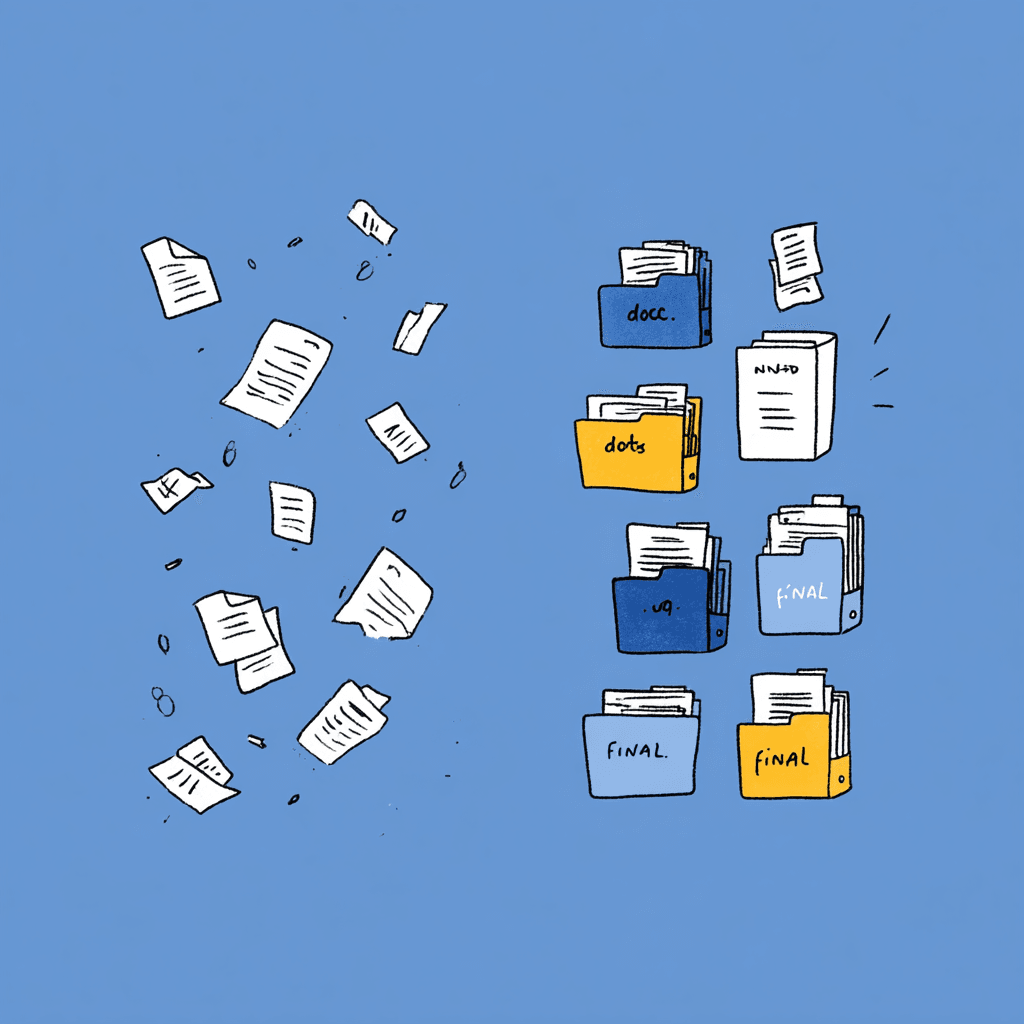
The File Naming Convention System That Actually Works

Last month, a lawyer friend called me in a panic. She'd been searching for a contract for forty-five minutes. The file existed somewhere on her computer, probably named something like "Agreement_v3_FINAL_revised2.docx." She never found it. She had to call the client and ask them to resend it.
That's a $400-per-hour professional spending her time on a problem that should have been solved in 1995.
Here's what I've learned after building Renamer.ai and talking to thousands of users about their file chaos: naming conventions aren't about being organized. They're about never having to think about organization again.
This guide gives you the exact file naming systems that work for different industries and situations. Not theory. Not generic advice you'll forget tomorrow. Actual templates you can implement today.
Why Most File Naming Advice Fails You
You've probably read the standard advice: be consistent, use dates, avoid special characters. And you've probably ignored it, because it's too vague to actually implement.
The real problem? Generic naming conventions don't account for how you actually work.
Your legal firm has completely different needs than an accounting practice. Your HR department organizes files by employee lifecycle, not by date. If you're a photographer, you need to find images by subject and shoot, not by some arbitrary numbering system.
Your naming convention needs to match your workflow, not the other way around.
Core Principles That Apply to Your Files
Before we get into industry-specific templates, let's cover the fundamentals you need regardless of your profession.
Date Formats That Sort Correctly
If you remember nothing else from this guide, remember this: YYYY-MM-DD is the only date format that sorts chronologically in any file system. This format follows the ISO 8601 international standard for date representation, which ensures your files sort correctly across all systems and countries.
| Format | Example | Sorts Correctly? |
|---|---|---|
| YYYY-MM-DD | 2025-01-15 | Yes |
| DD-MM-YYYY | 15-01-2025 | No |
| MM-DD-YYYY | 01-15-2025 | No |
When you use YYYY-MM-DD, your files automatically arrange themselves in chronological order. No extra clicks required from you. No manual sorting. The system does the work.
Characters You Should Avoid
Your file names should work everywhere, on every system, with every application. As the U.S. National Archives file naming guidelines explain, cross-platform compatibility requires avoiding certain characters that can cause issues:
- Spaces (use underscores or hyphens instead)
- Special characters (/ \ : * ? " < > |)
- Accented letters (can cause issues when you share files across systems)
- Extremely long names (keep yours under 50 characters when possible)
The Case for Lowercase
I recommend lowercase for everything you create. Why? Fewer decisions for you to make. Is it "Invoice" or "invoice"? With lowercase, there's only one answer.
Some people prefer Title_Case for readability. That works too if you prefer it. Pick one and stick with it.
Separators: Hyphens vs. Underscores
Both work for you. Hyphens are slightly easier to read. Underscores work better if you're using URLs. Pick one for your primary separator and use the other only when you need a secondary separator.
Example using both:
2025-01-15_client-name_invoice-001.pdf
The hyphen separates words within an element. The underscore separates elements from each other. Consistent logic makes your files predictable and easy to find.
Legal File Naming Conventions
If you work in law, you deal with massive volumes of documents where finding the right file can mean the difference between winning and losing a case. Your naming system needs to handle matters, clients, document types, and versions while being instantly searchable.
The Legal Naming Template
[MatterID]_[DocType]_[Party]_[Description]_[Date]_[Version]
Example:
2025-0147_contract_smithcorp_services-agreement_2025-01-15_v2.pdf
Let me break down why each element matters to you:
Matter ID comes first because it's how you think as a legal professional. When you're working on Smith Corp matter 2025-0147, you want all related files grouped together in your system.
Document type tells you what you're looking at before opening: contract, pleading, correspondence, discovery, memo, brief.
Party name identifies who's involved for you. Keep it short. SmithCorp, not Smith Corporation LLC.
Description gives you context. What kind of contract? What's the correspondence about?
Date using YYYY-MM-DD ensures chronological sorting within each document type for you.
Version tracks your revisions. Use v1, v2, v3. Never use "final" or "revised."
Common Legal Document Type Codes
| Code | Document Type |
|---|---|
| contract | Contracts and agreements |
| pleading | Court filings |
| corr | Correspondence |
| memo | Internal memoranda |
| disc | Discovery documents |
| brief | Legal briefs |
| motion | Motions |
| order | Court orders |
| exhibit | Trial exhibits |
Before and After: Legal Files
Before (what your folder probably looks like):
Smith Contract FINAL.docx
Smith Contract revised.docx
Smith Contract - John's edits.docx
Agreement v2.docx
NDA.pdf
Smith NDA signed.pdf
After (what you could have):
2025-0147_contract_smithcorp_services-agreement_2025-01-15_v1.docx
2025-0147_contract_smithcorp_services-agreement_2025-01-20_v2.docx
2025-0147_contract_smithcorp_services-agreement_2025-01-22_v3-final.docx
2025-0147_nda_smithcorp_mutual_2025-01-10_v1.pdf
2025-0147_nda_smithcorp_mutual_2025-01-12_signed.pdf
Notice how everything sorts together by matter, then by document type, then chronologically. You can find any document in seconds.
Accounting File Naming Conventions
If you're an accountant or bookkeeper, you handle recurring documents: invoices, receipts, statements, reports. Your naming system needs to optimize for audit trails and tax season stress.
The Accounting Naming Template
[Type]_[Vendor/Client]_[Reference]_[Date]
Example:
invoice_acme-supplies_inv-2025-0034_2025-01-15.pdf
Why This Structure Works for You in Finance
Type first lets you separate invoices from receipts from statements instantly. During your tax prep, you can grab all invoices with a single search.
Vendor/client second groups all your transactions with each party together. Need to reconcile with your biggest supplier? Search their name.
Reference number preserves the original document identifier for you. Essential when you're matching against accounting software and responding to audits.
Date last because in your accounting work, you typically search by vendor or document type first, not date.
Accounting Document Type Codes
| Code | Document Type |
|---|---|
| invoice | Invoices (payable or receivable) |
| receipt | Payment receipts |
| statement | Bank or credit card statements |
| expense | Expense reports |
| payroll | Payroll documents |
| tax | Tax documents |
| contract | Service agreements |
| report | Financial reports |
Monthly Close Naming Pattern
For your monthly accounting files, add the period to your naming:
[Type]_[Period]_[Description]
Examples:
report_2025-01_profit-loss.xlsx
report_2025-01_balance-sheet.xlsx
reconciliation_2025-01_bank-checking.xlsx
Before and After: Accounting Files
Before (your typical Downloads folder):
Invoice 12345.pdf
Acme Invoice.pdf
Acme Jan invoice.pdf
January statements.pdf
Q4 report.xlsx
After (your organized system):
invoice_acme-supplies_inv-12345_2025-01-08.pdf
invoice_acme-supplies_inv-12401_2025-01-15.pdf
statement_chase_checking_2025-01.pdf
report_2025-q4_financial-summary.xlsx
When tax season arrives, you'll search "invoice_2024" and every invoice from that year appears for you, sorted by vendor, with reference numbers intact. Your accountant will thank you.
HR File Naming Conventions
If you work in Human Resources, you manage files across the entire employee lifecycle: applications, onboarding, performance reviews, terminations. Your naming system needs to be organized by employee while supporting your compliance requirements.
The HR Naming Template
[EmployeeID/Name]_[DocType]_[Description]_[Date]
Example:
martinez-sarah_perf_annual-review_2025-01-15.pdf
Why Employee First Works for You
When you need to find something in HR, you almost always start with "who." Which employee? Then what type of document? Employee-first naming matches your mental model.
HR Document Type Codes
| Code | Document Type |
|---|---|
| app | Applications and resumes |
| offer | Offer letters |
| onboard | Onboarding documents |
| contract | Employment contracts |
| perf | Performance reviews |
| disc | Disciplinary records |
| training | Training certificates |
| leave | Leave requests |
| term | Termination documents |
| benefits | Benefits enrollment |
Employee Folder Structure
For your HR department, I recommend a folder per employee containing all their documents:
employees/
  martinez-sarah-2024/
    martinez-sarah_app_resume_2024-03-10.pdf
    martinez-sarah_offer_initial_2024-03-20.pdf
    martinez-sarah_contract_employment_2024-04-01.pdf
    martinez-sarah_onboard_i9_2024-04-01.pdf
    martinez-sarah_perf_annual-review_2025-01-15.pdf
Before and After: HR Files
Before (what you're probably dealing with):
Sarah's resume.pdf
Offer Letter - Sarah.docx
Sarah Martinez I-9.pdf
Performance Review Sarah 2025.docx
Sarah Warning.pdf
After (your organized employee files):
martinez-sarah_app_resume_2024-03-10.pdf
martinez-sarah_offer_initial_2024-03-20.pdf
martinez-sarah_onboard_i9_2024-04-01.pdf
martinez-sarah_perf_annual-review_2025-01-15.pdf
martinez-sarah_disc_verbal-warning_2024-11-05.pdf
Everything about one employee lives together for you, sorted by document type and date. Your compliance audits become straightforward because you can instantly locate any document for any employee.
File Naming by Document Type
Some of your documents don't fit neatly into industry categories. Here's how you can handle common file types that cross professional boundaries.
PDF Documents
Your PDFs are usually final versions, scans, or external documents. Name them by what they contain:
[Source]_[Type]_[Description]_[Date].pdf
Examples:
irs_form_w2_2024.pdf
chase_statement_checking_2025-01.pdf
scan_receipt_office-supplies_2025-01-15.pdf
Photos and Images
Your photo naming depends on your use case. For professional photo libraries:
[Date]_[Project/Event]_[Subject]_[Sequence].jpg
Examples:
2025-01-15_product-shoot_widget-blue_001.jpg
2025-01-15_product-shoot_widget-blue_002.jpg
2025-01-20_headshots_johnson-mike_001.jpg
For your personal photos, simpler works:
[Date]_[Event/Location]_[Description].jpg
Example:
2025-01-15_hawaii-vacation_sunset-beach.jpg
Scanned Documents
Your scans need extra context because the original file name is usually meaningless:
scan_[Type]_[Description]_[Date].pdf
Example:
scan_receipt_client-dinner_2025-01-15.pdf
File Naming for Your Business and Teams
When multiple people access the same files in your organization, naming conventions become even more critical. Everyone needs to understand and follow your system, or it falls apart.
Team Naming Principles
Prefix by department when your files live in shared drives:
[Department]_[Project]_[DocType]_[Description]_[Date]
Examples:
marketing_q1-campaign_brief_social-media_2025-01-05.docx
sales_acme-deal_proposal_enterprise_2025-01-10.pdf
engineering_v2-release_spec_api-changes_2025-01-08.md
Project-Based Organization
For your project-centric teams, lead with the project:
[ProjectCode]_[Phase]_[DocType]_[Description]_[Date]
Example:
proj-alpha_design_wireframe_homepage_2025-01-15.fig
proj-alpha_dev_spec_authentication_2025-01-18.md
proj-alpha_test_results_uat-round1_2025-01-25.xlsx
Version Control Without Git
Not every team uses version control software. For your documents that go through revisions:
[Name]_v[Major].[Minor]_[Date]
Examples:
marketing-plan_v1.0_2025-01-15.docx
marketing-plan_v1.1_2025-01-18.docx
marketing-plan_v2.0_2025-01-25.docx
Use major versions (v1, v2, v3) for your significant changes. Use minor versions (v1.1, v1.2) for small edits. Always include the date so you know when you created each version.
What About "FINAL"?
Never use "FINAL" in your file names. There's always another revision coming. Instead:
- Use version numbers (v3, v4)
- Add "approved" or "signed" for your completed documents
- Use dates to track when you finalized something
Example:
contract_smithcorp_v3_2025-01-20.docx
contract_smithcorp_v3_2025-01-25_signed.pdf
Document Versioning That Works
Good versioning tells you the history of a document without opening it. Bad versioning creates "final_final_FINAL_v2_revised" nightmares that you've probably experienced.
The Version Number System
Keep it simple for yourself:
- v1, v2, v3 for major versions
- v1.1, v1.2 for minor revisions
- v1.1.1 for tiny fixes (you'll rarely need this)
When to Increment Your Versions
| Change Type | Version Change | Example |
|---|---|---|
| New draft | v1 | Your first version |
| Minor edits, formatting | v1.1 | You fixed typos |
| Significant changes | v2 | You restructured sections |
| Client feedback incorporated | v2.1 | You added requested changes |
| Final approval | v3-approved | Ready for signing |
Status Suffixes You Can Use
Sometimes you need more than version numbers:
| Suffix | Meaning |
|---|---|
| draft | Your working document |
| review | You sent it for review |
| approved | Stakeholder approved it |
| signed | Legally executed |
| archived | No longer active for you |
Example progression:
contract_smithcorp_v1_draft.docx
contract_smithcorp_v2_review.docx
contract_smithcorp_v3_approved.docx
contract_smithcorp_v3_signed.pdf
How to Create Your File Naming System
You don't need to implement everything in this guide. Start with what solves your biggest problem today.
Step 1: Identify Your Main File Types
List the documents you work with most often. For most professionals, it's five to ten types. Write yours down.
Step 2: Decide Your Element Order
Based on how you search for files, pick your order:
- Do you search by client or matter? Put that first
- Do you search by document type? Put that first
- Do you search by date? Put that first
Most people search by entity (client, project, employee) first, then narrow by type.
Step 3: Create Your Code List
Standardize your abbreviations. Write them down somewhere your team can reference:
| Full Name | Code |
|---|---|
| Invoice | invoice |
| Contract | contract |
| Proposal | proposal |
| Report | report |
Step 4: Document and Share Your Convention
Write your naming convention in one paragraph. Share it with anyone who touches your files. Post it where people can find it.
Example documentation: "All files follow this pattern: [Client][DocType][Description]_[Date]. Clients are lowercase, one word. Doc types come from our standard list. Dates are YYYY-MM-DD. Use hyphens between words, underscores between elements."
Step 5: Rename Your Existing Files
This is where most people give up. You have thousands of files with inconsistent names. Renaming them manually would take you weeks.
This is exactly the problem that led me to build Renamer.ai. Instead of spending hours manually renaming files, you can process hundreds of documents at once. The AI analyzes each file's content, extracts dates, identifies document types, and applies consistent naming automatically. You set up your naming pattern once, drag in a folder of chaotic files, and get back organized, consistently named documents.
Automating Your File Naming
Manual naming conventions work for you until they don't. The moment you're busy, you forget. The moment a colleague joins, they do it differently. Your consistency breaks down.
Automation solves this problem for you. When software handles the naming, every file follows the same pattern. No discipline required from you. No training new team members on your system. The convention enforces itself.
What Good Automation Looks Like
The best file naming automation for you:
- Reads the actual content to understand what a document is
- Extracts key information like dates, names, and reference numbers
- Applies your template consistently across all your files
- Works in the background so you don't have to think about it
As Harvard's data management guidelines explain, establishing conventions before you start collecting files prevents a backlog of unorganized content. The principles they outline match what I've seen work across thousands of users. But the challenge is applying those principles consistently over time, which is where automation becomes valuable.
Common Naming Convention Mistakes You Should Avoid
After years of helping people organize files, I've seen the same mistakes repeatedly. Here's how you can avoid them.
Mistake 1: Too Many Elements
2025-01-15_clientname_projectname_department_documenttype_version_author_status.pdf
This is unreadable for you. Three to five elements is usually enough. If you need more context, use folders.
Mistake 2: Inconsistent Separators
2025-01-15_clientname-projectname_doc.type-v1.pdf
Pick a system and stick with it. Hyphens between words, underscores between elements. Or all hyphens. Or all underscores. Just be consistent in what you choose.
Mistake 3: Relying on Your Memory
"I'll remember what 'Q1_Report_Final' means."
You won't. Be specific: report_2025-q1_revenue-summary.xlsx
Mistake 4: Using Spaces
My Important Document Final Version.pdf
Spaces cause problems for you in URLs, command lines, and some applications. Always use hyphens or underscores instead.
Mistake 5: Expecting Perfection from Day One
You won't get your naming convention right immediately. Start with something reasonable, use it for a month, and refine based on what's not working for you.
Making Your Convention Stick
The best naming convention is one you'll actually use. Here's how you can make yours stick.
Start Small
Don't try to rename everything at once. Start with your new files. Let your old files stay messy for now. Once your new system is habitual, tackle the backlog.
Automate What You Can
Every manual step is a chance for you to be inconsistent. Use automation tools to handle repetitive naming. Your future self will thank you.
Review Monthly
Set yourself a calendar reminder to review your file naming once a month. Are you following your convention? Is it working for you? What needs adjustment?
Keep Your Documentation Short
If your naming convention documentation is more than one page, it's too complicated for your team. Simplify until someone can learn it in five minutes.
Conclusion: Your Files Should Work for You
You now have specific, implementable file naming conventions for legal, accounting, HR, and general business use. You understand versioning, team collaboration, and common mistakes to avoid.
The question for you is: will you implement this manually, or let automation handle it?
Your files should work for you, not against you. A good naming convention, consistently applied, gives you back hours of your time and eliminates the frustration of lost documents.
Start with your most problematic folder today. Apply one template. See how it feels for you. Then expand from there.
About the author

Uros Gazvoda
Uroš is a technology enthusiast, digital creator, and open-source supporter who’s been building on the internet since it was still dial-up. With a strong belief in net neutrality and digital freedom, he combines his love for clean design, smart technology, and human-centered marketing to build tools and platforms that matter.
Founder of Renamer.ai