AP Workflow Automation

Accounts payable invoice workflow automation

An accounts payable invoice workflow is the path every bill travels from the moment it arrives to the moment it is paid and archived: intake, reading, naming and filing, coding, approval, and payment. Automating that workflow does not mean buying one giant system — it means removing the manual handoffs between each stage. This guide maps the full workflow, compares the realistic ways to automate it, and shows where reading-and-naming automation removes the bottleneck most AP teams actually feel.

Methods compared

Method 1: Email, spreadsheets, and shared folders

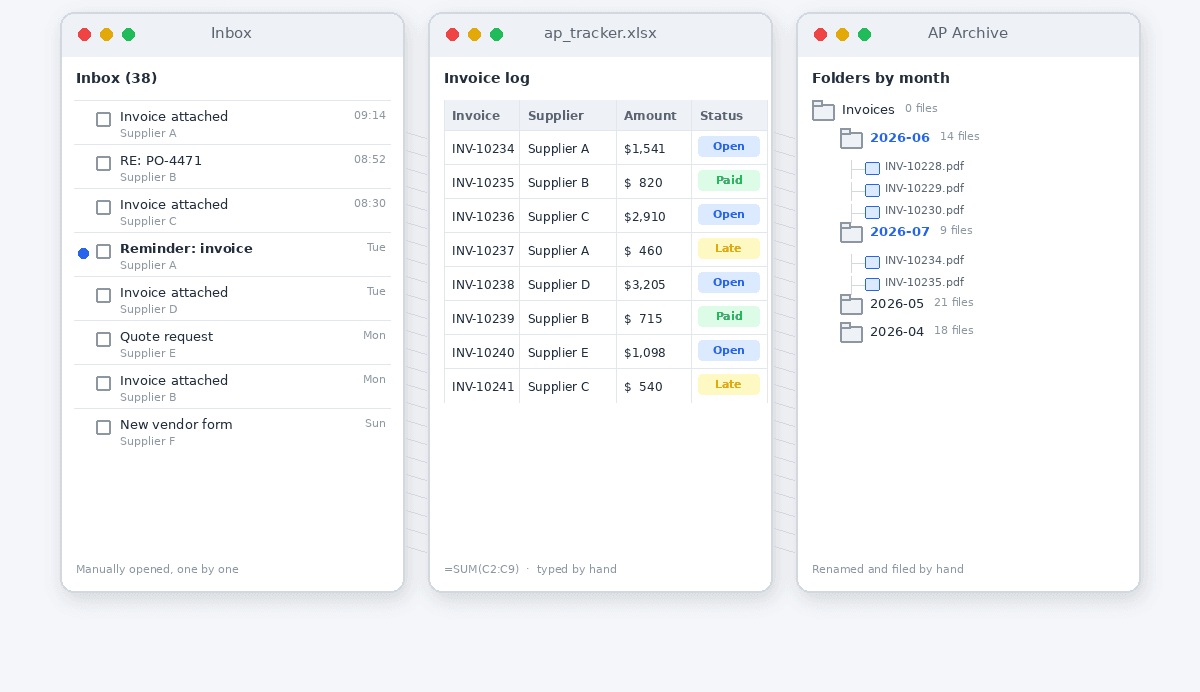
The default workflow for a small AP function ties together an email inbox, a tracking spreadsheet, and a dated folder tree. Invoices arrive as attachments, a clerk saves each one, types a filename, logs a row in the spreadsheet, and emails an approver for sign-off. Nothing here is automated — every stage is a manual handoff — but it costs nothing to start and the whole team understands it. The workflow holds together at low volume and quietly falls apart as suppliers, formats, and people multiply, because each handoff depends on someone remembering to do it the same way every time.

Pros
  • Zero software cost and no implementation project
  • Every step is visible and easy for a small team to audit
  • Total control over folder structure and approval emails
  • Runs on tools you already have today
Cons
  • Every stage is a manual handoff that scales linearly with volume
  • Spreadsheet and folder drift the moment two people share the work
  • No reading of scanned or image-only invoices
  • Approvals stall in inboxes with no status or reminders
  1. Collect invoices from supplier emails and the scanner into one inbox.
  2. Save and manually rename each attachment to a sensible filename.
  3. Log the vendor, number, date, and amount in a tracking spreadsheet.
  4. Email the relevant manager to request approval.
  5. On approval, schedule the payment and mark the spreadsheet row paid.
  6. File the named invoice in the correct year and month folder.

Method 2: ERP or dedicated AP automation suite

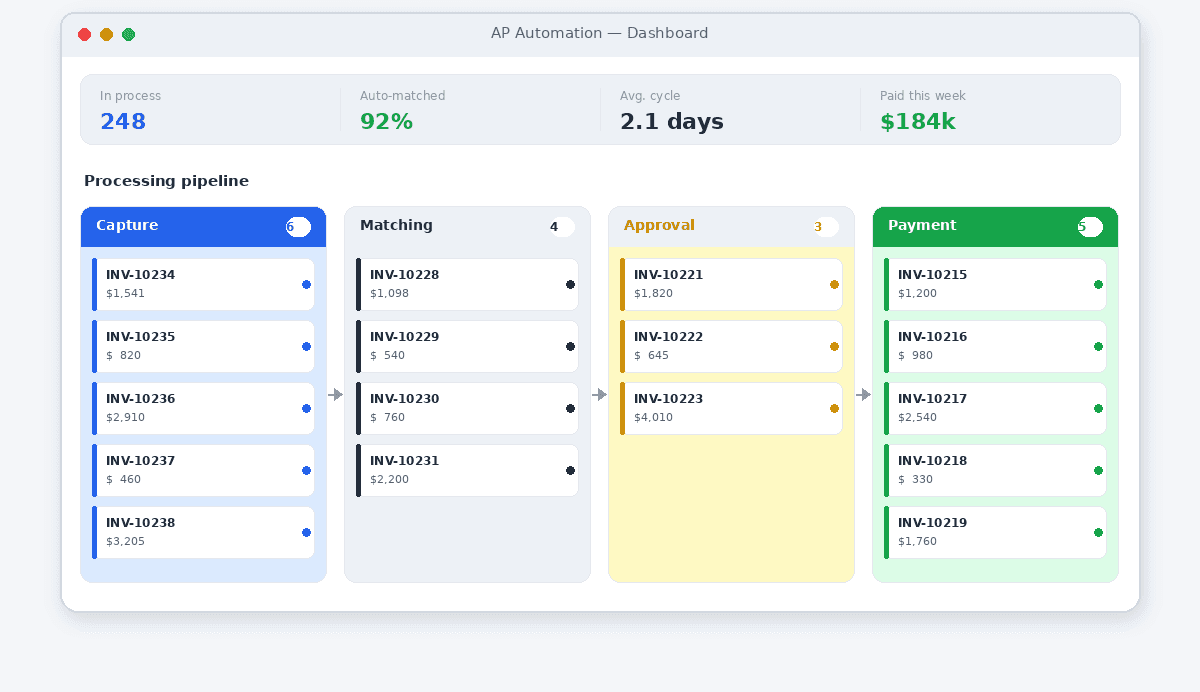
A full AP suite or the payables module of an ERP automates the whole workflow inside one platform: it captures invoices, runs OCR, matches them to purchase orders, routes approvals by rule, and posts payments. When volume is high and controls are strict, this is the right shape and the visibility is excellent. The honest cost is weight — recurring per-user licences, a configuration project measured in weeks, and a dependency on clean vendor master data and defined approval hierarchies before the automation earns its keep. Teams whose real bottleneck is just reading and naming invoices often find the suite automates stages that were never the problem.

Pros
  • One platform automates intake through to payment
  • Three-way PO matching and rule-based approval routing
  • Full audit trail, status, and spend reporting
  • Scales to thousands of invoices a month
Cons
  • High recurring licence and per-seat cost
  • Weeks-to-months implementation before value appears
  • Needs disciplined master data and approval rules first
  • Over-automates stages a small team did not struggle with
  1. Configure vendors, GL codes, and approval hierarchies in the platform.
  2. Connect email and scanner intake channels to the capture engine.
  3. Let OCR extract header and line-item data from each invoice.
  4. Auto-match invoices to purchase orders and flag exceptions.
  5. Route each invoice through its approval rule for sign-off.
  6. Post the approved invoice and schedule payment in the ledger.

Method 3: Renamer.ai OCR reading-and-naming at intake

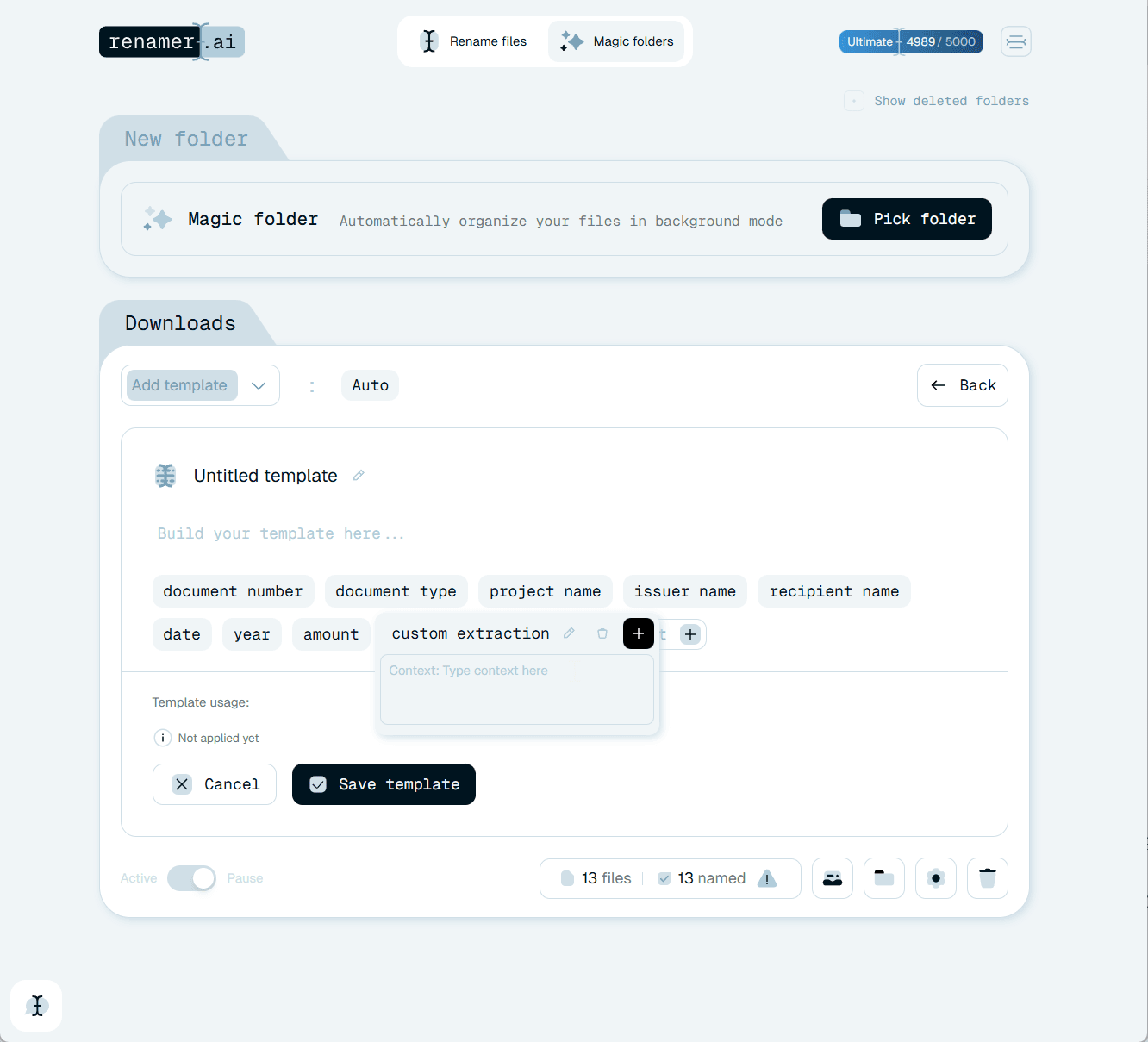
Renamer.ai automates the one workflow stage that creates the most manual drag: reading each invoice and naming and filing it consistently. It opens every file in the intake folder, runs OCR on scans and photos, identifies the vendor, invoice number, date, and total, and renames the file to your template — turning Scan_047.pdf into 2024-11-15_AcmeCorp_INV-2847_$3200.pdf before it travels any further. Point a Magic Folder at your AP inbox and the stage becomes hands-off: new invoices are read and named the moment they land. It does not route approvals or pay bills; it feeds every downstream stage — spreadsheet, ERP, or accountant — a clean, searchable file instead of an anonymous scan.

Pros
  • Automates the read-name-file stage that hurts most
  • Reads scanned and image-only PDFs with built-in OCR
  • Magic Folders make intake naming fully hands-off
  • Drops in front of any spreadsheet, ERP, or drive
Cons
  • Covers intake and filing, not approval routing or payment
  • You define the naming template and review edge cases
  • Very poor scans may still need a manual glance
  1. Set a Magic Folder on your AP inbox or scanner output folder.
  2. Choose a naming template such as date_vendor_invoice_amount.
  3. Let the OCR engine read each new invoice as it arrives.
  4. Confirm the proposed names, correcting any low-confidence reads.
  5. Let files file themselves into vendor or period folders by template.
  6. Hand the clean, named invoices to your approval and payment steps.

Comparing ways to automate the AP invoice workflow

Each approach automates a different slice of the workflow. Email-and-folders automates nothing but costs nothing; an ERP suite automates everything but asks for a project; OCR reading-and-naming automates the heaviest intake stage in minutes. Many teams pair the last two: Renamer.ai for fast, accurate intake naming, feeding an ERP for matching and payment.

Workflow stageEmail + foldersERP / AP suiteRenamer.ai OCR
Intake reading (OCR)ManualYesYes
Consistent naming + filingManualPartialYes
Approval routingEmailYesHand-off
Payment + postingManualYesHand-off
Setup timeMinutesWeeks-monthsMinutes
Recurring costFree (time)HighLow

Where scanned invoices break the workflow

Every AP workflow has the same weak link: the scanned or photographed invoice. A bill that arrives as a flatbed scan or a phone photo carries no selectable text, only pixels, so any rule, macro, or spreadsheet formula has nothing to read. The file stops dead at the intake stage until a human opens it, reads the vendor and amount with their own eyes, and types the data onward. Because a real supplier base always includes smaller vendors who still print and rescan their paperwork, you cannot design the workflow as if every invoice were a clean digital PDF.

Optical character recognition is what keeps the workflow moving across that gap. It reconstructs the text from the image, then locates the vendor in the header, the invoice number near the reference block, the date, and the total at the foot of the document. Renamer.ai applies this to every file at intake, so a folder mixing native PDFs and scans emerges uniformly named — for example 2024-11-15_AcmeCorp_INV-2847_$3200.pdf — and ready for the approval and payment stages. The single most error-prone manual task in the whole workflow, retyping invoice data, simply disappears.

Build the workflow to trust confidence rather than assume perfection. Skewed scans, faint thermal print, and unusual layouts can produce a misread digit or a truncated total. The reliable pattern is to let OCR read everything automatically and route only the small set of low-confidence invoices to a human, instead of re-checking every file. That keeps the throughput of automation while protecting the accuracy that matching, approval, and payment all depend on downstream.

Map the workflow before you automate it

The mistake that sinks most AP automation projects is automating a stage that was never the bottleneck. Before choosing any tool, draw the actual path an invoice takes in your team: who receives it, where it is saved, who reads and records the data, who approves it, how payment is scheduled, and where the original ends up. Almost always, one or two stages consume most of the elapsed time, and they are rarely the approval or payment steps that vendors love to demo. For the majority of small and mid-size teams, the slow, repetitive drag sits at intake — opening each file, reading it, and filing it under a sensible name.

Mapping the workflow this way turns a vague goal like automate AP into a specific decision about which handoff to remove first. If invoices already arrive as clean digital files and your pain is approval chasing, an approval tool helps most. If your inbox is full of scans named Scan_047.pdf and someone spends hours retyping vendors and totals, intake reading-and-naming is the lever. Naming the real bottleneck out loud keeps you from buying a heavyweight suite to solve a problem you do not have, and from hand-coding fragile scripts for a problem a focused tool already solves.

Naming is the join between every workflow stage

A consistent filename is what lets one automated stage hand off cleanly to the next. When an invoice is named 2024-11-15_AcmeCorp_INV-2847_$3200.pdf at intake, the approver sees the vendor and amount without opening anything, the spreadsheet row writes itself from the name, the ERP import has a predictable key, and the auditor finds the file in seconds. When the same invoice stays Scan_047.pdf, every downstream stage has to re-open it and re-derive the same facts, which is exactly the manual tax automation is supposed to remove. Naming, in other words, is not a cosmetic step — it is the connective tissue of the whole workflow.

Because naming touches every stage, it is the highest-leverage thing to automate first and the easiest to get wrong by hand. People interpret conventions differently and drift within weeks, so a workflow that depends on humans naming files consistently is not really automated at all. Enforcing the template with a tool removes the discipline problem: every invoice, from every supplier, in every format, comes out matching the standard. That reliability is what makes the rest of the workflow — matching, approval, payment — trustworthy enough to automate on top of.

Automate in modular layers, not one big bang

The most durable AP workflows are assembled from focused layers rather than bought as a single monolith. Intake reading-and-naming can be automated independently of approvals, and approvals independently of payment. This lets you fix the stage that hurts today — usually intake — and prove the value this week, while larger projects like an ERP rollout proceed on their own timeline. It also lowers risk: a stalled platform migration cannot freeze your whole AP function if the part you rely on most, getting invoices read and filed, runs on its own.

Renamer.ai is designed to be one such layer. It sits at intake, produces clean named files in open formats, and then gets out of the way, handing those files to whatever comes next. Because the output is just well-named files on disk, it composes with a spreadsheet today and an ERP next year without re-work. When you evaluate any workflow tool, ask the same question: what does it expect as input, what does it emit as output, and will those clean handoffs survive a change of accounting system. Tools that respect open handoffs build a workflow you can keep improving; tools that demand you live entirely inside them build lock-in.

Keep a human on the exceptions

Automating a workflow well means deciding deliberately where a person still belongs. With OCR intake, the human job shrinks from reading and typing every invoice to glancing only at the few the engine flagged as uncertain. With approvals, it means watching for invoices stuck waiting on a sign-off rather than approving each one from scratch. A short, regular review of exceptions keeps the workflow healthy without dragging the manual tax back in. The goal is a workflow that runs itself for the routine majority and surfaces only the handful of items that genuinely need judgment.

Document the workflow once it works so it survives staff changes. A single page describing the intake folder, the naming template, the tools in the chain, and the exception review lets a new team member be productive in a day instead of a month. Treat that document as living and update it whenever a tool or convention changes. A modular, capture-first workflow with clear handoffs and a light human safety net is far more resilient than any one platform — and it is the version of automation that still works two years and two software changes from now.
AP invoice workflow automation FAQ

What is accounts payable invoice workflow automation?

It is the use of software to remove the manual handoffs in the path an invoice travels from arrival to payment: intake, reading, naming and filing, coding, approval, and payment. It is rarely a single product — most teams automate one stage at a time. A common, high-impact first step is the intake stage, where OCR reads each invoice and renames it from something like Scan_047.pdf to 2024-11-15_AcmeCorp_INV-2847_$3200.pdf before it moves on.

Which stage of the AP workflow should I automate first?

Automate the stage that consumes the most manual time, which for most teams is intake — opening, reading, and filing each invoice. If your invoices already arrive as clean digital files and your delays are in approvals, start there instead. Mapping your actual workflow first prevents the common mistake of buying a heavy platform to automate stages that were never the bottleneck.

Do I need a full ERP or AP suite to automate the workflow?

Not necessarily. A full suite makes sense at high volume with strict PO matching, but it carries recurring cost and a long implementation. If your real drag is reading and naming invoices, automating just that intake stage with an OCR tool often delivers most of the benefit immediately, and it feeds clean files into whatever approval and payment system you use now or adopt later.

How does automation handle scanned and photographed invoices?

Through optical character recognition. Scanned and image-only PDFs have no selectable text, so without OCR they stall at intake. Renamer.ai runs OCR on each file, reads the vendor, invoice number, date, and total even on image-based documents, and names them consistently. Very poor-quality scans may still need a quick human check, which is why routing only low-confidence reads to a person is the practical pattern.

How can I try automating my AP invoice intake?

Run a real batch through the intake stage and compare before and after. You can start free with 25 files: point Renamer.ai at a folder of mixed invoices, including a few scans, choose a naming template, and watch files like Scan_047.pdf become searchable names automatically. From there you can decide how to connect the clean output to your existing approval and payment steps.

FUTURISTICA d.o.o. © 2024–2026 FUTURISTICA d.o.o. All rights reserved. Ul. Frana Žižka 20 2000 Maribor, Slovenia, Company Registration: EU, Slovenia