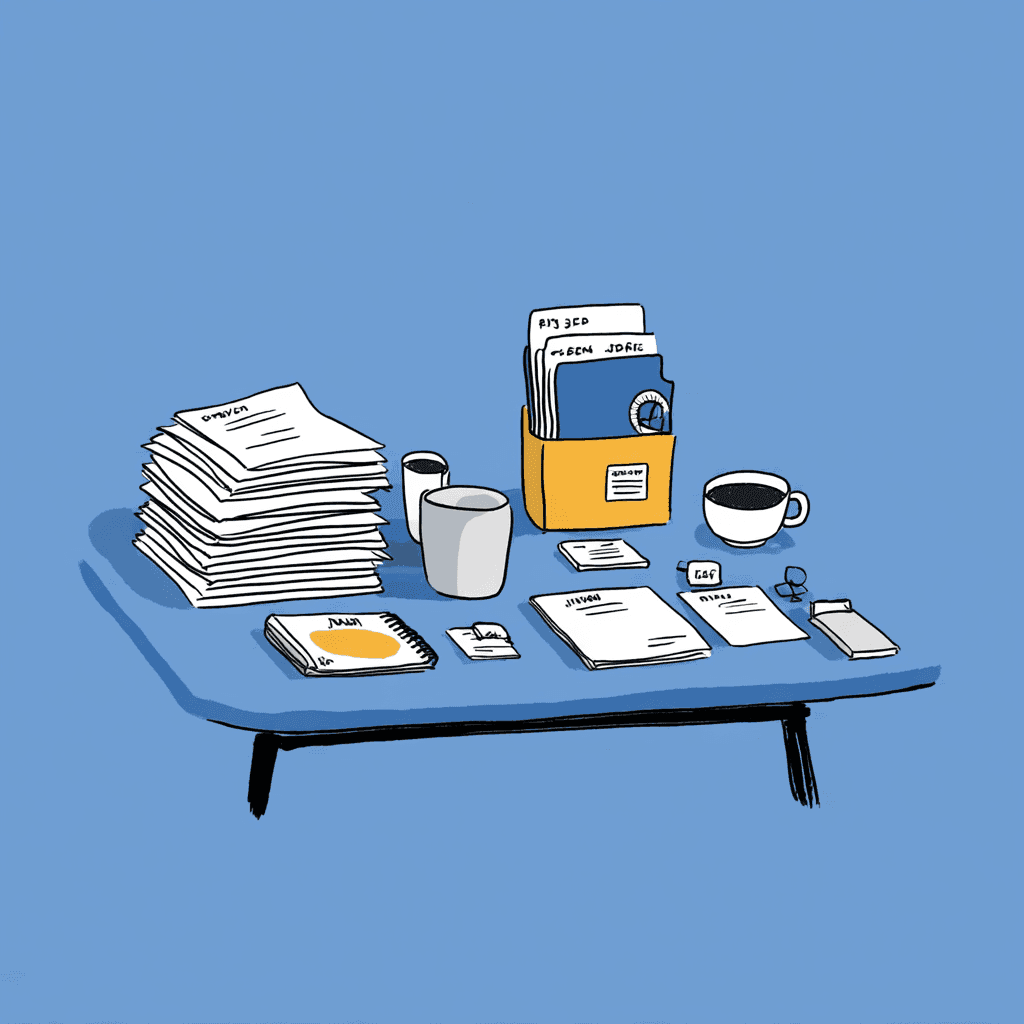
Going Paperless in 2026: The Complete Guide to a Paperless Office

I spent three hours last month searching for a single invoice. Three hours. It was buried in a filing cabinet, misfiled under the wrong client name, and I only found it because I accidentally knocked over the wrong folder.
If you're reading this, you've probably had your own version of that story. Maybe you lost a contract during an office move. Maybe your accountant asked for a receipt from nine months ago and you felt your stomach drop. Or maybe you just looked at the stack of papers on your desk and thought, "There has to be a better way."
There is. Going paperless in 2026 isn't the same undertaking it was five years ago. The tools are smarter, cloud storage is cheaper, and AI can handle the tedious parts that used to make paperless transitions fail. But here's what nobody tells you about building a paperless office: the hard part isn't scanning your documents. It's what happens after you scan them.
More on that in a minute.
Why Go Paperless in 2026?
Let me skip past the obvious "save trees" pitch and get to the numbers that actually move the needle for your business.
It costs real money to stay paper-based. The average office worker uses about 10,000 sheets of paper per year. At current prices, that's roughly $80-120 in paper alone. But the real cost is time. Professionals spend 5-15% of their working hours reading information, and up to 50% searching for it. When your files live in a physical cabinet, every search is a walk across the office.
Think about what that means in dollars. If you're paying someone $60,000 a year and they spend even 10% of their time hunting for documents, that's $6,000 per employee per year burned on searching. A five-person team? $30,000. And that's a conservative estimate.
Compliance keeps getting stricter. GDPR, HIPAA, SOX, and dozens of industry-specific regulations now require documented retention policies, audit trails, and secure destruction protocols. Try maintaining an audit trail with paper folders. I'll wait.
Remote work isn't going away. Your team needs access to documents from home offices, client sites, and coffee shops. Paper doesn't travel well. A digital document management system means your files are wherever you are.
The environmental case is straightforward. According to the Environmental Protection Agency, paper and paperboard made up about 23% of municipal solid waste in the United States. Your office doesn't need to contribute to that number.
Disaster recovery becomes real. Fires, floods, and burst pipes don't care about your filing system. One event can destroy years of records. Cloud-stored digital files survive anything short of the internet itself shutting down.
The benefits of going paperless extend beyond cost savings. You get faster retrieval, easier collaboration, reduced physical storage needs, and a workflow that matches how people actually work now.
Your Step-by-Step Paperless Transition
Most paperless guides make this sound easy. "Just scan everything!" Right. And just run a marathon. Both are technically accurate and practically useless without a plan.
Here's how to actually pull this off without losing your mind.
Step 1: Audit What You Have
Before you digitize anything, figure out what you're dealing with. Pull everything out. Every drawer, every cabinet, every box shoved under a desk.
Sort your documents into three piles:
- Active files you reference regularly (last 12 months)
- Archive files you must keep for compliance but rarely touch
- Shred pile for anything past its retention period
Most offices discover that 60-70% of their paper falls into the archive or shred categories. That's encouraging. You don't need to digitize everything on day one.
Step 2: Digitize Strategically
Start with your active files. These are the documents you'll search for next week, so they deliver immediate value once digitized.
Your scanning setup depends on volume:
- Low volume (under 100 pages/week): A phone scanner app like Adobe Scan or Microsoft Lens works fine
- Medium volume (100-500 pages/week): A dedicated document scanner like the Fujitsu ScanSnap
- High volume (500+ pages/week): Consider a professional scanning service for the initial backlog
The key to document digitization done well? Scan at 300 DPI minimum. This gives you clean files that OCR software can actually read. Anything lower and you're creating digital files that are just as hard to search as the paper originals.
Step 3: Organize Before It Piles Up
Here's where most paperless transitions go sideways. You scan 500 documents and dump them into a folder called "Scanned Files." Now you have digital chaos instead of physical chaos. Progress?
You need a system before you start scanning. I'll cover the filing structure and naming conventions in the next two sections because they deserve serious attention.
Step 4: Automate the Ongoing Flow
The initial digitization is a project. The ongoing paperless workflow is a habit. Set up systems so new documents get scanned, named, and filed without you thinking about it every time.
This means:
- Requesting digital invoices and receipts from your vendors
- Setting up email rules that auto-save attachments to the right folders
- Using document scanners that auto-upload to your cloud storage
- Implementing naming automation so files don't pile up as
scan_001.pdf
Step 5: Maintain and Improve
A paperless office isn't a one-time project. Schedule quarterly reviews to check your filing structure, archive old documents, and adjust your naming conventions as your needs change. The system that works for a three-person team won't work the same way when you're at fifteen.
Building Your Digital Filing System
Your folder structure is the skeleton of your paperless document management system. Get it wrong and you'll spend just as much time hunting for digital files as you did searching through cabinets.
Here's a structure that works for most businesses:
Company Name
├── Finance
│   ├── Invoices
│   │   ├── 2026
│   │   └── 2025
│   ├── Receipts
│   ├── Tax Returns
│   └── Bank Statements
├── Legal
│   ├── Contracts
│   ├── NDAs
│   └── Compliance
├── HR
│   ├── Employee Records
│   ├── Offer Letters
│   └── Policies
└── Projects
    ├── Client-A
    └── Client-B
A few principles that save headaches down the road:
Keep it shallow. Three levels deep, maximum. If you need more than three clicks to reach a file, your structure is too complex. You'll stop using it within a month.
Use dates at the top level, not the bottom. Year folders inside category folders (Finance > Invoices > 2026) work better than the reverse. You almost always know what type of document you want before you know the exact date.
Pick a cloud storage provider and commit. Google Drive, Dropbox, OneDrive, iCloud. They all work. The worst choice is splitting files across multiple platforms. Pick one, set it up, and stick with it.
Mirror your physical structure first. If your current filing cabinet has sections for Finance, Legal, and HR, start with the same categories digitally. You can refine later. Trying to reinvent your entire filing logic at the same time you're digitizing creates decision fatigue and slows you down.
For a deeper dive into organizing your digital filing system, check out our guide on how to organize digital files.
File Naming Conventions That Actually Scale
This is where I get opinionated, because this is where your paperless transition will either stick or fall apart.
Every "going paperless" guide tells you to "create a consistent naming convention." Great advice. Completely unhelpful. It's like telling someone to "eat healthy" without mentioning a single food.
Here's the reality: you can build the perfect folder structure and choose the best cloud storage, but if your files are named Document1.pdf, scan_20260206.pdf, and final_FINAL_v3_REAL.pdf, you've replaced one mess with another.
What Good File Naming Looks Like
A strong file naming convention includes these elements, in this order:
Date_DocumentType_Identifier_Details.extension
Why this order? Because it sorts chronologically by default, groups by document type second, and gives you searchable details at the end.
Compare these two approaches for the same set of files:
Bad naming:
scan001.pdf
invoice.pdf
contract_signed.pdf
receipt.pdf
Good naming:
2026-02-06_invoice_acme-corp_#4521.pdf
2026-02-06_contract_smith-case_executed.pdf
2026-02-05_receipt_office-depot_supplies.pdf
The second set tells you exactly what each file contains without opening it. You can search for any client, any document type, any date range, and find what you need in seconds.
Rules That Prevent Headaches
Beyond the basic template, a few ground rules keep your naming clean as your file library grows:
- No spaces in filenames. Use hyphens or underscores instead. Spaces cause problems with certain software, backup scripts, and web servers.
- Stick to lowercase. Mixed case leads to inconsistency.
Invoice_Acme.pdfandinvoice_acme.pdflook like different files on some systems. - Keep names under 60 characters. Long filenames get truncated in file explorers and cause path-length errors on Windows.
- Use ISO date format (YYYY-MM-DD). This sorts correctly in every operating system. MM-DD-YYYY does not.
- Avoid special characters. No slashes, ampersands, hash symbols, or question marks. Stick to letters, numbers, hyphens, and underscores.
Simple? Yes. But I've seen companies waste entire afternoons fixing broken file paths because someone put a slash in a filename.
Why Manual Naming Breaks Down
Here's the uncomfortable truth about file naming conventions. They work perfectly when you name five files. They fall apart when you need to name five hundred.
I've watched this happen dozens of times. A business decides to go paperless, creates beautiful naming rules, and starts strong. Week one, every file is perfectly named. Week three, people start cutting corners. By month two, half the files are named correctly and the other half are scan_003.pdf because someone was busy and thought they'd "get to it later."
They never get to it later.
The bottleneck isn't discipline. It's that manually renaming scanned documents is genuinely tedious work. You open each file, read the content, identify the date, client, and document type, type it all out, and move on to the next one. Multiply that by the 50 documents your office scans each week. Then multiply by every week for a year.
That's 2,600 manual renames per year for a small office. Larger operations deal with tens of thousands. Nobody maintains perfect file naming conventions at that volume. Not through willpower alone.
How AI Changes the Naming Game
This is the part where I'd normally stay modest, but I built Renamer.ai specifically because I lived this problem every day.
When you scan a batch of invoices, they come out named scan_001.pdf through scan_047.pdf. Your choices used to be: open each one, read it, and rename it by hand. Or leave them as-is and hope you never need to find a specific one.
AI-powered file renaming adds a third option. The software reads the actual content of each document using OCR, identifies what it is, extracts key details, and generates a descriptive name automatically.
So Invoice-5XXBHXPX-OO07.pdf becomes anthropic_invoice_5xxbhxpx-0007_30-11-2025.pdf. Not because someone typed that out, but because the AI read the invoice, identified the vendor, invoice number, and date, then applied your naming template.
The real power comes with Magic Folders. You designate a folder, and every file that lands in it gets automatically renamed based on its content. Drop 50 scanned invoices into your "Incoming" folder before lunch, and they're all properly named by the time you get back. No manual work. No naming inconsistencies. No backlog building up.
This is what makes paperless document management sustainable long-term. Not willpower. Not better habits. Automation that removes the tedious step where most people quietly give up.
Industry Playbooks: Naming Templates That Work
Different industries have different naming needs. Here are templates I've refined from working with hundreds of users across accounting, legal, and HR.
Paperless Accounting
Accountants deal with the highest volume of repetitive documents. Invoices, receipts, bank statements, tax forms. Your naming convention needs to handle volume without sacrificing searchability.
Recommended template:
YYYY-MM-DD_DocumentType_VendorOrClient_#Number.pdf
In practice:
2026-02-06_invoice_clientname_#12345.pdf
2026-02-06_receipt_office-depot_#8834.pdf
2026-01-15_bank-statement_chase_january.pdf
2026-01-31_w2_employee-jane-smith_2025.pdf
Why it works: sorting by date puts recent documents first. The document type lets you filter instantly. The vendor or client name makes any file findable in seconds. During tax season, when you need every receipt from a specific vendor, this naming system pays for itself in minutes.
Legal Document Management
Legal files need iron-clad traceability. Every document connects to a case, a client, and a specific matter. Missing a single document can mean missing a deadline. Courts don't accept "I couldn't find the file" as an excuse.
Recommended template:
YYYY-MM-DD_DocumentType_CaseNumber_PartyName.pdf
In practice:
2026-02-06_contract_case-2024-0892_smith-v-jones.pdf
2026-02-06_motion_case-2024-0892_discovery-request.pdf
2026-01-20_nda_client-acme-corp_mutual.pdf
The case number in position three is critical. When a partner asks for "everything on the Smith case," you can search by case number and get every related document instantly, regardless of document type or date.
Paperless HR
HR departments handle sensitive documents across every employee's lifecycle. Your naming system needs to support both active management and long-term compliance retention.
Recommended template:
YYYY-MM-DD_DocumentType_EmployeeName.pdf
In practice:
2026-02-06_offer-letter_employeename.pdf
2026-01-15_performance-review_employeename_q4-2025.pdf
2026-02-01_i9_employeename_verified.pdf
When an auditor requests all documentation for a specific employee, you search by name and pull everything in seconds. Try doing that with a paper personnel file spread across three different offices.
For more industry-specific workflows, see our complete guide to managing business documents and invoices.
Your Essential Paperless Office Software Stack
Going paperless requires a handful of tools working together. You don't need twenty apps. You need the right five or six, and you need them to connect well.
Scanning
Your entry point. Every physical document becomes a digital file here.
- Phone apps: Adobe Scan (free, solid OCR), Microsoft Lens (integrates with OneDrive)
- Dedicated scanners: Fujitsu ScanSnap series (the gold standard for offices), Brother ADS series (budget-friendly alternative)
Cloud Storage
Your filing cabinet replacement.
- Google Drive: Best if your team already uses Google Workspace
- Dropbox: Strong file syncing, great for cross-platform teams
- OneDrive: Natural fit for Microsoft-heavy offices
- iCloud: Works well for all-Apple teams
OCR and Search
Your documents need to be searchable, not just stored. Most modern scanning apps include OCR, but always verify that your PDFs are actually text-searchable after scanning. If you can't highlight text in a scanned PDF, the OCR didn't work and you just created a digital photo of a document.
File Naming and Organization
This is where most software stacks have a blind spot. You scan, you store, but the naming step sits between those two actions and nobody automates it. An AI file renaming tool fills that gap by reading your documents and applying consistent naming conventions automatically. The National Archives considers consistent file naming a core component of any records management program, and for good reason. Your search results are only as good as your filenames.
Backup
Your cloud storage is not your backup. Set up automatic backups to a second location. Backblaze, Carbonite, or even a second cloud provider. The 3-2-1 rule still holds: three copies, two different media types, one offsite.
Getting Started: Your 30-Day Paperless Plan
Reading about going paperless is the easy part. Actually doing it requires a timeline. Here's a realistic 30-day plan that won't overwhelm you or your team.
Week 1: Audit and Decide
- Day 1-2: Inventory your paper. Count the filing cabinets, estimate the volume, identify the document types.
- Day 3-4: Choose your cloud storage and set up your folder structure using the template above.
- Day 5: Define your file naming conventions. Decide whether you'll name files manually or set up AI-powered naming from the start.
- Day 6-7: Order scanning hardware if needed. Install scanning apps on phones.
Week 2: Start With Quick Wins
- Day 8-10: Scan your active invoices and receipts from the current quarter. These are the files you'll need soonest.
- Day 11-12: Set up digital-first workflows. Contact your top 10 vendors and request electronic invoices.
- Day 13-14: Scan active contracts and legal documents.
Week 3: Build Momentum
- Day 15-17: Tackle HR documents for current employees.
- Day 18-19: Digitize your project files.
- Day 20-21: Set up automation. Configure folder monitoring, email rules, and auto-upload workflows.
Week 4: Archive and Refine
- Day 22-24: Begin scanning archive documents. Prioritize by compliance requirements.
- Day 25-26: Shred everything that's been successfully digitized and verified.
- Day 27-28: Document your processes. Write down your naming conventions, folder structure, and workflow steps so anyone on your team can follow them.
- Day 29-30: Test your system. Search for ten random files. If you can't find them quickly, something needs adjusting.
By the end of month one, your active documents should be fully digital, your workflows should be automated, and your team should know exactly where to find anything. The archive can continue in the background over the following months.
Conclusion: The Real Paperless Office
Here's what I want you to take away from this guide. Going paperless isn't about eliminating every last sheet of paper from your office. It's about building a system where paper stops being your primary method for storing and retrieving information.
The businesses that succeed with paperless transitions are the ones that solve the naming problem. Not the scanning problem. Not the storage problem. The naming problem. Because a perfectly scanned document with a garbage filename is just as lost as the paper version sitting in the wrong drawer.
Start small. Scan your most-used documents this week. Set up a naming system your whole team can follow. And if manually renaming hundreds of files sounds like exactly the kind of work you'd put off forever, that's because it is. Let automation handle the tedious part so you can focus on the work that actually moves your business forward.
Your filing cabinet has had a good run. Time to let it retire.
About the author

Uros Gazvoda
Uroš is a technology enthusiast, digital creator, and open-source supporter who’s been building on the internet since it was still dial-up. With a strong belief in net neutrality and digital freedom, he combines his love for clean design, smart technology, and human-centered marketing to build tools and platforms that matter.
Founder of Renamer.ai